Create your account
Who this is for: new user Applies to: all
What this page covers
How to create a Groupset account with an email address and password, how to verify your email, and what happens after you sign up (picking or creating a team). There is also a special path: an athlete invited by a parent creates their account through an emailed link instead of signing up this way.
Before you start
- An email address you can read and a password you will remember.
- If a coach or team admin invited you to a team, have any invitation or passcode they gave you handy.
Step-by-step
- Open Groupset (see Install the app). On the Welcome screen, tap Parent/Coach Sign Up. This opens the Create Parent/Coach Account screen — it says "Register yourself, not an athlete", so use this path only for your own account.
- Enter your email address and a password, plus your name and contact details. The form also asks about your NICA license (level and expiration date) — choose No License if that does not apply to you.
- Tap Sign Up. The app sends a verification email to the address you entered.
- When the app shows the Verify Your Email screen, type in the 6-digit code from the email and tap Verify. Didn't get it? Tap Resend Code on that screen (you can resend again after about a minute) and check your spam folder.
- Once your code is accepted, you are signed in and the app takes you to your team. If you are not on a team yet, it asks you to pick one, join one with a passcode, or create a new one. Joining with a passcode is also where you pick your role — see below.
Every account holds a role on a team — parent, athlete, coach, or team admin — which decides what you can see and do. When you join a team with a passcode, you pick the role that fits you. Joining as a coach requires a current NICA license (level and expiration date) saved on your account. And whoever creates a team — or is the first to join a brand-new, empty one — is made its team admin automatically. See also: Roles and permissions.
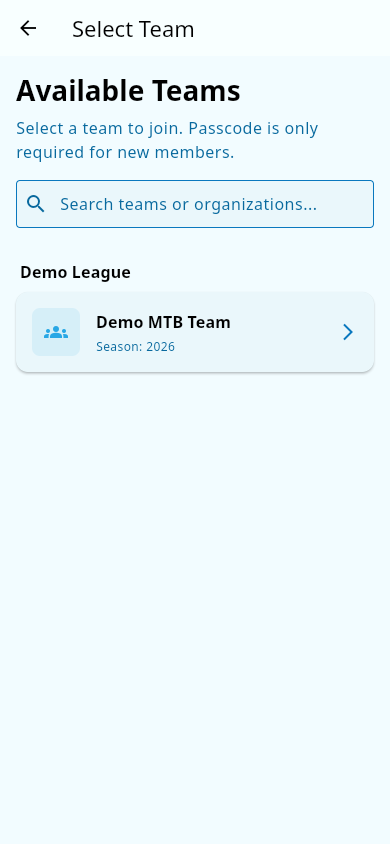 Signing in with no team yet: pick your team, join with a passcode, or create a new one.
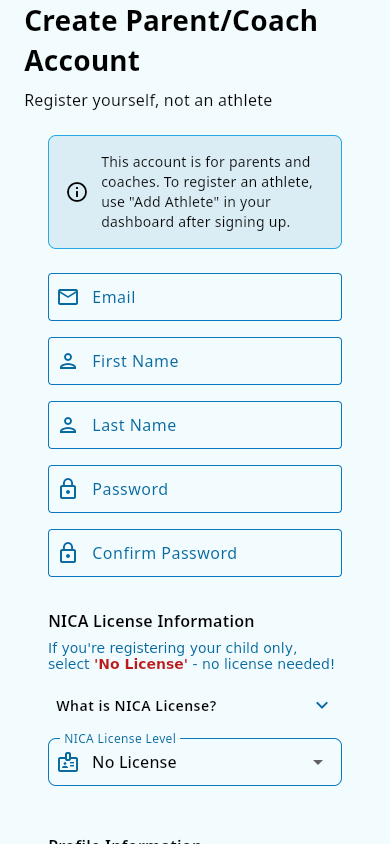 The Sign Up form: email, password, and account details.
Athlete invited by a parent: an athlete whose parent registered them does not sign up this way. The athlete receives an email with a signup link and creates their account through that link. See Register your athlete (parents).
What you should see
- The verification email in your inbox shortly after you submit the form, and the Verify Your Email screen waiting for its 6-digit code.
- When the code is accepted, you are signed in automatically — no separate sign-in step.
- After sign-in: your team's dashboard, or a screen asking you to pick a team, join one, or create a new one.
Notes and limits
- You must verify your email before the app lets you in.
- If the verification email does not arrive, check your spam folder and tap Resend Code on the verification screen (you can resend again after about a minute). If it still does not show up, ask a team admin or see Signing in and managing your account.
- You choose your own role when you join a team with a passcode. A coach join needs a current NICA license on your account; see Roles and permissions.
Related pages
- Sign in and out — once your account exists
- Register your athlete (parents) — parents adding a child to a team
- Install the app — if you have not installed Groupset yet