Check-out reporting: incidents and coach notes
Who this is for: coaches file incident reports and notes; team admins review incidents Applies to: Android · iOS · Web
What this page covers
Two of the three check-out tools: incident reports and coach notes.
- An incident report (sometimes abbreviated IAI) records something that happened to an athlete's body or safety during practice — a crash, a close call, an injury. It goes to the team admin's review queue because it matters for the athlete and for the team's records.
- A coach note is a free-form, private progress note about an athlete. Notes have no review queue and no formal lifecycle — they're just the coaching staff's shared memory.
Incident reports
What a report records
When you file an incident report you record:
- Severity — one of three tiers:
- Minor — noted (something worth recording, no time lost).
- Time lost — the athlete had to sit out part or all of practice. Only older reports still carry this severity — it can't be chosen on a new report.
- Emergency care — the athlete needed medical/emergency attention.
- Body areas — which parts of the body were involved (you can select more than one).
- Description — what happened. Emergency-care reports — and legacy time-lost reports being edited — require a written description.
- Emergency care sought details (and time lost details on older reports).
- When it occurred.
Who can file
- Any coach may file an incident report for athletes in the groups they coach — there is no license-level requirement. Team admins can file too, for anyone on the team.
- The written description is required for emergency care (and for legacy time lost reports you're editing), not for a minor — noted incident.
Filing a report
- Start the Incident report form — you're prompted at athlete check-out, or open it from the athlete's actions/reporting menu.
- Confirm the athlete and when the incident happened.
- Choose the severity.
- Select the body areas involved.
- Write the description (required for emergency care).
- Add the emergency-care details if applicable, and whether a parent was notified at the scene.
- Submit.
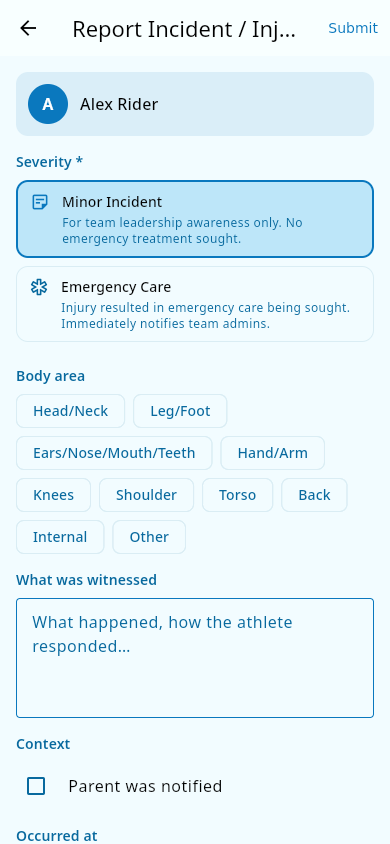 The incident form: the severity tiers and the body-area chips.
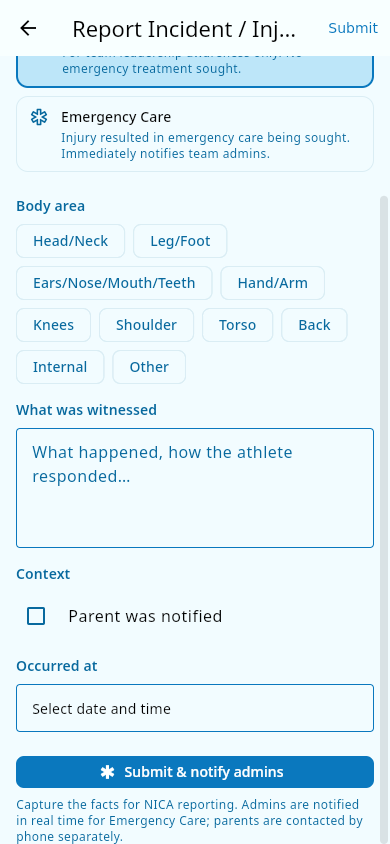 What was witnessed, plus the when-and-where context fields below it.
What you should see: the report is saved as logged and goes onto the team admin's review queue. The admin is notified — with the notification weighted by severity, so an emergency-care report gets urgent attention.
Editing or cancelling an open report
While a report is still open (not yet decided), the submitting coach — or a team admin — can:
- Edit it — correct the body areas or add detail. The severity and the incident time are locked once the report is filed.
- Cancel it, if it turns out nothing happened.
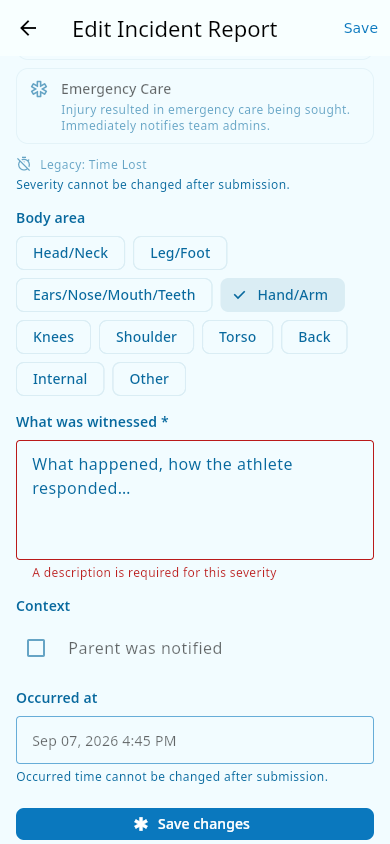 Editing a legacy Time lost report: the severity is read-only, and saving still requires a description.
What happens to the report after the admin decides
When the admin resolves the report — Completes it, or Cancels it — the report's free-text narrative is removed — the description and any admin notes are purged so only metadata remains: the date, severity, body areas, and the athlete it concerned. (Cancelling a report purges the narrative the same way.) That metadata stays for the team's incident records; the personal narrative doesn't linger. The athlete's report log shows only a deliberately plain line — "incident resolved" with the date — with no severity or story attached.
Privacy: incident reports are never shown to parents and never appear where a parent can see. When an athlete needs real medical attention, the coach contacts the parent by phone at the scene — the app is not how that news travels.
Coach notes
A coach note is a short, timestamped, private note on an athlete's record — for example "felt strong on the climbs today" or "still favouring the left wrist — watch it."
- Open the athlete's note area (from their member page or the reporting menu).
- Write the note and save. It's stamped with your name and the time automatically.
- To reply to an existing note and keep a conversation together, reply to it — replies thread under the original.
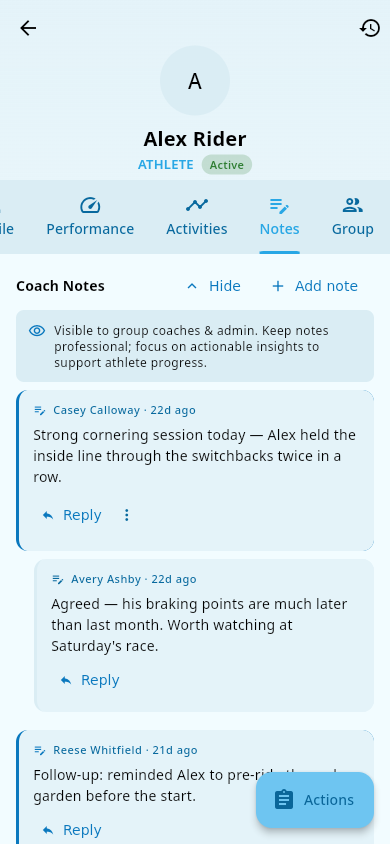 The notes feed: a note with a threaded reply underneath.
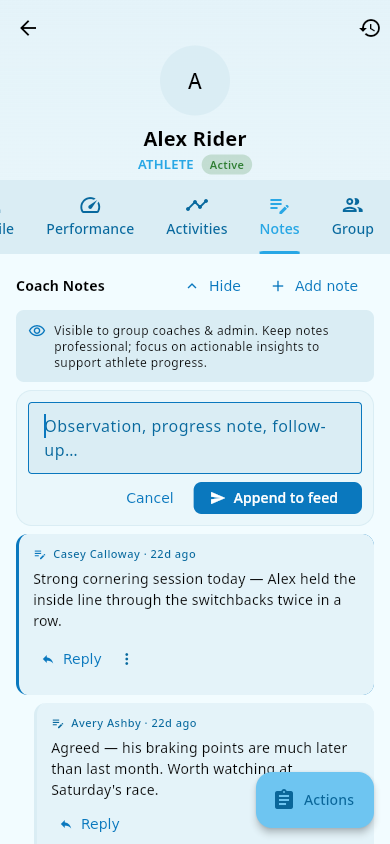 Writing a note: the composer, open for a new observation or reply.
Notes are visible to coaches and team admins only — never to athletes, parents, or other roles.
Editing and deleting: the author can edit their own note's text later, or delete it (which removes any threaded replies too). No one else — including a team admin — can rewrite another coach's note.
What you should see: the note appears in the athlete's note feed, newest first, with the author's name. Notes update live for other coaches viewing the same athlete.
Notes and limits
- Incident reports are not license-gated: any coach can file them (for athletes in the groups they coach). What a coach can read is narrower: in My Reports you see only the incidents you filed yourself, without any admin notes. The full incident queue — including incidents filed by other coaches — is visible to team admins only. If you can't find an incident you expected to see, another coach may have filed it; ask your team admin.
- A report's severity and incident time are set when you file it; an emergency care report — or a legacy time lost one you're editing — must include a description, and the incident time can't be in the future. On an open report you can correct the body areas and the description, but not the severity.
- Coach notes are not the same as incident reports — a note never triggers the admin queue or any notification.
Related pages
- Check-out reporting (overview) — the suite this fits in.
- Check-out reporting: review queue — how the admin resolves incident reports.
- Attendance — where filing starts at check-out.
- Medical and consents — the athlete health record these reports relate to.