Becoming a coach
Who this is for: parents who'd like to coach, and the team admins who review those requests Applies to: all platforms (Android, iOS, web)
What this page covers
If you're a parent on a team and want to start coaching, you send a coach request from your profile; a team admin reviews it and approves or declines it. This page covers how to send a request, what admins check before approving, what each NICA license level means inside the app, and what happens after a decision.
Before you start
- To send a request you must be a parent on the team. You can't send one if you're already an active coach on that team, and you can only have one pending request per team at a time.
- To review requests you must be a team admin (or owner).
- Have your NICA coach license details handy: your license level and its expiration date. What you enter is self-reported — an admin verifies it before approving. (See the glossary for what the license levels are.)
Sending a request (parents)
- Open your Profile and choose Edit profile.
- Find the coach request area — it appears for parents on a team.
- Choose your NICA license level (None, Level 1, Level 2, or Level 3) and enter its expiration date.
- Optionally add a short note for the admins (up to 500 characters) and the group you'd like to coach.
- Choose Request to coach.
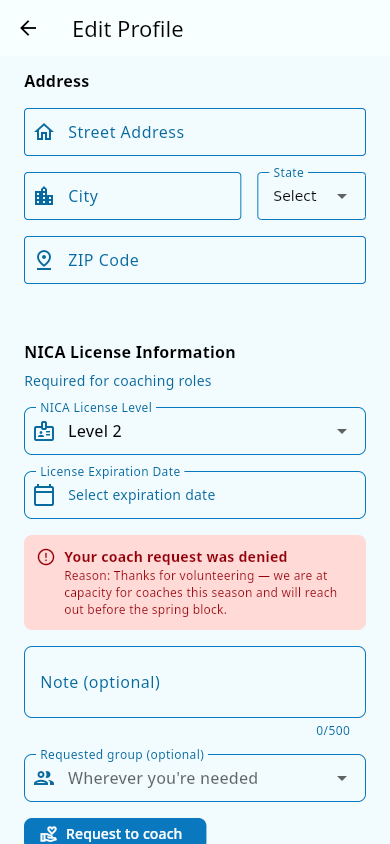 The coach request area in Edit Profile: license level, expiration, an optional note, and the group you'd like to coach.
What you should see: your request is pending. The team's admins are notified, and your profile shows the request's status — the pending chip with its Withdraw action. While it's pending you can withdraw it from the same place.
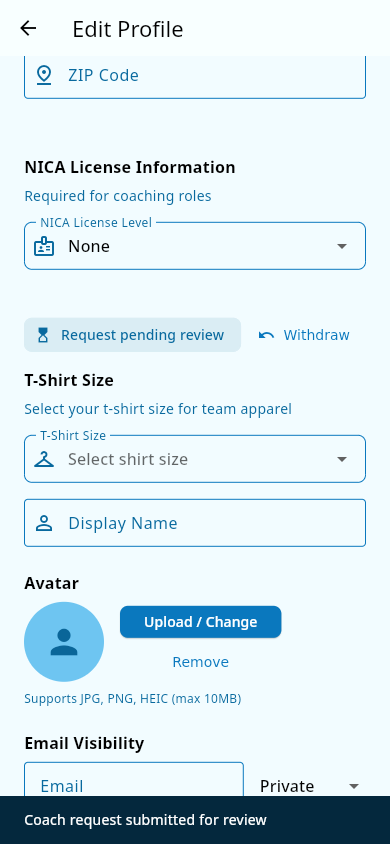 A pending request: the Request pending review chip with the Withdraw action.
Reviewing a request (team admins)
- Open the review queue — the same screen that handles group change requests and incident reports — and open the Coach petitions tab. A badge counts what's waiting and updates live.
- Open a request. You'll see who's asking, the license level and expiration they entered, their note, and the group they asked for (if any).
- Check the license yourself. Confirm the level and expiration against the coach's record on the league's licensing site (Pit Zone). The app never verifies licenses automatically — approving is your confirmation that you checked.
- To approve: choose the group to assign them to. Their requested group is preselected, the list shows how many coaches each group already has, and choosing a different group than they asked for shows a note. Confirm.
- To decline: a written reason is required (up to 500 characters). Only the requester is told.
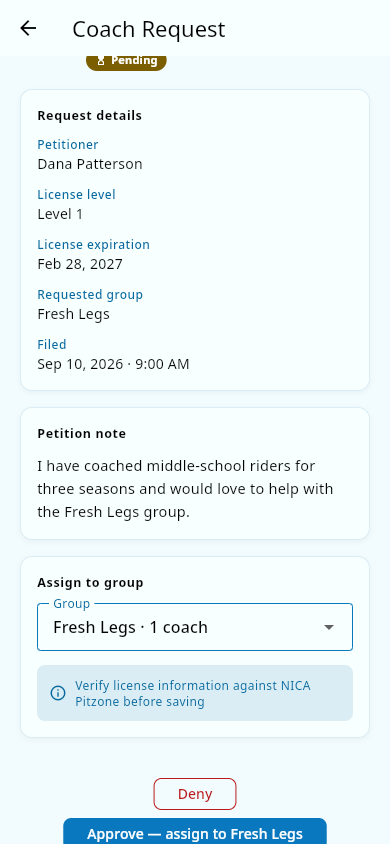 Deciding a request: the requested group preselected, each group's coach count shown, and the Approve/Deny actions.
What you should see: an approved parent appears as a coach on the roster and in the chosen group's coach list. The new coach and that group's coaches are notified; a declined parent is notified with your reason.
What the license levels mean in Groupset
- Level 1, Level 2, and Level 3 are the league's coach certifications — higher levels mean more completed training. None means no current license.
- Inside the app, license level matters for one thing today: viewing an athlete's medical information needs Level 2 or higher (see Medical and consents). Every assigned coach can use the coaching tools and the performance dashboard at any level.
After the decision
- Approved: you're a coach. Your license level shows on your coach profile and only a team admin can change it — if your level or expiration date is wrong, ask your team admin to correct it on your record.
- Declined or withdrawn: you can send a new request any time; each new request starts fresh. A declined request shows the decision and the admin's reason on your profile.
- The app doesn't set a deadline for reviews. If your request has been pending a while, ask your team admin directly.
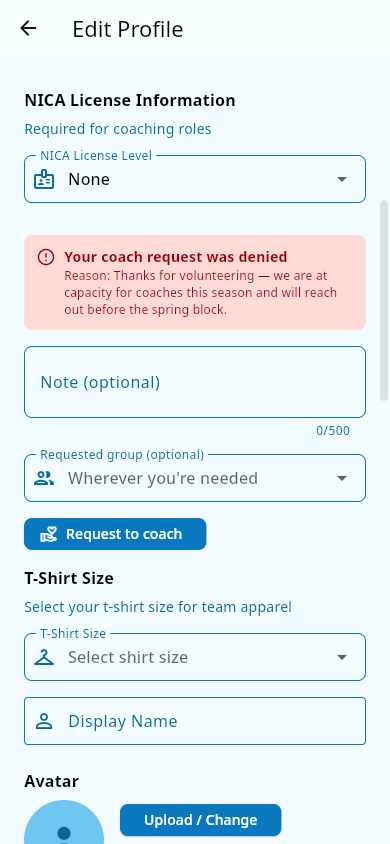 A declined request: the profile shows the decision and the admin's reason.
Notes and limits
- One pending request per team at a time; a new request can only be sent after the current one is approved, declined, or withdrawn.
- The optional note on a request and the reason on a decline are each limited to 500 characters.
- Approval is always a human check by a team admin or owner — the app never promotes anyone automatically, and coaches can't promote anyone.
- Team admins are notified as soon as a request arrives.
Related pages
- Roles and permissions — what coaches can do once approved.
- Profile and account — where the request is sent from.
- Groups — the training group a new coach is assigned to.
- Medical and consents — the Level 2+ gate on viewing medical info.
- Check-out reporting: review queue — the queue where requests are decided.
- Performance analytics — open to every assigned coach, any license level.