Profile and account settings
Who this is for: everyone — with special notes for athletes, parents, and would-be coaches Applies to: all
What this page covers
The things you can change about your own Groupset profile — your preferred units, who can see your email address, and your profile photo — plus the two things you can't change yourself: your email address and the athlete's season objective (until your email is verified). It also explains how profile photos work across the app (viewing, replacing, removing) and where parents go to ask to become a coach.
Before you start
- You are signed in (see Sign in and out).
- To use the season objective, your email address needs to be verified first (see Create your account for how to verify it).
Step-by-step
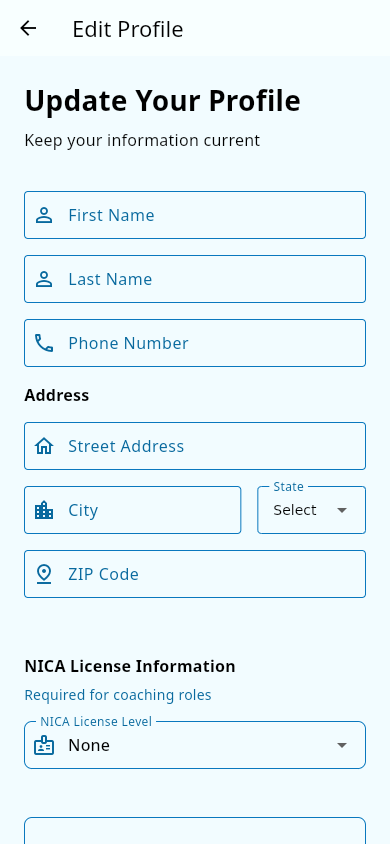 The Edit Profile screen: contact details, NICA license, and preferences.
- Open the navigation menu and tap Edit Profile. The screen opens with your contact details and preferences.
Set your preferred units
- Find the Preferred Units setting and choose Metric or Imperial.
- Tap Update Profile to save. Distances, elevation, and speed across the app now show in your chosen units.
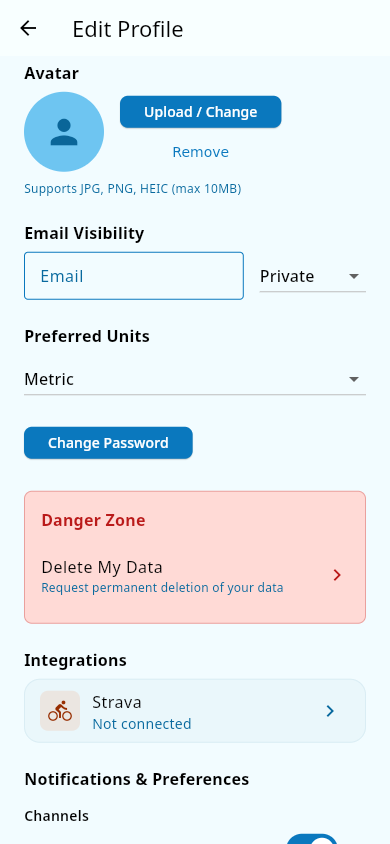 Edit profile: the Preferred Units setting.
Choose who can see your email
- In the same area, find Email Visibility and pick Public, Team Only, or Private. It is Private by default.
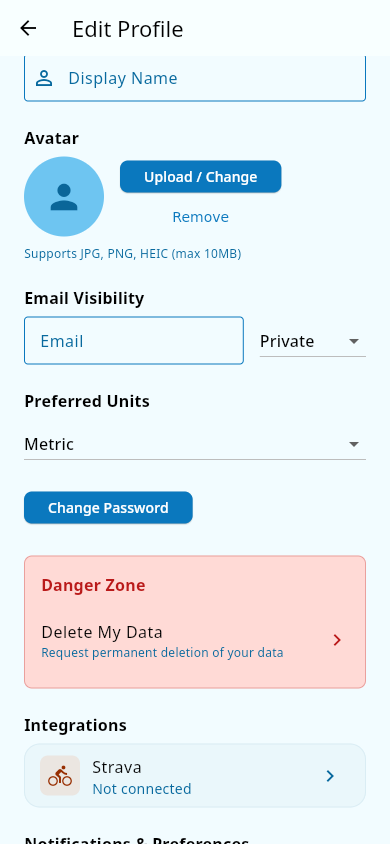 Edit profile: choosing who can see your email address.
Add or change your profile photo
- In Edit Profile, tap Upload / Change next to your picture.
- In the Select Photo sheet, choose Choose from Gallery or Take a Photo, and allow camera or photo access if the app asks. Your new picture appears in a circle on the screen — it has not been uploaded yet.
- Tap Update Profile to save. The photo uploads while you wait, and your new picture appears next to your name around the app when it finishes. If the upload can't complete, the app shows a message explaining whether the problem was your connection, the service, or your sign-in — check your connection and try again. Your other profile changes are not saved until the upload succeeds.
- To clear a new picture you just picked before saving, tap Remove next to it.
Manage an athlete's photo (parents, coaches, and team admins)
- Open the athlete's page — from Roster Management or the Family tab, for example — and tap their photo. It opens full-screen.
- If you can manage this photo, buttons appear at the bottom: Take Photo, Choose Photo, and, for parents and team admins, Remove Photo. On a phone, Take Photo opens the camera; on web, it opens your photo library instead, because browsers don't offer the camera here.
- After you take or choose a picture, move and size it so the part you want sits inside the circle, then tap Use Photo. The photo uploads straight away with a progress bar; if it fails, tap Retry.
- Remove Photo clears the picture and brings back the initials. Coaches can replace an athlete's photo but cannot remove it — only parents and team admins can.
Set your season objective (athletes)
- From Edit Profile, find the Season Objective field — the one field you set for yourself. It is your personal goal for the season, chosen from a few set categories.
- Choose your category and save. Saving it requires your email to be verified; if it isn't, the app shows a generic "Failed to update profile" message that doesn't explain the cause.
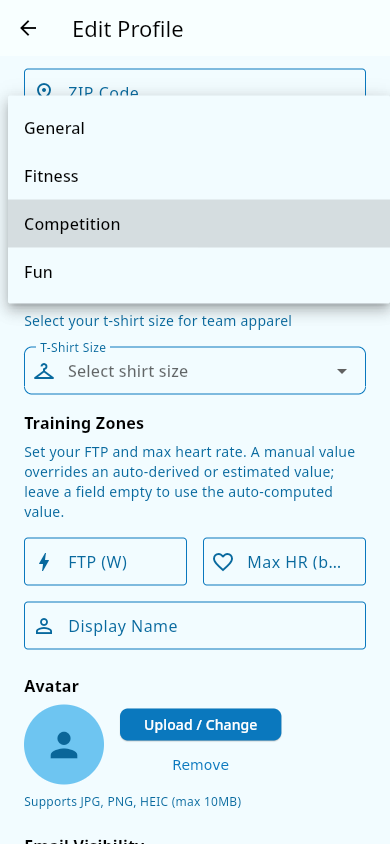 The Season Objective field with its category picker open.
 The generic "Failed to update profile" error shown when the email isn't verified yet.
Ask to become a coach (parents)
- Still in Edit Profile, parents on a team also see a coach request area. Fill in your NICA license level and its expiration date, optionally add a note and the group you'd like to coach, and send the request.
- Your request goes to the team's admins to review. While it is pending you can withdraw it from the same place, and you can send a new request later — after a withdrawal or a denial, you can ask again.
What you should see
- Units: distances in the app now match your choice.
- Email visibility: other people see (or don't see) your email according to your setting.
- Profile photo: your new picture appears next to your name around the app. Tapping a photo on a member's or child's page opens it full-screen, where you can replace or remove it if you have permission.
- Season objective: after a successful save, your goal shows on your profile and to coaches who view your performance.
- Coach request: your profile shows the request's status, and the team's admins are notified when it arrives.
Notes and limits
- You can't change your email address. Only a parent or a team admin can change it. If the app won't let you edit it, that's by design — ask your parent or admin to make the change.
- Season objective needs a verified email. If saving fails with "Failed to update profile", check that your email is verified (see Create your account); the app won't tell you this is the cause.
- Photos are circular and standardized. Every photo is cropped to a circle and processed by the app, so what you upload is what everyone sees. Photos can be JPG, PNG, or HEIC, and must be under 10 MB.
- Removing a saved photo: the Remove button in Edit Profile clears the picture from the edit screen, but it does not delete your saved photo — the photo stays until you replace it. To remove an athlete's photo, use the full-screen photo view (parents and team admins only).
- No photo yet? People without a picture show their initials instead.
- Who can manage a photo (see Roles and permissions): athletes with their own login set their own; parents manage their child's; coaches can replace an athlete's photo but not remove it; team admins can replace or remove. Removing a photo brings back the initials.
- Leaving Groupset, or pausing a login: asking for your data to be deleted, and deactivating or reactivating an athlete's own login, are covered in Accounts, deactivation, and deleting your data.
- Coach requests: you can have only one pending request per team at a time. A team admin checks your self-reported license against NICA's own records by hand before approving — see Becoming a coach.
- Your season objective is the one profile field you edit yourself; the rest of your profile details are managed by your parents or team admins.
- Groupset estimates training numbers from your rides automatically — you don't enter power or heart-rate values by hand (see Performance analytics).
Related pages
- Becoming a coach — the full coach request flow and how admins review it.
- Roster — where member pages and profile photos appear.
- Create your account — how to verify your email, which unlocks the season objective.
- Sign in and out — getting into your account.
- Performance analytics — where your goal category and training numbers appear.
- Accounts, deactivation, and deleting your data — pausing a login, or asking for data to be deleted.