Events and attendance
Who this is for: coaches, athletes, parents, team admins Applies to: all
What this page covers
Why a check-in won't go through, why double-tapping check-in is safe, why a parent hears about every check-in and check-out, why an attendance report might be missing people, why an athlete's streak hasn't gone up, and how volunteer item reminders behave when an event moves.
Common problems
You can't check in
Symptom: The Check in button does nothing, or the app says you can't check in.
Likely cause: One of these is true:
- The event hasn't started yet — check-in is available only during the event's window, not before it or after it.
- You're not on the event's roster. Athletes must belong to the team hosting the event. Parents can only check in their own linked athlete, and only on race days.
What to do:
- Wait for the event to start.
- If you believe you should be able to check in, ask the team admin to confirm you're on the event's roster.
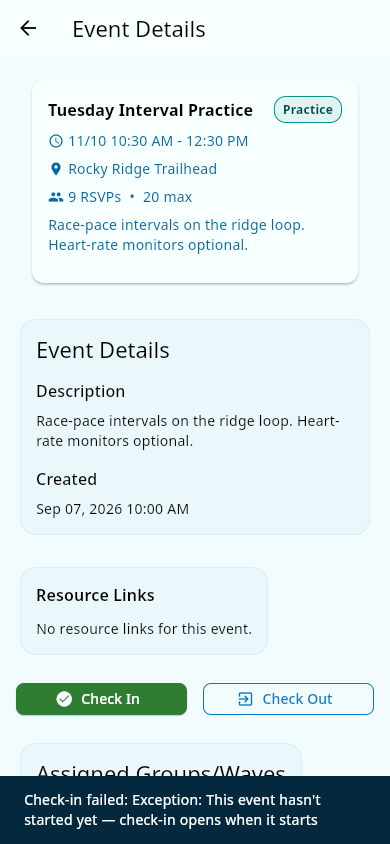 A blocked check-in: the app explains why the check-in was refused.
Check-in does not depend on where you are — the app never requires your location to record it. The geofence circle shown around an event on the map is context only; see Core concepts.
Double-tapping check-in shows no error
Symptom: You tapped Check in twice (or a helper tapped it too) and nothing happened the second time — no error, no warning.
Likely cause: That's by design. The app records the check-in once and safely ignores repeats, so nobody gets double-counted.
What to do: Nothing. Repeated taps never count someone twice.
Check-out says "No open check-in found"
Symptom: You tap Check out for an athlete and the app says No open check-in found (or similar).
Likely cause: The athlete has already been checked out — someone else (a second coach, or a parent on race day) did it first, or the check-out already went through. A second check-out has nothing to close.
What to do: That's expected — check the attendance list for the athlete's check-in and check-out times. No fix needed.
A coach can't check in an athlete: "Athlete does not belong to this event's team"
Symptom: You tap Check in for an athlete and the app says Athlete does not belong to this event's team.
Likely cause: The athlete isn't on the roster of the team hosting this event — they may belong to a different team, or the event was created under the wrong team.
What to do: Confirm the athlete is on the correct team and that this event belongs to that team. If there's a mismatch, ask a team admin to fix the athlete's team membership or the event's team.
A parent: "my child was there but shows as not checked in"
Symptom: A parent sees their child listed as not checked in for a practice they attended.
Likely cause: The child wasn't checked in at the time — practice check-in is done by a coach or team admin, and a row can be missed. Parents can view attendance but can't correct it.
What to do: The parent should ask the coach or team admin at the practice. A coach or team admin can record or correct the check-in from the event's Attendance tab.
An athlete can't check in to practice themselves
Symptom: An athlete sees no Check in button on a practice, or the app won't let them check in.
Likely cause: That's by design. Athletes don't check themselves in to practices — a coach or team admin checks them in (and out). Coaches check themselves in and out the same way, from the same list.
What to do: Nothing is wrong. Find a coach or team admin to check you in at practice.
A parent gets a notification for every check-in and check-out
Symptom: A parent's phone buzzes twice per practice — once when their child is checked in, and again when they're checked out.
Likely cause: That's by design. The app notifies parents when their athlete is checked in and again when they're checked out, so they know their child arrived and left safely.
What to do: Nothing. The alerts stop about an hour after the event ends. If they keep arriving outside that, see Notifications and push.
An attendance report is missing people
Symptom: An attendance report doesn't show everyone you expected.
Likely cause: Reports are scoped by role:
- Coaches see the athletes in the groups they coach.
- Parents see their own athletes.
- Team admins see the whole team.
What to do:
- If you're a coach and an athlete is missing, check which training group they're in — the report only follows the groups you coach.
- If you're a parent, remember you only see your own athlete(s).
- Team admins see everyone; if someone is still missing there, check whether they're on the team at all.
The same scoping applies to a single-athlete report — one rider's check-ins over time: coaches can pull it for athletes in the groups they coach, and parents see only their own children.
An athlete's streak hasn't gone up
Symptom: An athlete has been at every practice, but their attendance streak (or their numbers on an attendance report) hasn't gone up — and upcoming practices on the schedule seem to be holding it back.
Likely cause: That's how streaks are meant to work: streaks and per-athlete report numbers count only practices that have already happened. A practice still on the schedule doesn't count — for or against — until it takes place. (Previously, a scheduled future practice could wrongly knock a streak to zero.)
What to do: Nothing. Once the next practice happens and the athlete checks in, the streak updates — and it shows the same number on the attendance report, the coach's streak heat map, and the athlete's own page.
A volunteer item reminder arrives (or seems mistimed)
Symptom: A reminder arrives saying a volunteer item "is needed in 30 minutes" (or 10 minutes) — sometimes before the event itself starts. Or the reminder arrives even though notification preferences are turned down.
Likely cause: That's by design. Items with a needed by deadline remind at 30 minutes and again at 10 minutes before that deadline; items without a deadline — and shifts — remind before the event time instead. Volunteer reminders can't be turned off: if device notifications are off, the reminder still shows in the app's notification list.
What to do: Deliver the item where the team asked — the event page shows the item and its deadline. If the deadline looks wrong, it may follow an event that moved (see below), or ask the team admin to check it.
An event moved — do the volunteer times and signups follow?
Symptom: A race or practice with volunteer shifts was moved to a new time, and you're wondering whether the shift times, item deadlines, and reminders still reflect the old schedule.
Likely cause: Nothing is stale. When an event moves, the team's volunteer setup follows automatically: item deadlines that were set relative to the event are reworked from the new time, shift statuses update on their own, and reminders re-fire against the new schedule.
What to do: Nothing. Reopen the event's volunteer section to see the updated times and deadlines.
Notes and limits
- Check-out works like check-in: recorded offline, it's saved and sent automatically when you're back online.
- There's no self-serve way to edit a past check-in or check-out time; ask a team admin.
- Attendance updates live for everyone watching the event's screen — no refresh needed.
Related pages
- Offline and sync — check-ins made with no signal
- Race results — the Results tab on race events
- General availability — check-in fails for everyone at once
- Events and practices — creating events and RSVPing.
- Attendance — the how-to guide for check-in and check-out.