Offline and sync
Who this is for: everyone Applies to: all
What this page covers
What to do when the app won't load at the trailhead with no signal, how offline check-ins work (and where to find the pending operations badge), and why data can look stale after a long outage.
Common problems
The app won't load at the trailhead
Symptom: You're at the trailhead with no signal, and the app won't show your team's data — screens are empty or show an error.
Likely cause: Offline mode can only show data the app already stored the last time you were online. If you've never opened the app with a team selected (or never signed in with a signal), there's nothing stored yet.
What to do:
- Before heading out, open the app once with a signal, sign in, and pick your team so the app saves its data.
- After that, the trailhead check-ins work without signal.
- If it's still empty offline, reconnect briefly to refresh, then go back out.
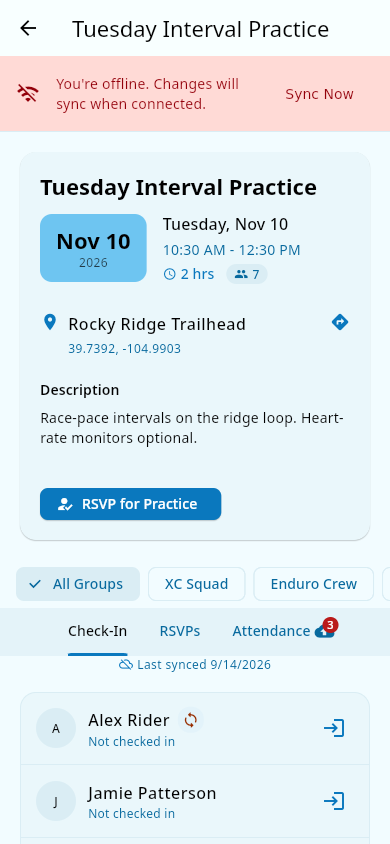 The offline banner with its Sync Now button.
Check-ins made offline are queued and sync later
Symptom: You checked someone in with no signal, and it's not showing up on other devices yet.
Likely cause: Offline check-ins are saved on your device and sent to the team when a connection comes back. That's by design — a queued check-in only falls off after three failed send attempts (see below).
What to do:
- Look for the pending operations badge on the practice/event detail screen — it shows how many changes are queued and spins while it sends them.
- When a connection returns, the app sends them automatically. Tap Sync Now on the offline banner to send them immediately.
- If a queued check-in can't be sent after three tries, the app stops trying and removes it from the queue — once you're back online, check the attendance list and have a coach record the check-in if it's missing.
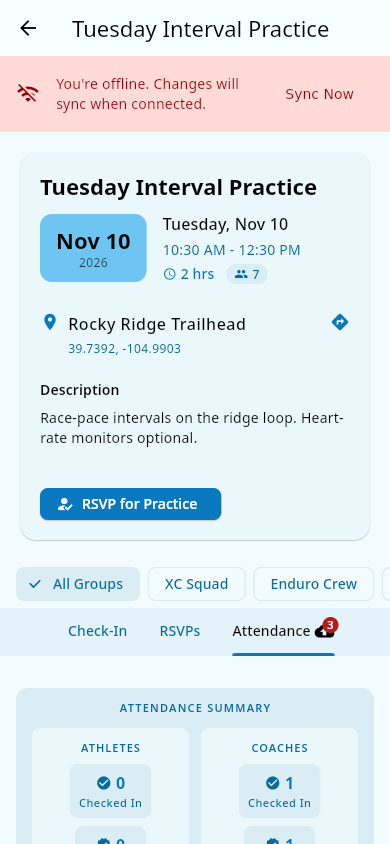 The pending-operations badge with its queued count.
Data looks stale after a long outage
Symptom: After being offline for a while, your lists (roster, events, chat) show old information.
Likely cause: Offline, the app shows what it stored. It refreshes from the servers automatically once you're online again.
What to do:
- Once you have a connection, give the app a moment — it refreshes in the background on its own, and it also refreshes your roster, events, and emergency contacts when you come back to the app after being away.
- To pull the latest right now, tap Sync Now on the offline banner.
Notes and limits
- Event locations and maps stay viewable offline once they've been loaded.
- The app saves your team's roster, events, emergency contacts, and attendance as you use it online — including when you sign in and when you return to the app — so there's something to show at the trailhead.
- Only check-in/check-out is queued offline. Chat messages, rides, and other changes need a connection and should be sent when you're back online (see Chat).
- A queued check-in is dropped from the queue after three failed send attempts — confirm it landed before assuming it synced (see above).
- On a phone, offline data and queued check-ins survive closing and reopening the app. In a browser, they live only until you reload or close the page — a reload clears the cache and any check-ins still waiting to sync, so check out (or wait for a connection) before reloading.
Related pages
- Events and attendance — check-in problems with a signal
- Chat — messages that won't send without a connection
- Signing in and managing your account — signing back in after an outage
- Attendance — the how-to guide for check-in and check-out.