Coach insights
Who this is for: coaches (team admins can also view; athletes and parents never see this) Applies to: Android · iOS · Web
What this page covers
Coach insights is a nightly briefing that answers the question "what should I do for this group this week?" Each night Groupset looks at every training group's attendance, rides, practice-readiness, and upcoming races, and builds a short ranked list — up to five Weekly Actions — for the coach of that group. The actions live on the Group tab (with the celebrations they point at), the read-only report stays one tap away, and some actions open the right screen directly. This page explains what kinds of actions appear, where to work through them, and when the briefing finds its way to you.
Before you start
- You must be a coach assigned to a training group (or a team admin). The report is per group, so coaches see the groups they coach.
- The briefing is generated overnight from recent team data, so numbers reflect what happened through the end of the previous day. That pass runs at a fixed time that lines up with US time zones, so for teams far from US time the day boundary can be approximate.
What Weekly Actions look like
Each group's report leads with up to five numbered actions. Common kinds you'll see:
- Reach out to a rider — an athlete who's been absent a while or hasn't checked in recently.
- Race-week prep — a heads-up that a race is coming and whether riders have enough recent riding behind them.
- Skill work — a rider whose climb or descent times sit well below their peers, sometimes with a suggestion to pair them with a faster teammate.
- Volume check — a rider whose last week of riding is a genuine spike against their own normal: about 1.5× their typical weekly riding time, at least an hour more than usual, and among their biggest weeks in the last six months, with at least two hours a week of recent riding behind them and roughly six weeks of ride history. The "why" line says how this week compares with their typical week (for example, "Their biggest week in about 2 months — 16.3h this week vs 7.0h/week typical"). Riders without an established history (new or rarely active) never trigger it. The suggested step is usually to loop in the rider's parent or guardian about training load and recovery days at home — a check-in, not a criticism.
- Volume conversation — a rider riding well below the group's typical weekly volume, worth a quiet conversation.
- Strava nudge — a rider who isn't syncing rides, so there's no data to coach from.
- Celebrations — true milestones only: new personal records, season bests, and attendance-streak milestones from the group's activity feed. Ordinary posts never make the list, so celebrations stay fewer and more meaningful, and each milestone is only celebrated once.
Each action shows the rider's name and a short "why" line with the numbers behind it, so you can decide what to do. The list is capped at five and ordered by priority, and a rider appears only once (in their most urgent action).
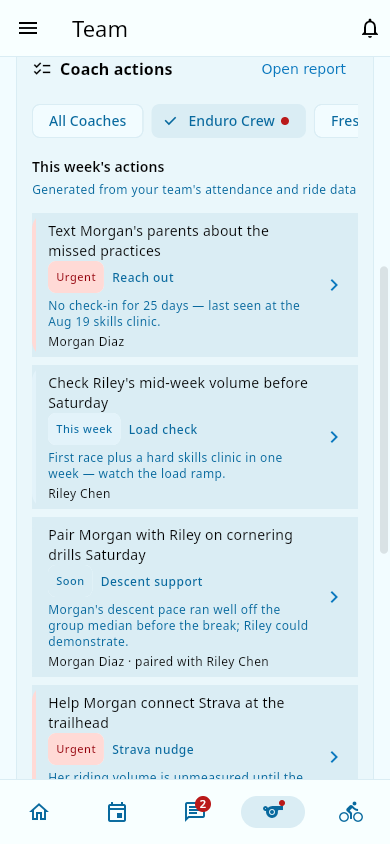 The numbered Weekly Actions for a group, each showing the rider and a short "why" line.
Reading the report
- Open Coach insights from your home screen or navigation (a dashboard card links here when there's something new).
- The report is now drill-downs only — the action list and the celebrations have moved onto the Group tab (see below). The report still opens from the home dashboard card, the Open report link on the Coach actions card, or the navigation, and shows the read-only detail sections in a fixed order: volume, skills, attendance (including the streak heat map — one circle per athlete, darker the longer their current streak; tap a circle to open that athlete's page straight on their performance tab), and group guidance. Group guidance can be missing on older, stored ones — that's expected.
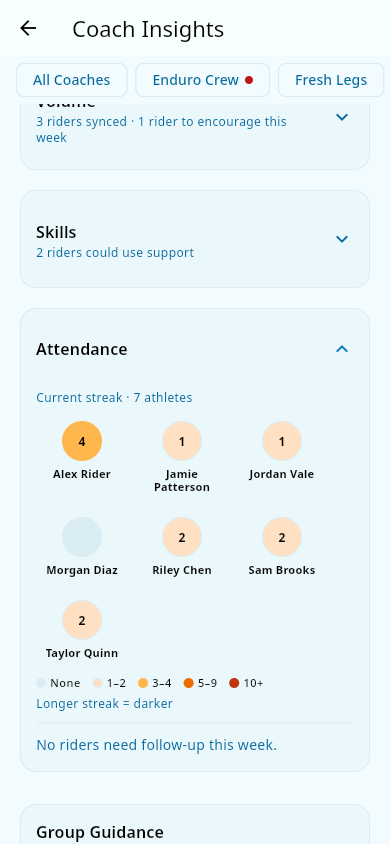 The report's sections in order: Volume, Skills, Attendance with the streak grid, and Group Guidance.
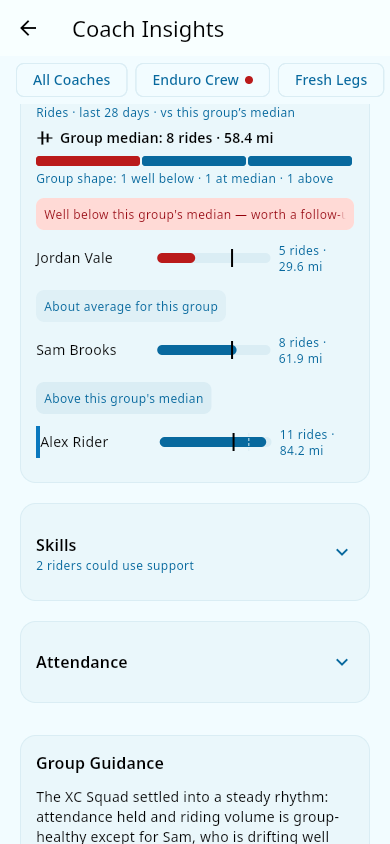 The Volume section expanded, comparing each rider's recent riding with the group median.
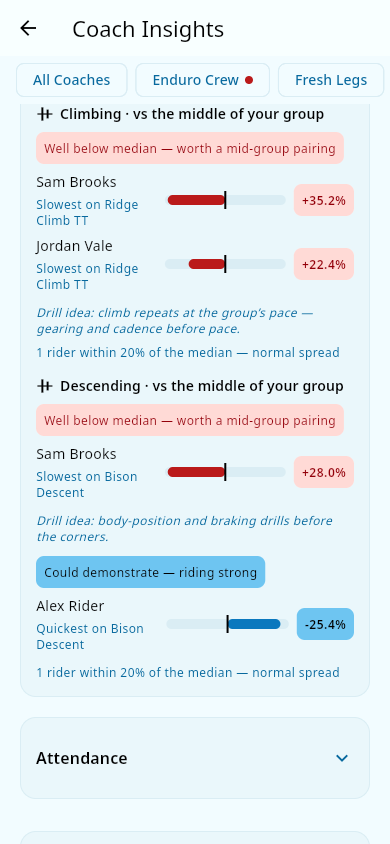 The Skills section expanded, comparing climbing and descending with the middle of the group.
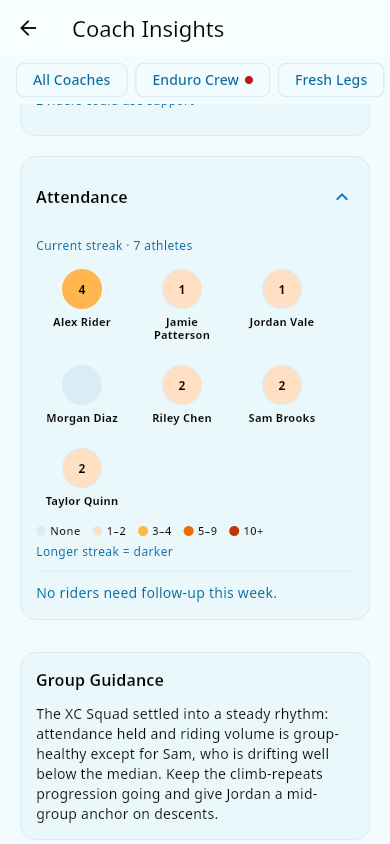 The attendance streak grid: one circle per athlete, and a darker circle means a longer current streak.
You can open the report anytime. It's built overnight from team data, so opening it shows the latest stored build without a wait — and if that build is more than about two days old, the app quietly refreshes it on the spot.
The Group tab: acting on your actions
Your Weekly Actions and Celebrations live on the Group tab, laid out top to bottom as: Next Practice, Athletes, Coach actions (your Weekly Actions card), Celebrations, then Volunteers. They render as plain cards — nothing is collapsed or hidden behind a tap. The actions card's header carries an Open report link to the full read-only report.
- Group chips sit inside the actions card (red dot = a group that needs attention) and default to the group that needs attention first. The celebrations card follows the same selection.
- Handle an action by tapping I handled this on its tile — it moves under "Being handled" immediately (and stays there even if you switch tabs and come back). Some actions ask a short follow-up question ("Did you get to it at practice?" for practice work, "Did the parent respond?" for parent outreach), and your answer is saved.
- Unhandled actions don't quietly vanish. After a couple of weeks an open action is flagged for attention, and after about a month a parent-outreach action escalates to more direct wording.
- Tapping an action's body takes you where the work happens: a volume check or volume conversation opens the Performance dashboard on the Group Volume card with that rider highlighted; climb/descend skill work opens the dashboard's Group Skills card (mentoring-style skill actions open the report's Skills section instead); reach out and Strava nudge actions open the rider's member page on their profile, right at the linked parents card with the family contacts.
- A celebrate action ("Celebrate …'s new PR") opens that celebration's detail — the same view you'd get tapping it in the team feed. Send the high-five right on the tile; the confirmation's View option takes you to the Home feed with the celebration briefly highlighted — a tap to acknowledge the win in front of the team, not a post.
- Celebrations are true milestones from the activity feed — personal records, season bests, and streak milestones — read-only rows, no posting. The list can reach back a few weeks (roughly the last month), and each milestone is only celebrated once.
What the flags and lists mean
- A group marked urgent (red) means one or more athletes in it have no check-in ever, or none in the last 21 days. Open that group's report to see who.
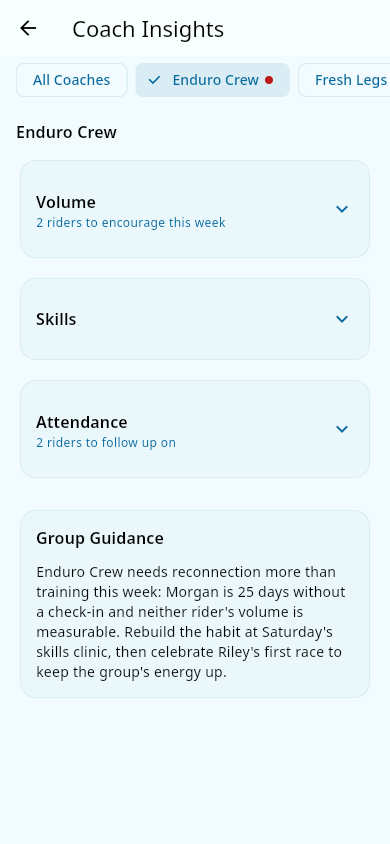 A group marked urgent with a red dot, shown alongside the other group chips in the report.
- A skills list shows riders who are at least 20% off the group's median, using only fresh efforts (roughly the last 28 days). A list needs at least three riders to compute a median, shows at most two names, and stale form (180 days or older) never drives a list.
The dashboard triage card
On the home screen, a triage card appears only when one of your groups needs attention — a group with flagged items (for example, an athlete who hasn't checked in for a long stretch) or new or escalating actions. The card shows that group's headline. You can dismiss it for the week, but it comes back the next week regardless of whether anything changed — dismissal is per group per week, not "until something new." Tapping it opens the full report.
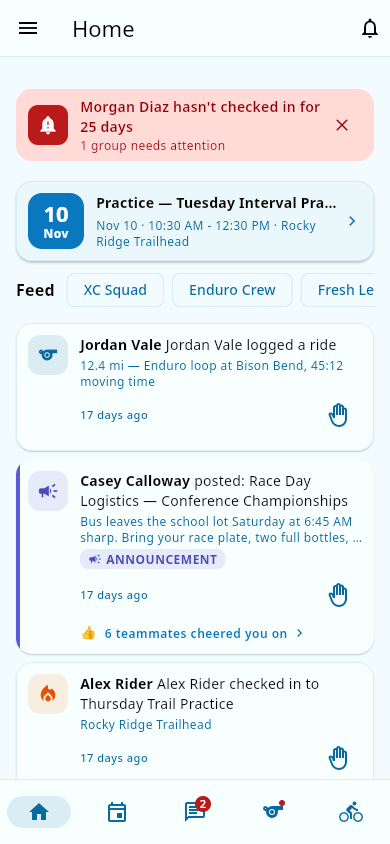 The home screen triage card naming the group that needs attention, with a dismiss option.
How you're notified
- In-app: when your weekly push goes out, the same notice is added to your in-app notification list (once per week, even if the push itself can't be delivered).
- Weekly push: at most one insight push per coach per week, on Sunday in your team's time zone. Groupset pushes about your most-urgent group when there's something to act on. A week with only celebrations — nothing to act on — sends no push (you'll still see the celebrations on the Group tab and in the feed). Silent weeks with nothing to report send nothing.
- Coaching groups in more than one team? Notifications are per team: at most one per team, each about that team's own groups.
Your team's time zone must be set for pushes to go out at all — a team with no time zone set never gets them.
Notes and limits
- Coach insights is strictly coach- and admin-facing. Athletes and parents never see it. When the automated wording step polishes an action's phrasing, riders are only ever anonymous codes to it — no real names or contact details leave the coaching tool.
- Action wording follows youth-safety guardrails: anything that names an athlete points you to a group setting at practice, the parent/guardian channel, or working with another adult coach present — never a one-on-one suggestion.
- The Group tab itself is visible to coach-role holders (a team admin who also coaches sees it). A team admin without the coach role doesn't get that tab, but can open the same report from Admin Tools → Coach Insights in the navigation menu.
- Reports are regenerated overnight on a nightly budget, and only a few groups can be rebuilt each night. So a specific group's action list can lag a day behind others — expected, not a bug.
- A coach note is labelled Note from ⟨date⟩ (the app shows the actual date) when it's older than about two days, so you can judge how fresh it is before acting on it.
- Practice-readiness blockers shown elsewhere (like missing consents) feed into these reports, so keeping Medical and consents and Groups flags current makes the insights more useful.
- If your team exempts younger grades from attendance (for example grades 7–8), those athletes still appear in the report and the streak heat map, but the app doesn't generate "reach out" actions about their attendance. See Attendance.
- The exact wording of an action can vary from night to night, but the underlying facts are always the team's real numbers.
Related pages
- Coach insights troubleshooting — plain-language fixes for common report issues.
- Groups — reports are organized per training group.
- Activity feed — where celebrations (PRs, streaks) come from, and where a celebrate action takes you.
- Performance analytics — the rider data the insights read, and where volume/skill actions deep-link.
- Medical and consents — missing-consent flags a coach may be asked to chase.