Race results
Who this is for: everyone on the team (especially coaches, athletes, and parents on race day) Applies to: Android · iOS · Web
What this page covers
On race day, a race event gets a Results tab that shows the full field — every rider in every category, not just your team — with their place, time, and laps. Your team's athletes are highlighted so you can spot them instantly. Results sync in live while the race runs, and parents get a push when their child records a new lap or place. This page explains how to use the Results tab.
Before you start
- Sign in and open the race event from the Events Hub (see Events and practices).
- Results appear only on race events — practices don't have a Results tab.
- Results come from the race's live timing and appear once the race organizer's results start syncing. Early on race morning there may be nothing yet — that's normal.
Reading the results
- Open the race event and go to the Results tab.
- Results are grouped by category — each group lists every rider in that category ordered by place, with their time, laps, and division.
- Each rider's row carries a status: Finished, still on course, DNF (did not finish), DNS (did not start), DSQ (disqualified), or Provisional while results aren't final yet.
- Your team's athletes are highlighted (with their roster photo) so they stand out from the other teams' riders.
- The leading finishers get medal accents — gold, silver, and bronze for the top three, with accents for fourth and fifth as well.
- If the race is long, use search to find a rider by name or use jump-to-athlete to skip straight to your team's riders.
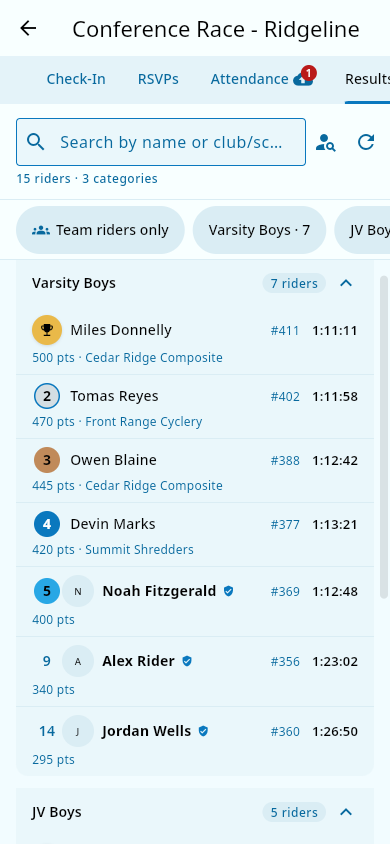 The Results tab: grouped by category, with podium accents on the leaders.
What you should see: if results haven't started syncing, the tab shows an empty/awaiting state. Once they have, the bottom of the list shows a status line like "Results synced · imported 4 min ago" (the app shows the actual freshness) so you know how current the data is.
Filtering to your team
- Use the group filter to narrow to the training groups you care about.
- Turn on the "Team riders only" toggle to hide the other teams' riders and show just your team's entries across all categories.
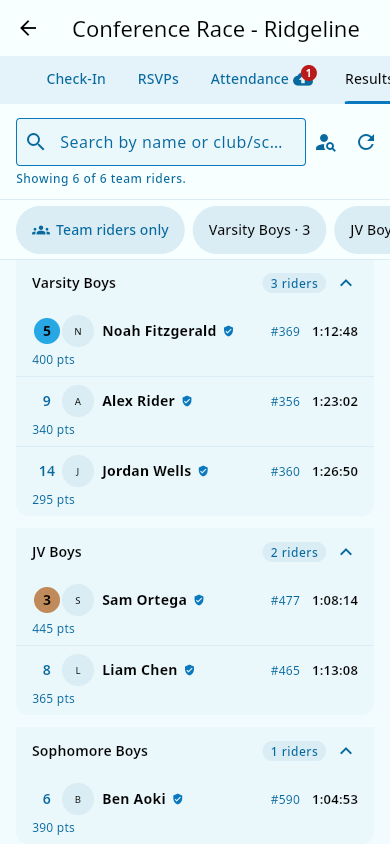 "Team riders only" on: just your team's entries remain.
What you should see: with "Team riders only" on, only matched team athletes remain; the rest of the field is hidden until you turn the toggle off.
Live updates while the race runs
While a race is live, the Results tab updates on its own as the timing system re-imports (about once a minute) — places move, lap counts update, and new finishers slot in without you refreshing. Outside the live window it still checks for updates every couple of minutes, and you can refresh manually. If a refresh fails, a "Results may be outdated" banner appears and keeps the last good list on screen instead of a frozen-looking one.
Notifications for parents
Parents don't need to watch the tab all day: when their child records a new lap or a new place, Groupset sends a push notification with the update, worded like "Currently 3rd - Last lap 23:22 - Total 47:10". Tap it to jump straight to the child's result.
Notes and limits
- A rider may show with place "—" while still on course; lap rows only appear for laps they've actually crossed.
- Rider-to-result matching is done by name, so a rider whose name is spelled differently in the race system may not be highlighted until the team fixes the match.
- Results are read-only in the app — no one on the team edits them.
Related pages
- Events and practices — where race events and the Results tab live.
- Attendance — race-day check-in for athletes.
- Notifications — how race-result pushes reach parents.
- Troubleshooting: race results — if results look wrong or don't load.