Strava activities
Who this is for: athletes (parents view their child's activities) Applies to: Android · iOS · Web
What this page covers
Groupset connects to Strava, the ride-tracking app, so an athlete's rides come into Groupset automatically. This page explains how to connect (or disconnect) your Strava account, how rides stay in sync, and how to browse them in My Activities — including the detail view with the route map and heart-rate/power charts, and how to add a ride by hand. Synced rides also feed the team activity feed and performance numbers, so connecting is worth doing.
Before you start
- You need your own Strava account (the athlete's). If the athlete is a minor, connect using their Strava account.
- Have your Groupset login ready — connecting Strava happens inside Groupset.
Connecting your Strava account
- Open the Strava / connect screen in Groupset (look in Activities or your profile/integrations).
- Tap Connect Strava.
- Groupset hands you over to Strava to approve the connection:
- On the web: you're redirected to Strava, approve, and are brought back to Groupset.
- On your phone: the app hands off to Strava and returns to Groupset when you're done.
- Done — the screen now shows you as connected. Connecting also kicks off a catch-up sync, so rides you recorded before connecting start arriving too.
What you should see: the connect screen changes from "Connect" to showing your connection and sync status. New rides start arriving automatically.
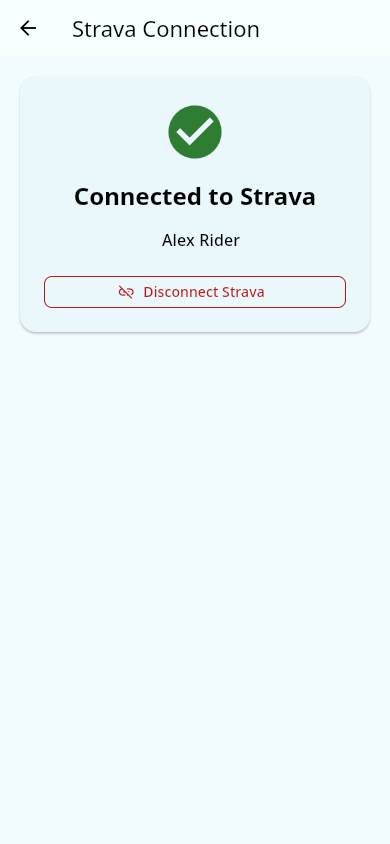 The Strava connect screen before connecting.
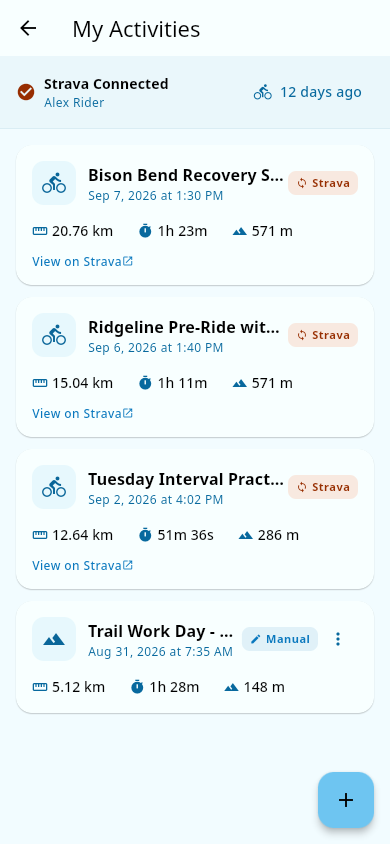 The same screen after connecting, with sync status.
Seeing an error right after approving? The approval step can show an error message even though the connection actually succeeded. Open the connect screen and check: if it shows you as connected, you're fine — your rides will sync.
How rides sync
Rides come into Groupset on their own:
- Automatically — once connected, new rides you record in Strava arrive in Groupset by themselves, shortly after you finish the ride. No action needed.
- In the background — Groupset also checks for new rides on a schedule, so gaps fill in even if you don't open the app.
What you should see: synced rides appear in My Activities, newest first, with a distance/time summary. If you just recorded a ride and it hasn't shown up yet, wait a little — it arrives on its own. There's no manual sync, and under Strava's limits a just-finished ride can take a while to appear.
Browsing My Activities
- Open My Activities (athletes: it's the Activities tab; if you don't see that tab, it's in the navigation menu). If you're a parent, open your child's page and use the Activities tab there instead.
- The list shows every activity: synced rides from Strava plus any you logged by hand.
- Units (miles vs. kilometers, feet vs. meters) follow the unit choice on your profile.
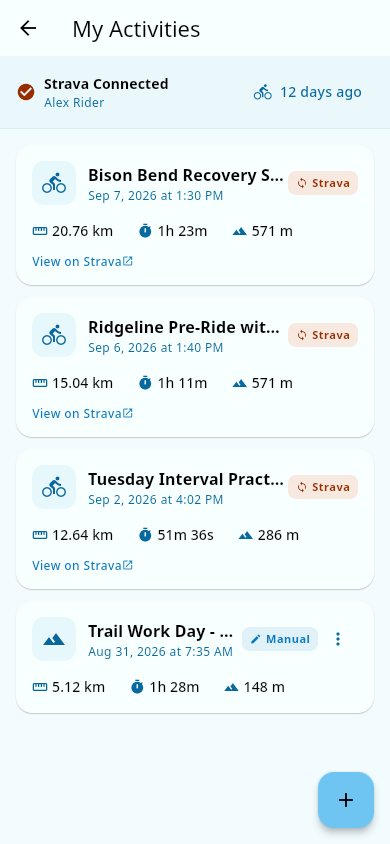 My Activities: synced and hand-logged rides, newest first.
Viewing an activity's detail
Tap any activity to open its detail page:
- A route map shows the GPS track of the ride.
- Charts plot your heart rate and power over the ride, with time spent in each zone.
- Summary numbers (distance, time, climbing, speed) are at the top.
If a synced activity's detailed charts aren't loaded yet, Groupset fetches them on demand when you open the page.
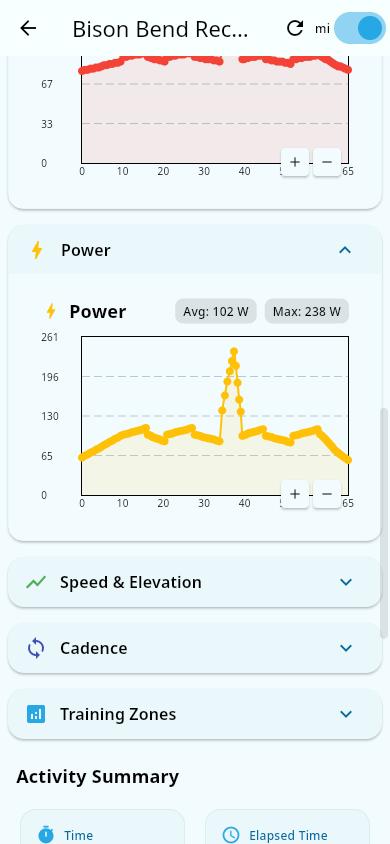 An activity's detail page: heart-rate and power charts with summary numbers.
Adding a ride by hand
Rides that Strava never saw (or that an athlete without Strava did) can be logged manually:
- On My Activities, choose to add an activity.
- Fill in the details (type, date, distance, time, and so on).
- Save.
What you should see: the manually logged ride appears in your list alongside synced ones.
Editing or deleting a manually logged ride
Only manually logged rides can be edited or deleted:
- Open the ride's detail.
- Use Edit to change its details, or Delete to remove it.
Rides that synced from Strava can't be edited or deleted here — manage those in Strava itself. If you delete a ride in Strava, Groupset should remove it too, but that cleanup isn't working reliably right now: a deleted ride can stay in My Activities (see Strava sync troubleshooting).
Disconnecting Strava
To stop syncing: open the Strava connect screen and choose to disconnect. Syncing stops; rides already in Groupset stay. You can reconnect anytime.
Notes and limits
- Synced rides power a lot of the app: they appear in the team Activity feed, feed the Performance analytics dashboards, and are used to match time-trial segment times (PRs/season bests).
- Strava limits how often syncing can happen. If too many rides sync at once, Groupset pauses and retries shortly — the connect screen shows a note when syncing is temporarily limited.
- If your Strava connection stops working, see Troubleshooting: Strava sync.
Related pages
- Activity feed — synced rides show up here.
- Performance analytics — the ride data behind the numbers.
- Troubleshooting: Strava sync — rides not appearing.