Chat notification preferences
Who this is for: everyone Applies to: all
What this page covers
How to tune notifications for each channel in team chat — whether you want every message, only mentions of you, or none at all. It also covers what happens when a team admin mutes someone in a channel. After reading you'll be able to set your own per-channel preferences and understand the defaults.
Before you start
- You must be a member of the team whose chat you are adjusting (channels are listed under the team's chat area).
- Teams have several kinds of channels — for example, one for the whole team, separate ones for training groups, rooms for coaches and team admins, and channels shared across every team in the organization. Each channel has its own setting.
Step-by-step
- Open the team's channel list.
- Find the channel you want to adjust and open its notification setting (shown next to the channel's name, often a bell icon).
- Choose one of:
- All messages — be notified about every new message in this channel,
- Mentions only — be notified only when you are mentioned or a role you belong to is mentioned, or
- Muted — no notifications from this channel.
- Repeat for any other channel you want to change. Removing your choice puts the channel back on the default described below.
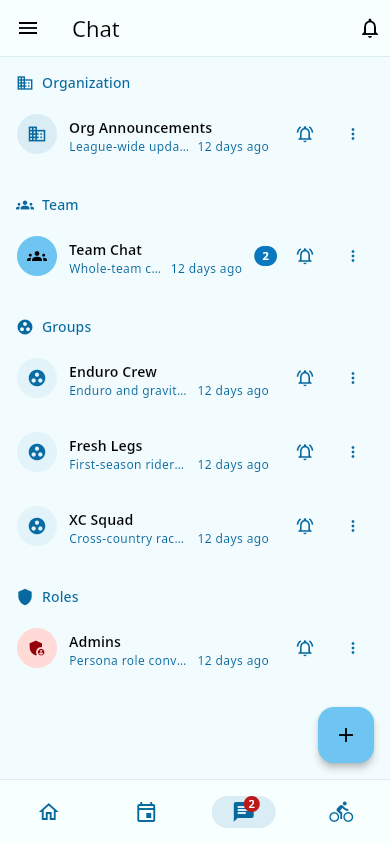 The channel list — each channel's bell shows its notification setting.
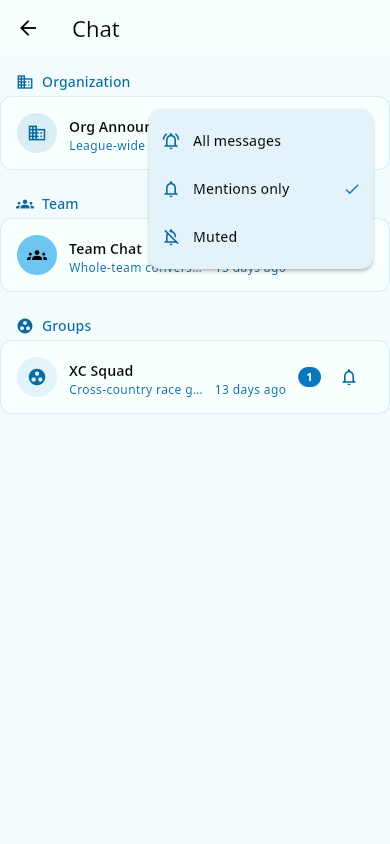 The per-channel choice: All messages, Mentions only, or Muted.
What you should see
- The channel's bell reflects your choice.
- After choosing Mentions only or Muted, routine messages in that channel no longer notify you. You still see the channel, and messages you have not opened still show an unread count — you just are not alerted about them.
- With All messages, every new message in that channel alerts you.
Notes and limits
- The default depends on your role. Every channel starts as Mentions only for regular members, and as All messages for channel leaders — owners, team admins, and coaches on that channel's team (for a channel shared across the whole organization, leaders on any of its teams). You can change your own setting at any time.
- If you set a channel to Muted yourself, you can still open it and read it whenever you like.
- Two different things are called muted.
- Choosing Muted in the bell menu turns off your own alerts from that channel (described above).
- A team admin can mute a member of a channel. In the channel's member management screen the admin opens Mute User and picks a duration — 30 minutes, 1 hour, 4 hours, 24 hours, Indefinite, or Custom minutes — with an optional reason. While muted, that member cannot post in the channel until the mute ends; they can still read it.
- An admin's mute of a member is about posting, not about that member's own notification choices.
Related pages
- Your notification preferences — the account-wide push categories that apply outside chat.
- Team communication settings — what your team admin controls for the whole team.
- Team chat — sending messages and reading channels.