Accounts, deactivation, and deleting your data
Who this is for: everyone Applies to: all
What this page covers
Three things in Groupset sound alike but are very different: deleting your data, being deactivated from the team roster, and stopping someone from signing in. This page explains each one, what it actually does, and how to reverse it — so you ask for the right thing.
Before you start
- Requesting deletion doesn't require you to be signed in — you just need the email address on the account.
- Pausing an athlete's login is done by the athlete's parent from the athlete's own page.
- Deactivating a member on the roster is a team-admin action, described in the Roster guide.
Step-by-step
Request to delete your data
Groupset has a Delete My Data flow for asking that the personal data tied to an account be erased. It works even if you're not signed in.
- Open the Delete My Data screen. When you're signed in, open your account screen (where you edit your profile), scroll to the Danger Zone, and tap Delete My Data. You can also submit a request for an account without signing in — the screen asks you to enter the email address yourself.
- Enter the email address on the account you want deleted. If you're signed in, it's filled in for you.
- Add a reason if you want to (optional).
- Tick the box to confirm you understand the action is permanent and can't be undone.
- Tap Submit Deletion Request.
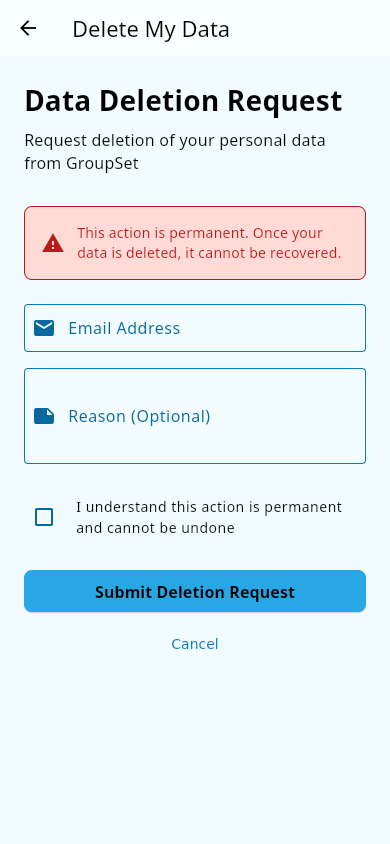 The Delete My Data screen: email, optional reason, and the permanent-action confirmation.
The request is not instant: Groupset emails you a confirmation, and the request is processed within 30 days (as required by privacy rules). Your data isn't removed the moment you submit. For how Groupset handles your data, see the privacy policy.
Deactivated by your team but still able to sign in
A team admin can deactivate someone on the team roster. This removes the person from the active roster and the check-in and attendance lists. It does not delete their data, and — importantly — the person can still sign in to their own account. The app simply only shows teams you're an active member of, so the deactivated person won't see the team until they're reactivated.
If you think this happened by mistake, ask your team admin to activate you again — it's reversible. See Roster for the admin-side steps.
Stop an athlete from signing in (parent-only)
A real sign-in block is different from a roster deactivation, and it isn't something a team admin can do from the roster. Only a child's parent can do it, from the child's own page.
- Open the child's page from your children list.
- Find the Athlete Account Access card.
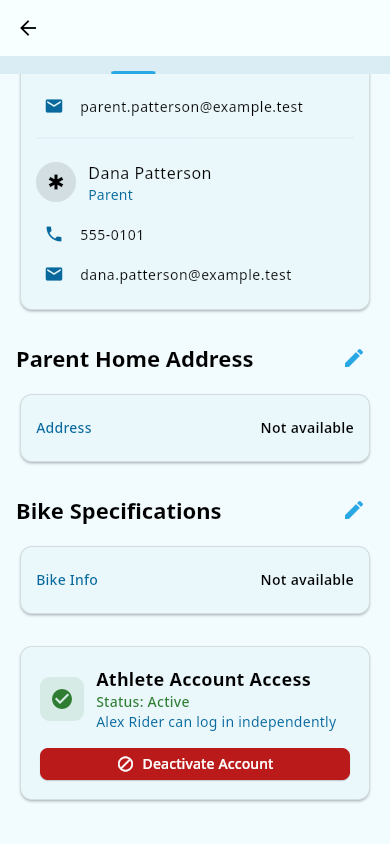 The Athlete Account Access card while the account is still active, showing the Deactivate Account option.
- Tap Deactivate Account and confirm.
The athlete can no longer log in, but their record stays in place. To undo it, tap Reactivate Account on the same card — this can be reversed at any time. This only applies once the athlete has their own login; if the athlete doesn't have an account yet, there's no sign-in to turn off.
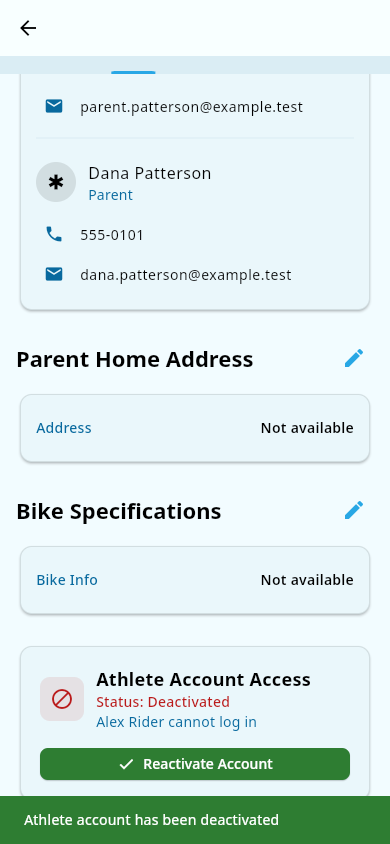 The same card in its deactivated state, with the Reactivate Account option.
What you should see
- Deletion request: a confirmation screen, followed by a confirmation email. Processing happens within 30 days.
- Roster deactivation: the person no longer appears on the team's active roster or check-in lists, but their account still signs in.
- Athlete account deactivation: the athlete can no longer sign in, the child's Athlete Account Access card shows Deactivated, and the parent can reactivate them anytime.
Notes and limits
- A deletion request covers the data tied to the account's email address. If you also want to be certain that children's records will be erased, contact support to confirm the scope — it isn't spelled out in the self-serve flow.
- While a deletion request is pending, there is no self-serve cancel button. If you want to cancel it, contact support.
- Roster deactivation only hides someone from the team lists; it never blocks sign-in.
- Deactivating an athlete's account only blocks sign-in; it doesn't delete the athlete's data or remove them from the roster.
- Only the athlete's parent can deactivate or reactivate the athlete's ability to sign in.
Related pages
- Roster — team-admin deactivation and reactivation.
- Signing in and managing your account — sign-in problems after a roster deactivation.
- General availability — why your team data may have disappeared.
- Getting help — contacting the team behind Groupset to cancel a deletion request or confirm what will be deleted.