Check-out reporting: review queue
Who this is for: team admins (coaches read the "My Reports" part) Applies to: Android · iOS · Web
What this page covers
Everything coaches file eventually lands on the review queue — the team admin's to-do list. This page explains how the queue is organized, how to decide each report (called a disposition), what each decision does, and how resolved reports are archived. Coaches use the smaller My Reports view described at the end to track their own submissions.
Before you start
- You must be a team admin to open and decide reports. Coaches see only their own submissions.
- When a coach files a Group Change Request (GCR) or an incident report, it appears here. Reports that have already been decided move out of the active queue after 7 days.
Reading the review queue
- Open the Review queue screen (admins only).
- Use the tabs to separate the kinds of reports: Group change requests, Incident reports, and Coach petitions (parents asking to help coach — see Coach promotion).
- Use the Active / Resolved switch to see what still needs a decision vs. what's already been handled.
- Filter further with the chips — by direction (for group moves) or severity (for incidents).
- A badge shows how many reports are waiting, and it updates live as new ones come in.
What you should see: pending reports listed with the athlete, the coach who filed, and the key facts (target group for GCRs, severity for incidents). If an incident report is emergency-severity, an urgent callout is shown at the top so it isn't missed.
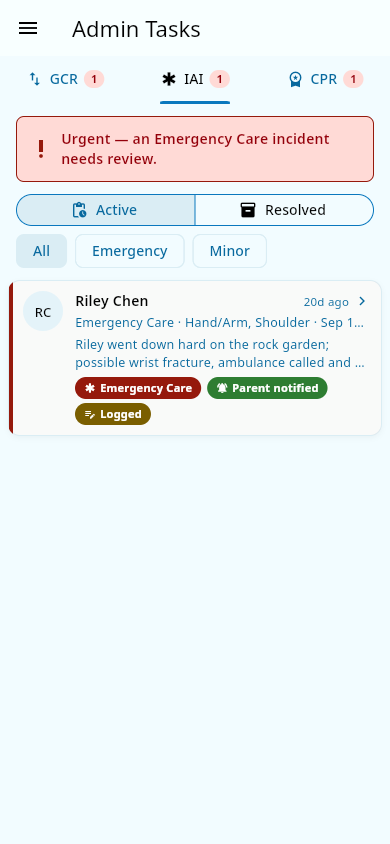 The review queue: Group change requests, Incident reports, and Coach petitions in tabs, an Active/Resolved switch, filter chips, and the pending rows.
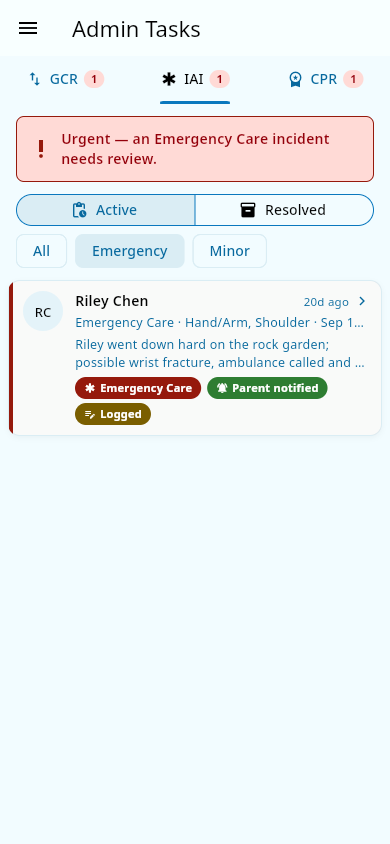 An emergency-severity incident raises an urgent callout above the queue so it isn't missed.
 The Coach petitions tab: a pending coach request, counted on the tab badge.
Deciding a Group Change Request (GCR)
Open a GCR to see the coach's rationale, the percentile preview, and the request's edit history. You can correct the rationale inline before deciding — edits are versioned and the submitting coach is notified. Then choose one of:
- Accept — pick the target group (the form shows the group names) and confirm. The athlete is moved to that group automatically and everyone involved is notified: the coaches of the old and new group, the athlete's parents, and the athlete.
- Deny — enter a reason (required). Only the submitting coach is told, along with the reason.
- Cancel — close the request without a decision (for example, if the athlete's situation has changed).
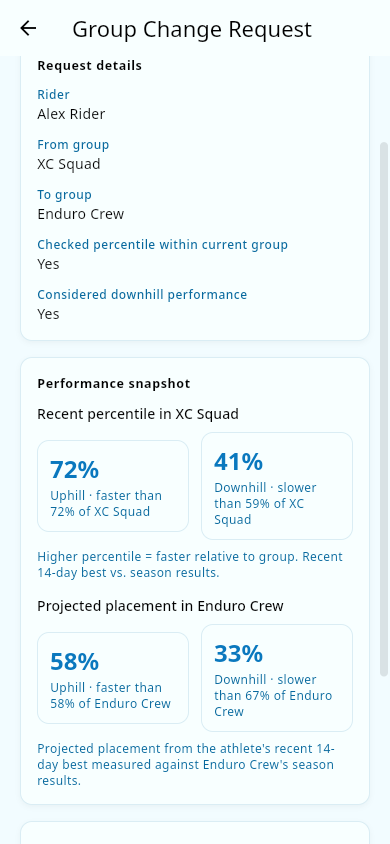 Deciding a request: the request details and the performance snapshot — recent and projected percentiles.
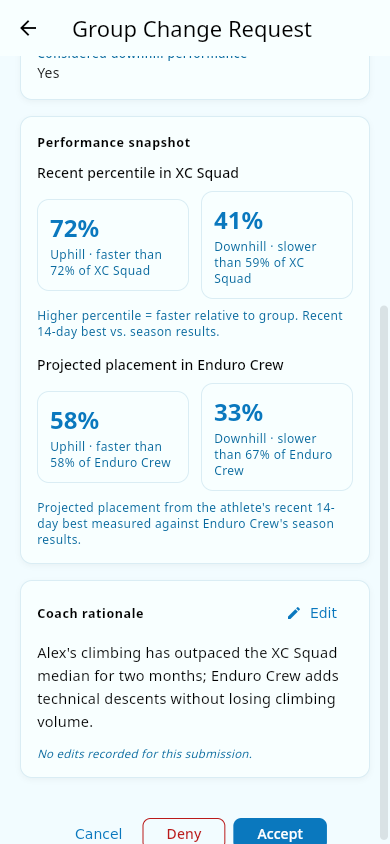 The coach's rationale, with the Cancel, Deny, and Accept actions below.
What you should see: the request moves to Resolved with its outcome, and the athlete's group updates on the roster if you accepted. See Group change requests for the full picture.
Deciding an incident report (IAI)
Open an incident report to read the details before deciding. You can also correct the description or body areas inline before deciding — edits are versioned and the submitting coach is notified. Then choose one of:
- Complete — record that the report has been reviewed and handled (first aid, a follow-up, a policy change). The confirmation sheet explains that completing the report removes its free-text narrative, leaving only the metadata (date, severity, body areas, athlete).
- Cancel — if the report shouldn't stand. Cancelling removes the narrative the same way.
Admin notes attached to a report are visible to team admins; they are removed when the report is resolved, along with the narrative. Incident reports themselves are never shown to parents (see the incidents page).
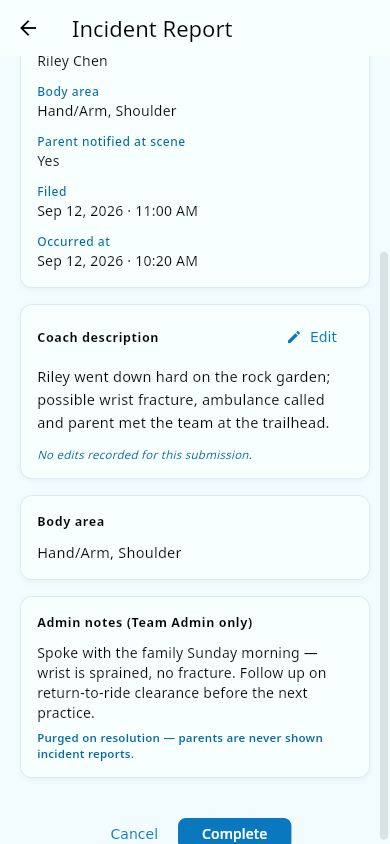 Deciding an incident report: the read-only admin notes card and the Cancel/Complete actions.
What you should see: once you complete the report, it is resolved and its free-text narrative is removed, leaving only the metadata (date, severity, body areas, athlete). The submitting coach is notified when you complete it.
Archived reports
Resolved reports stay on the queue for 7 days, then archive automatically — they leave the active view so the queue stays manageable.
- To see them afterward, turn on the Include archived seasons toggle.
- The resolved/archived list is chronological, most recently resolved first.
- An athlete's resolved reports are also summarized in a per-athlete report log that coaches and admins can consult later.
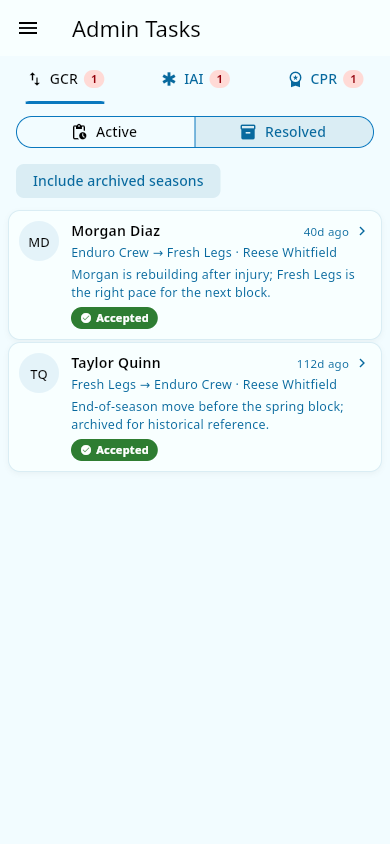 The Resolved list with Include archived seasons on: older archived reports come back.
What you should see: toggling archive on brings back older resolved reports; toggling it off hides them again.
Coaches: My Reports
Coaches don't see the admin queue. Instead:
- Open My Reports.
- You'll see the reports you submitted — group change requests and incident reports — with their current status (pending, decided, and the outcome).
When an admin decides one of your reports, you get a notification that links straight to it here (for example, "your group change request was accepted" or denied with the reason). A coach can also edit or cancel their own still-open reports from this screen.
Notes and limits
- Only team admins can open a report to decide it; a coach can't act on another coach's submission.
- Decisions are recorded with the admin's identity and the time. GCR/incident edits keep a revision history while the report is open; resolving an incident removes its edit history together with the narrative.
- Cancelling a group change request doesn't record it in the athlete's report log — it's simply closed. A cancelled incident report does appear there, with the same plain "incident resolved" line and date as a completed one.
Related pages
- Check-out reporting (overview) — the suite this is part of.
- Check-out reporting: group change requests — what a coach files and what accept does.
- Check-out reporting: incidents and coach notes — what incident reports contain.
- Groups — moving an athlete when a GCR is accepted.
- Notifications — how coaches hear about your decisions.