Attendance
Who this is for: coaches and team admins take attendance; athletes and parents view it Applies to: Android · iOS · Web
What this page covers
Attendance is the record of who checked in to a practice or race. Coaches and team admins check athletes in as they arrive and out when they leave, on the event's own page — athletes don't check themselves into practices. Athletes and parents can review attendance afterward — and when an athlete attends regularly, the app celebrates their attendance streak in the activity feed. This page also covers attendance reports.
Before you start
- Everyone needs to be a signed-in member of the team.
- Checking athletes in/out of practices and viewing reports: coaches and team admins. Coaches work with their own groups' athletes.
- Athletes never check themselves in anywhere — staff record attendance, and parents only on race day (see below). Social events don't have check-in at all; RSVPs cover those.
- On race day only, parents can check their own athlete in and out.
Checking in and out at practice (coaches and staff)
- Open the practice or race event.
- Go to the Attendance tab on the event page.
- Check each athlete in as they arrive — tap Check in on their row. The list updates live, so everyone watching the page sees who's here in real time.
- As athletes leave (practice ends), tap Check out on their row.
- Coaches can check themselves in and out too — their own row is on the same list.
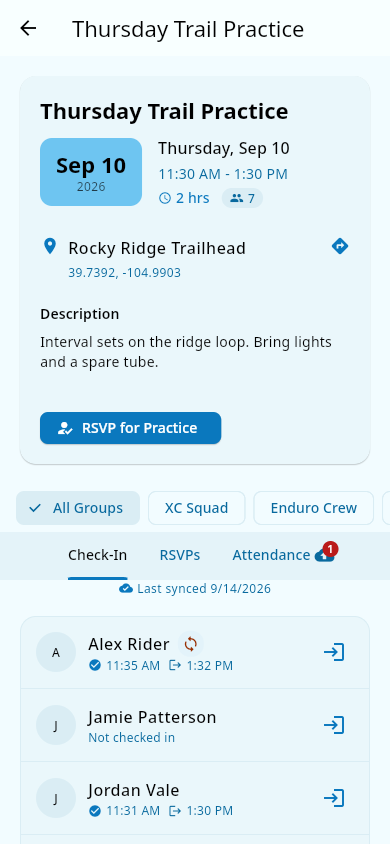 The event's Attendance tab: roster rows with Check in / Check out.
At check-out, the app may ask "anything to report?" — that's where coaches file a group change request, an incident report, or a coach note. See Check-out reporting.
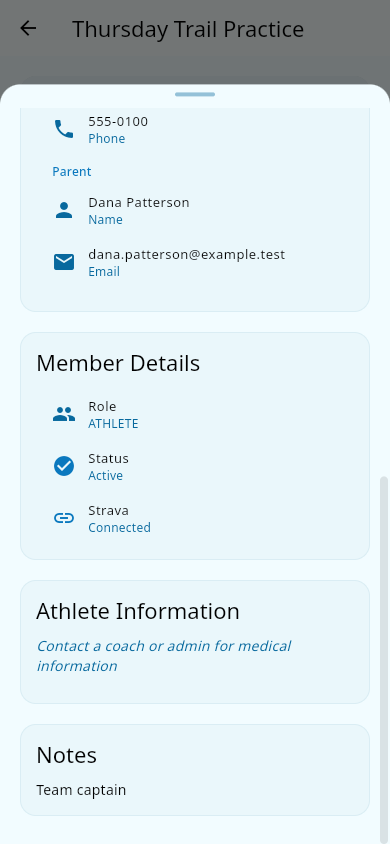 The check-out prompt: report a group change request, incident, or note.
What you should see: each athlete's check-in time is recorded the moment you tap, and parents are notified when their child is checked in or checked out. Tapping check-in twice on the same athlete doesn't double-count.
Race-day self check-in via parent
On race events, parents can check their athlete in and out from the event page themselves — no staff tap needed. This mirrors the staff flow above.
Who can check in whom, at a glance
- Practices: a coach or team admin checks athletes in and out. There is no check-in button for athletes or parents on a practice.
- Races: parents can check their own athlete in and out from the event page on race day (see above). Staff can too.
- Social events: attendance isn't taken at all — the event page has no check-in button. RSVPs (see Social events) are how the team knows who's coming.
Live attendance during practice
Because the attendance list updates live, a coach on the course and a coach at the trailer both see the same current list without refreshing. If the device is briefly offline, check-ins are saved and sync once the connection returns.
Reviewing attendance: reports and "My Attendance"
Coaches and team admins: attendance reports
- Open Attendance Reports from the navigation menu (under Coach Tools or Admin Tools).
- Choose how you want to see it — reports are available by athlete, by group, and by grade.
- Review the numbers (who attended, who didn't, over the period you pick).
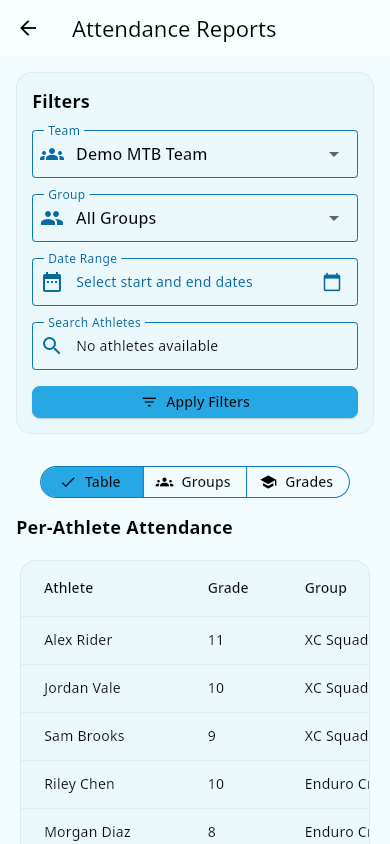 The Attendance report screen: filters up top, per-athlete table below.
Coaches see reports for the groups they coach; team admins can see the whole team.
Reports for a single athlete: besides the team-wide report, coaches and team admins can pull a report for one athlete — that rider's check-ins over time, rather than the whole team's table. The same visibility applies: coaches for athletes in the groups they coach, team admins for anyone on the team.
Athletes: "My Attendance"
- Open My Attendance from the navigation menu (under Athlete Tools).
- You'll see your totals — practices scheduled, attended, missed, your attendance percentage — plus your current streak and a log of past practices.
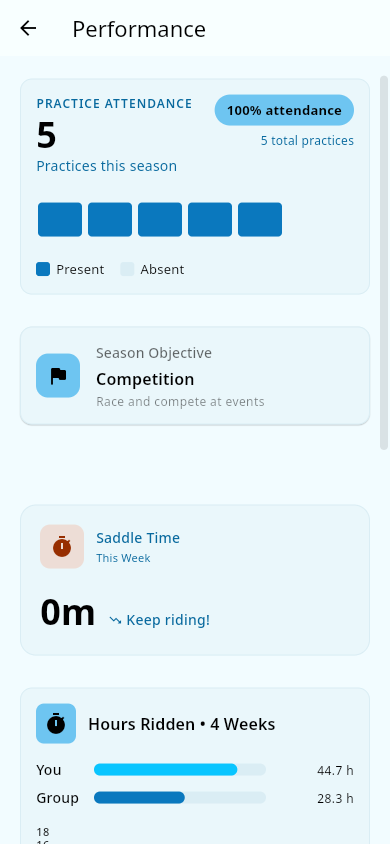 My Attendance: totals and the practice-history log.
How the percentage is worked out: it counts practices only (races are left out), and divides the practices you attended by all the team's practices in the period — including ones that happened before you joined the team. So if you join mid-season, your percentage can look lower than you'd expect until the practices before you joined drop out of the range you're looking at.
Parents: a child's attendance
Open your child's attendance view (from their member or child page) to see the same kind of summary for that child.
Attendance streaks
Every time you check in, the app counts your run of consecutive attended practices. At the milestones — 3, 5, 10, 15, and 20 practices — the app adds a streak card to the team activity feed celebrating it, and you get a notification. A past practice you missed ends the run, and the streak starts over.
Only practices that have already happened count. A practice still on the schedule doesn't touch your streak — it starts counting (or breaks the run, if missed) only once it takes place. A week full of upcoming practices won't pause, shrink, or reset a current streak. The streak shows the same number everywhere: the attendance report, the coach's streak heat map, and the athlete's own page.
Streak heat map (coaches and team admins): the coach insights report includes a heat map with one circle per athlete — the longer an athlete's current streak, the darker their circle. Athletes with no active streak show a neutral circle. Tap a circle to open that athlete's member page. See Coach insights.
Notes and limits
- There's no self-serve way to edit or correct a past check-in time after it's recorded. If a check-in or check-out time is wrong, ask your team admin to fix it.
- The pit-zone and practice-ready flags from Groups appear on athletes' records at check-in as readiness badges, so the person taking attendance can see who's cleared to ride.
- Parents receive attendance alerts when their child is checked in or checked out during the event and for roughly an hour after it ends.
- Streak milestones also appear in coaches' nightly insights as celebrations — see Coach insights.
- If your team exempts younger grades from attendance (for example grades 7–8), those athletes still show in attendance reports and the streak heat map, but Groupset doesn't create coach follow-up actions about their attendance. See Coach insights.
Related pages
- Events and practices — where the event page with the Attendance tab comes from.
- Groups — the readiness flags shown at check-in.
- Activity feed — where streak milestones are celebrated.