Medical and consents
Who this is for: parents and team admins manage records; coaches view medical info within the rules Applies to: Android · iOS · Web
What this page covers
Each athlete's record can hold emergency contacts and medical information (allergies, conditions, medications, and a free-text medical note), and three consent agreements — team policies, the liability waiver, and the photo release. This page explains what's stored, who can see and change it, and how parents manage it for their child. Most of this is collected during registration; this page is about viewing and updating it afterward.
Before you start
- Parents need to be linked to their child (a parent of an athlete) to manage that child's medical info and consents.
- Coaches see medical information only when they hold the right NICA coaching license (Level 2 or higher) on top of their coach role. Team admins can view athlete medical information.
- Emergency contacts and medical fields are usually filled in at registration — registration requires at least one complete emergency contact before you can continue, so app-created records always have one. If anything is missing, you can add it with the steps below.
Emergency contacts and medical info
Parents: update your child's record
- Open your child's page (from your children list or the roster).
- Open the Emergency contacts area.
- Add or edit each emergency contact — a name, a relationship, and a phone number are required, and an email is optional. You can add a second emergency contact as well as the primary one.
- Update the medical fields (allergies, conditions, medications, medical note) if anything has changed since registration, and save.
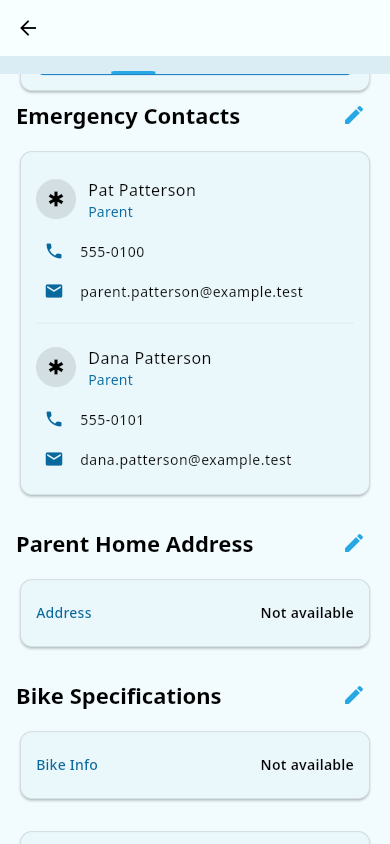 The Emergency Contacts area on a child's page, where each contact's name, relationship, phone, and email are shown.
What you should see: the changes are saved to the athlete's record. If a required emergency-contact field is missing, the app prompts for it.
Each medical field (allergies, conditions, medications) has a 1,000-character limit. If text looks cut off when you save or review it, that's the limit — shorten it and save again.
Parents can update medical and emergency-contact fields, but not the team-management fields on the record (like group or readiness flags) — those belong to the team.
Coaches and team admins: view the info
On an athlete's member detail screen, staff see a medical info panel and an emergency contacts card. The medical panel is gated as follows:
- Coaches must have a NICA license level of Level 2 or higher to view the medical info panel; below that, the medical narrative is hidden behind an access message. The app currently shows the emergency contacts card to any active member who can open the member's page — the Level 2+ license gate applies to the medical narrative, and whether contacts should also be gated is under review.
- Team admins can view the medical information and emergency contacts.
- Everyone else (including other parents) sees only non-medical profile basics.
If you can't see medical details but think you should, note that your license level is shown read-only on your coach profile — you can't change it yourself. If it's missing or wrong, ask your team admin to correct it. A coach who can't view the medical panel is usually below the required license level, not a sign the info wasn't saved.
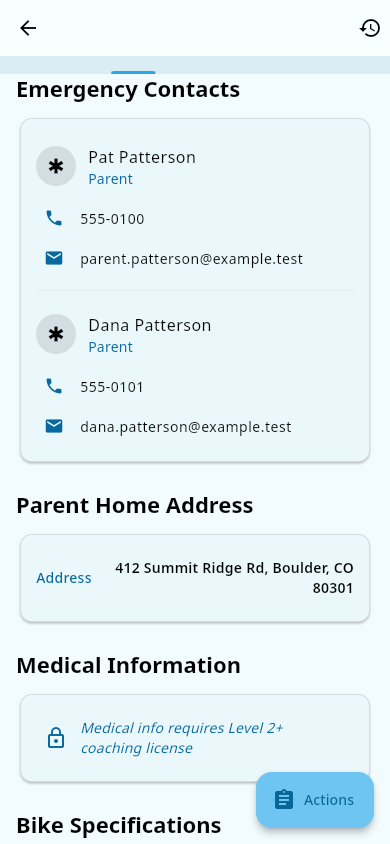 An athlete's member detail screen: the emergency contacts card, the medical info panel, and the lock shown to coaches below Level 2.
The three consent agreements
Every athlete has three consent agreements on file:
- Team policies — agreement to the team's rules.
- Liability waiver — the waiver releasing the team/league from liability.
- Photo release — permission for the team to use photos of the athlete.
These are signed during registration. After that, parents can change them anytime:
- Open your child's page.
- Open Consent management.
- You'll see three switches, one per agreement.
- Turn each one on (granted) or off (withdrawn) and save.
What you should see: the switches reflect the current status. When you change a consent, the app records who made the change and when. If a coach's weekly insights flag an athlete as missing a signed waiver, that's this list being checked.
All three agreements are agreed during registration — the registration wizard won't submit a registration until all three are granted. After that, parents can turn any of them off or back on again with the steps above. If a new athlete's registration isn't complete, the payment step is what's usually waiting — the completion screen shows a payment-pending message with a button that reopens the payment page (see Register your athlete (parents)).
Notes and limits
- Consent agreements can be customized by your team (custom wording), so the exact text you agree to may differ from the default.
- A coach without the right license never sees medical narrative details — not even for athletes in their own group.
- Only a limited set of adults can ever see medical data: the athlete's parents, coaches with Level 2+, and team admins. Emergency contact details are visible to the team's active members.
Related pages
- Roster — where medical info appears on the member record.
- Coach insights — coaches are reminded when an athlete is missing a signed waiver.
- Customize your team's consent forms — team admins set the agreement text.