Payments
Who this is for: parents, team admins Applies to: all
What this page covers
What it means when a payment shows Pending or gets stuck on Processing, what to do when a payment shows Failed or a card charge doesn't go through, what to do when Pay again doesn't open a payment screen, why a promo code won't apply, where to find a receipt, how a team admin sends a payment reminder, and how a team admin gets the team's payout account connected.
Common problems
A payment shows as Pending
Symptom: You just paid (or just registered, with a fee attached), but the payment still shows as Pending.
Likely cause: The payment hasn't finished processing yet. After you complete payment, the confirmation arrives over a secure link and it can take a short while — usually a few minutes — for the status to change to Paid.
What to do: Wait a few minutes, then close and reopen the payment screen. Do not pay again — a second payment could mean paying twice. If it still shows Pending after a few hours, it may be a sync problem: contact your team admin rather than paying again.
A payment is stuck on Processing
Symptom: A payment has sat on Processing for more than a few minutes.
Likely cause: The payment is moving slowly between your bank and the team's payment account. This happens occasionally and usually resolves on its own.
What to do: Do not pay again. If a payment stays stuck for more than a few minutes, the app automatically alerts the team admins, so someone will look into it without you having to chase anyone. You can also mention it to your team admin directly.
A payment shows as Failed
Symptom: The payment list shows a fee as Failed.
Likely cause: The card was declined — for example, insufficient funds, an expired card, or a block from the bank.
What to do:
- Open the payment and choose the Pay again or Retry option.
- The app walks you through it: it shows a summary of what you owe, then lets you choose how to pay — use a different card if the first one was declined, and double-check the card number, expiry date, and security code.
- If it keeps failing, check with your bank. Registration payments can only be retried a limited number of times (about three attempts); if retries keep failing, contact your team admin.
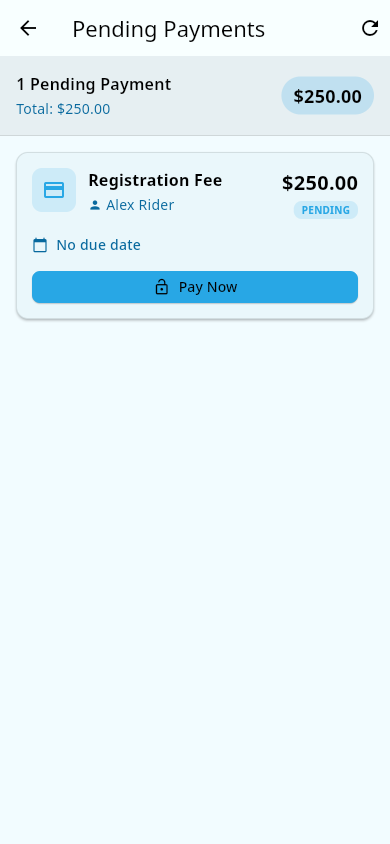 A failed payment with the Pay again option.
The Pay again option doesn't open a payment screen
Symptom: You choose Pay again or Retry, but no payment screen opens, or the retry never finishes.
Likely cause: The app's retry flow has some rough edges — for example, it can lose track of a payment page that was already open. That's not something you can fix from your side, and tapping again won't help.
What to do:
- Do not pay again through another route or start over from registration.
- Ask your team admin to send a payment reminder. The reminder email contains a payment link that opens a working payment page.
- If the link doesn't work either, ask your team admin to check the payment with you.
A charge didn't go through
Symptom: You completed the checkout screen, but the fee still shows as unpaid or failed, or you never got a confirmation.
Likely cause: The payment didn't finish — a card problem, or you left the payment screen before it completed.
What to do: Open the payment and pay or retry with a different card. If the first attempt never completed, you won't be charged for it.
Charged twice, or charged but the payment still shows unpaid
Symptom: Your card was charged, but the fee still shows as unpaid, failed, or pending — or you see two charges for the same fee.
Likely cause: A payment can take a few minutes to update, and an interrupted or repeated attempt can leave a charge that doesn't match a paid fee.
What to do: Do not pay again. Contact your team admin to sort out the duplicate — they can check what happened and return the extra charge if one went through.
A promo code isn't applying
Symptom: You type the code and the discount doesn't appear, or the app says the code is invalid.
Likely cause: One of these is true:
- The code was mistyped (codes are usually shown in capitals).
- The code has expired.
- The code has already been used its maximum number of times.
- The code belongs to a different team than the one you're paying for.
What to do:
- Type the code exactly as it was given to you.
- Make sure the code is meant for this team.
- Ask the team admin whether the code should still work.
- When it works, the discount shows on the payment before you pay.
No receipt
Symptom: You paid, but you can't find a receipt.
Likely cause: Receipts appear in payment history once the payment is confirmed as Paid — or the payment is still processing.
What to do: Wait until the status shows Paid, then look in payment history for the fee. If a receipt still isn't there, ask your team admin.
Team admin: remind a family to pay
Symptom (team admin): A family hasn't paid and you want to nudge them.
Likely cause: This is a normal part of collecting team fees — families can overlook them.
What to do:
- Open the payment history for the team.
- Find the unpaid payment.
- Use the Send reminder action on it.
- The family receives an email with a link they can use to pay.
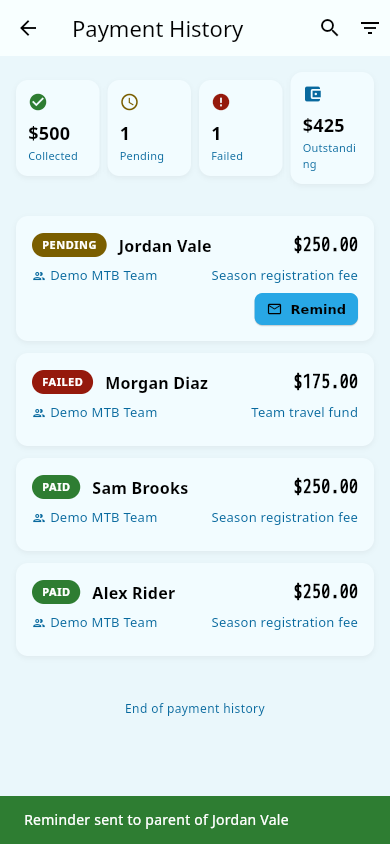 The team's payment history, with the Remind action on an unpaid fee.
Team admin: the team's payout account won't finish setting up
Symptom (team admin): After you complete your payment provider's setup pages, the app still shows the team's payout account as not connected, or says payouts aren't enabled yet.
Likely cause: One of these:
- Setup isn't finished — the provider may still be asking for information (the screen lists what's due).
- Charges are enabled but payouts aren't yet. The account only counts as ready when both are on.
- The return step from the provider's pages didn't finish, so the app fell back to re-checking the account it already saved.
What to do:
- Reopen the payout-account screen — it re-checks the account and shows what's still needed.
- Finish any requirements it lists on the provider's pages, then reopen the screen again.
- If it still won't connect, contact support — see Getting help.
- Until the account is fully set up, new registration fees can't be collected from families.
For the setup steps themselves, see Payment account.
Notes and limits
- Pending is normal right after paying — wait a few minutes before doing anything else.
- A payment stuck on Processing for more than a few minutes alerts the team admins automatically — you don't need to report it to get it looked at.
- If Pending lasts for hours, it may be a sync problem — contact your team admin instead of paying again.
- Promo codes can't be moved from one team to another; each one is tied to a specific team.
- Only a team admin can send payment reminders.
- A team can't collect fees until its payout account is fully set up — both charges and payouts enabled.
Related pages
- Invites and registration — a fee may be created during registration
- General availability — checkout screen won't load for anyone
- Signing in and managing your account — can't get in to pay
- Payments — the how-to guide for paying fees.
- Payment account — setting up the team's payout account.