Install the app
Who this is for: everyone Applies to: Android · iOS · Web
What this page covers
How to get Groupset on your phone (Android or iPhone/iPad) and how to use it in a web browser. The phone app is the primary experience, and the same app also runs in a browser. The app bundles offline map data, so event locations and ride maps still display even when there is no signal.
Before you start
- A phone (Android or iPhone/iPad) with internet access, or a computer with a modern browser.
- Nothing else — you can install and open the app before you have a team or an account. If you already have a team passcode or were invited to a team, keep it handy for later.
Step-by-step
- Android: Open the Google Play listing and tap Install.
- iPhone/iPad (iOS): Open the App Store listing and tap Get.
- Web (backup): In your browser (for example Chrome, Safari, Firefox, or Edge), go to groupset.app/app. There is nothing to install — the app runs in the browser and updates itself automatically. Handy on a shared or borrowed computer.
- Open the app for the first time. You should see the Welcome screen.
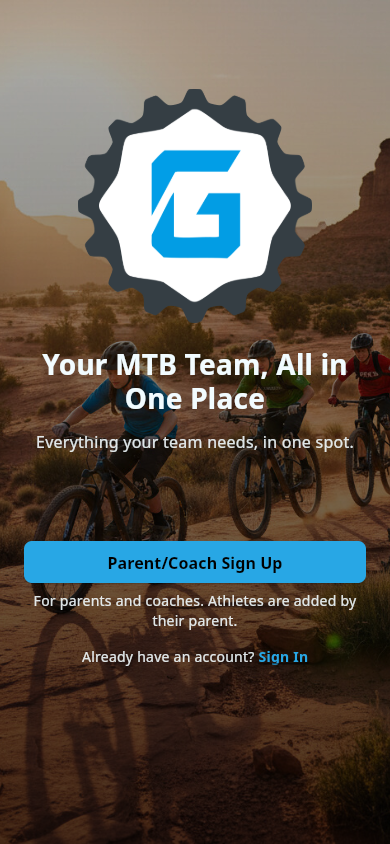 The Welcome screen: create an account or sign in.
What you should see
- After a phone install, the Groupset app icon on your home screen.
- The Welcome screen with the options to create an account or sign in.
- On first use, the app prepares offline map data, so locations and ride maps still display later without a signal.
Notes and limits
- The phone app is the primary experience; the web version is there when you don't have your phone.
- Offline maps are bundled with the app, but other things (live updates, sending information, paying fees) still need a connection. See also: Offline and sync.
Related pages
- Create your account — your first account after installing
- Your first look around — what you see once you're in