Announcements
Who this is for: team admins write them; everyone on the team reads them Applies to: Android · iOS · Web
What this page covers
Announcements are one-way, team-wide messages — a team admin sends a title and message to every active member of the team at once. This is the right tool for things like "practice is moved to the high school field tonight" or "fee deadline is Friday." This page explains how to write an announcement, how it's delivered, and how to preview it with a test send.
Before you start
- Team admins send announcements. Organization-level admins can also send to any team in their organization. If you're a coach, athlete, or parent, you receive them but can't create them.
- Announcements go to every active member of the team. (Admins of an organization can also reach across their teams.)
Sending an announcement (team admins)
- Open the Announcements area.
- Choose to create a new announcement.
- Write a short title.
- Write the message.
- Choose how it should be delivered — the app offers push (an alert on members' phones/devices), email, and text message (SMS), and it always shows up in-app too. Push and in-app are the defaults. One thing to know: when you send, the app itself delivers the in-app notification and the push alert — the email and text options are saved with the announcement, but this send path doesn't email or text members today. Use the test send (below) to check how your team's email/text settings behave.
- Optional: set a schedule time. Be aware that scheduling doesn't delay delivery today — the announcement is sent when you save, and the schedule time is stored on the record.
- Set the expiry — the form pre-fills one 30 days out. After that date and time the announcement stops showing up; adjust it to match how long the message matters.
- Send it.
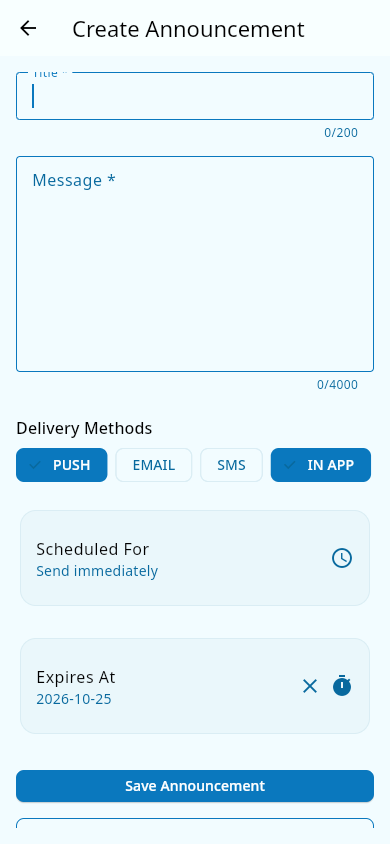 The announcement composer: title, message, delivery options, and expiry.
What you should see: every active team member receives the announcement in their in-app notification list and, on their phone, as a push alert (members who turned push off just see it in-app). It also appears on the home dashboard and in the activity feed until it expires.
Previewing with a test send
Before sending to the whole team, you can preview how the announcement will look and be delivered:
- Compose the announcement as above.
- Choose the test / preview option instead of sending to everyone.
- The app sends a sample delivery to you using your team's chosen settings.
What you should see: a test announcement arrives on your device (and/or email) so you can check the wording and formatting before the real one goes out to the team.
Editing or deleting an announcement
- Open the Announcements area and find the announcement in the list.
- Open its More options menu and choose Edit to change the title, message, delivery options, schedule, or expiry — then save.
- Choose Delete to remove it entirely. You'll be asked to confirm.
What you should see: edits update the announcement (and its card in the activity feed) without sending a new push — recipients aren't re-notified. Deleting removes it from the list and the feed. Only a team admin or owner can edit or delete.
What everyone else sees
Members don't create announcements — they receive them in three places:
- The notification center (see Notifications).
- The home dashboard, where recent announcements appear in a rotating banner at the top.
- The activity feed as an announcement card (see Activity feed).
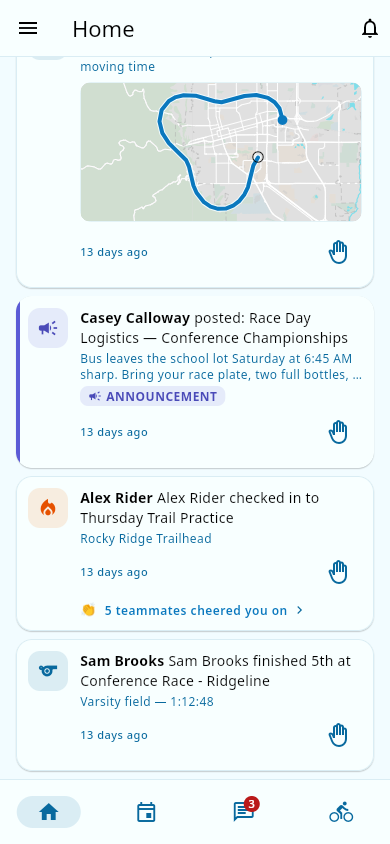 An announcement card in the activity feed. (The cheer count shows only to the author, on their own cards.)
Expired announcements drop out of all three automatically.
Notes and limits
- Announcements are separate from two-way Team chat: chat is conversation, announcements are broadcasts.
- In the activity feed, announcement cards aren't pinned to the top — they rank alongside rides and milestones, and they age out when the announcement expires.
- Titles are capped at 200 characters and messages at 4,000.
- Editing an announcement doesn't send a new alert; if a correction is urgent, consider sending a short follow-up or a team chat message.
- When you send to email, note that delivery settings (like quiet hours) come from your team's communication configuration — see Team communication settings.
Related pages
- Notifications — where announcements land in-app.
- Activity feed — announcement cards appear in the feed.
- Team chat — the two-way alternative for team conversation.
- Team communication settings — team admins set delivery defaults, quiet hours, and emergency channels.