Teams and organizations
Who this is for: everyone (new users, parents, athletes, coaches, team admins) Applies to: Android · iOS · Web
What this page covers
Groupset is built around teams — your school or club's group of athletes, coaches, and parents — and the organization that owns them. This page explains the difference, how to join a team with a passcode, and how to move between the teams you belong to. After reading you'll be able to join a team and switch your view between teams whenever you need to.
Before you start
- An account (Account) — you must be signed in.
- For joining: the team's passcode, which a team admin gives you. If you don't have one, ask your team admin.
- Nothing is needed to switch teams except belonging to more than one team.
What are organizations and teams?
- An organization is the umbrella that owns the teams — for example a school district, a club, or a league chapter. One organization can own one or more teams.
- A team is the working unit inside an organization: its own roster of athletes, coaches, and parents, its own events and fees, and its own settings.
- When the first team for an organization is created, its organization is created at the same time.
- Team admins run their own team: they manage the roster, set fees, review reports, and control settings. Most of that is limited to their own team, but the admin of any team in an organization can also use a few organization-level tools — for example creating organization-wide groups or sending an announcement to the other teams in the same organization.
- Some teams are run by an owner instead of — or alongside — a team admin. An owner has exactly the same powers as a team admin; the two titles are two names for the same level of control. See Roles and permissions.
Joining a team with a passcode
- Sign in to Groupset.
- Open the team list. The app shows the teams you can join, grouped by organization. If the list is long, search by team name, organization, or season.
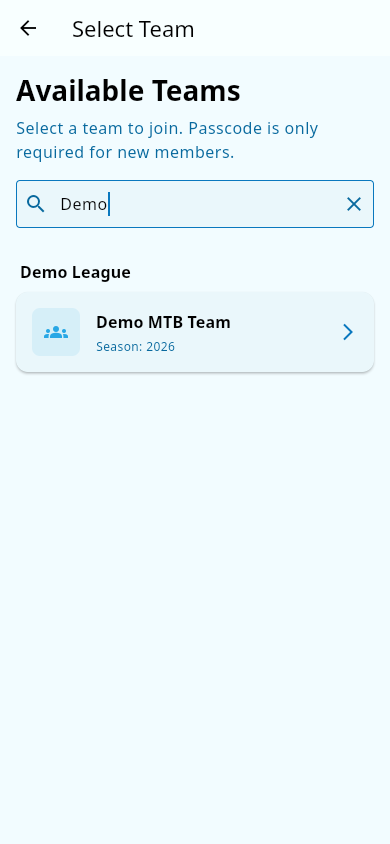 The team list grouped by organization, with search in use.
- Tap the team you want to join.
- When the app asks for the passcode, enter the passcode your team admin gave you and confirm. Passcodes aren't case-sensitive — CAPITALS and lowercase both work.
- If the app lets you choose a role (for example athlete, parent, or coach), pick the one that fits you. Joining as a coach requires a valid NICA license saved on your account.
What you should see: the team appears under your teams, and the app switches to it. If you entered a wrong passcode, the app says so and lets you try again — ask your team admin to confirm the code.
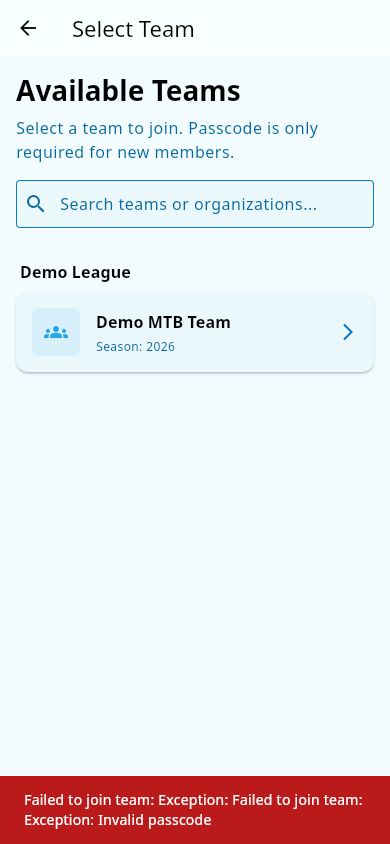 Entering a wrong passcode: the app reports the error and lets you try again.
First member becomes the admin. The very first person to join a brand-new team is automatically made that team's team admin. This usually happens right after the team is created. If you're that person, you'll see admin tools (like roster management) that other members don't have.
Switching between teams
If you belong to more than one team (for example, a parent with children on two teams, or a coach who coaches two teams), you can switch which team you're looking at:
- From anywhere in the app, open the team picker — the control that shows your current team's name.
- Choose the team you want to view.
- The app reloads that team's content (roster, events, chat, and so on), so you're only ever looking at one team at a time.
What you should see: your current team's name changes, and the home screen, events, and other team areas now show that team's data.
Notes and limits
- You can belong to more than one team, and you can hold more than one role on a team (for example, coach on one team and parent on another).
- Passcodes are set and changed by the team admin (see Team passcode and joining). If a team's passcode changes, the old one stops working.
- A team can be inactive or its registration window closed; inactive teams do not appear in the list of teams you can join.
- The exact label of the team-picker control and the join button may vary slightly by platform.
Related pages
- Roster — see everyone on the team once you're in.
- Payments — pay your team fees after joining.
- Team communication settings and Edit your team's basic info — what a team admin can control.