Register your athlete (parents)
Who this is for: parent Applies to: all
What this page covers
How a parent adds an athlete to a team through the 5-step registration wizard, how payment works if the team charges a team fee, and what happens afterwards — including the athlete's own login invite or a parent-managed record.
Before you start
- You must be signed in with a parent account (see Create your account).
- You must already be a member of the team — team admins add parents, or you join with a passcode your team admin gives you. If you haven't joined yet, do that first: open the team list, tap your team, and enter the passcode. See Teams and organizations for the full join steps.
- Have on hand: the athlete's name, date of birth, and grade, riding experience details, a photo if you have one, medical information, and emergency contacts (name, relationship, phone).
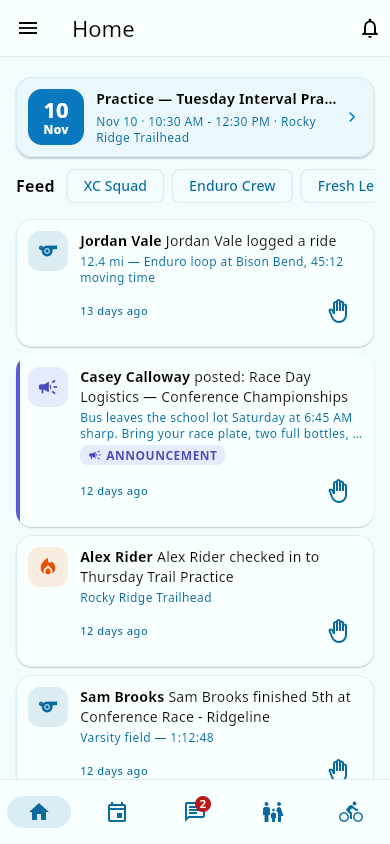 A parent's home screen; registration starts from the Family tab.
Step-by-step
- Open the Family tab and tap Register an Athlete under My Athletes. The button appears when you don't have any athletes registered yet.
- Step 1 — Team & Athlete Info: choose the team and fill in the athlete's first and last name, date of birth, grade, gender, and T-shirt size. Only the grades your team allows appear. If the athlete should have their own login, turn on Athlete gets independent login and enter their email address.
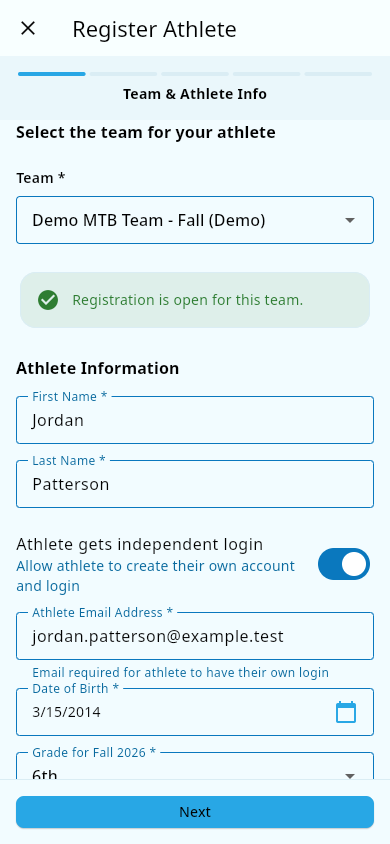 Step 1 of the wizard: pick the team and enter the athlete's name, grade, and login details.
- Step 2 — Experience & Photo: optionally add the athlete's years of racing experience and races completed in the last 12 months. Add their home address — or leave Athlete lives at same address as parent on to use yours. Tap Tap to add a photo if you have a picture (JPG, PNG, or HEIC, up to 10 MB); you can Change Photo or Remove it before continuing.
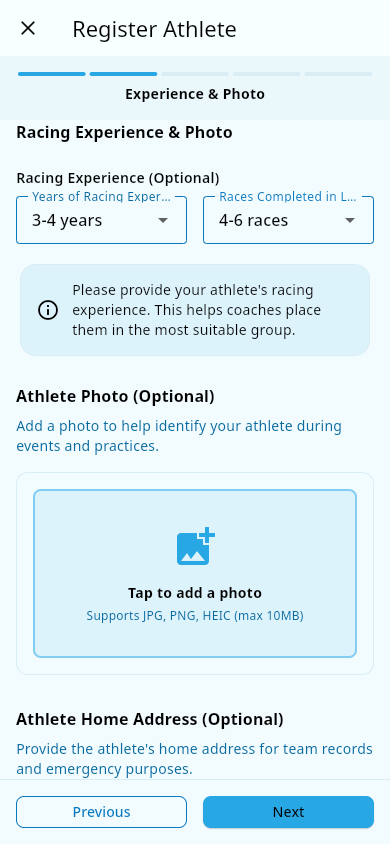 Step 2: add racing experience, a photo, and the athlete's home address.
- Step 3 — Medical Info & Contacts: enter medical information — allergies, medical conditions, current medications — only if relevant, and at least one emergency contact: full name, relationship, and phone number. Tap Add Contact for more. The wizard won't let you continue until one contact is complete.
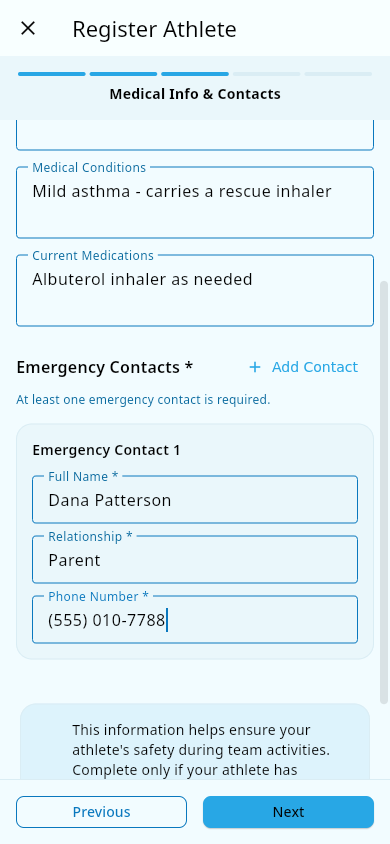 Step 3: enter medical information and at least one emergency contact.
- Step 4 — Consent & Agreements: review and agree to all three of your team's agreements — Team Policies and Code of Conduct, Liability Waiver, and Photo/Video Release. The wording is set by your team, so it can differ from team to team. You can't continue until all three are agreed.
- Step 5 — Review & Submit: check the summary, apply a promo code if you have one, and tap Submit Registration.
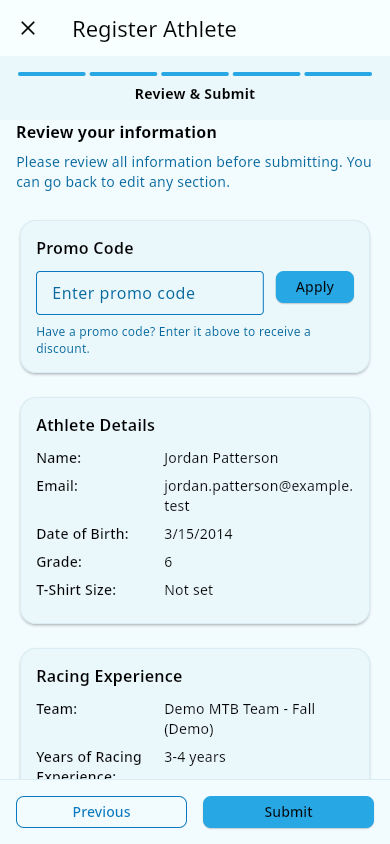 Step 5: review the summary and apply a promo code before submitting.
- If the team has a fee: the payment step appears right after you submit. On a phone, the app shows a secure payment sheet where you enter card details. On web, the app takes you to a secure payment page to complete the payment.
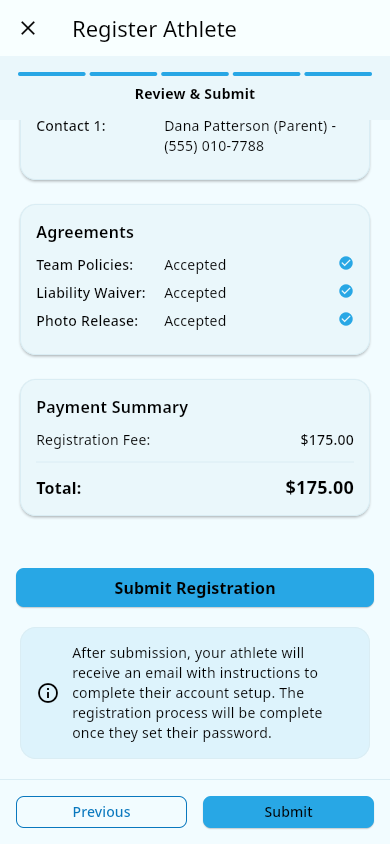 The payment summary during registration, showing the team fee before you pay.
- After submitting, decide how the athlete's record works:
- Athlete's own login: if you turned on Athlete gets independent login in Step 1 and entered their email, the athlete receives an email with a signup link; tapping it opens a screen where they create their account. The link expires after 48 hours — if it lapses, you can send it again from the app. See also: Invites and registration.
- Parent-managed: if you do not enable the athlete's own login, you run the athlete's record from your account (profile, consents, check-ins).
What you should see
- A completion screen — Registration Submitted! — confirming the registration, with the athlete, team, and payment status.
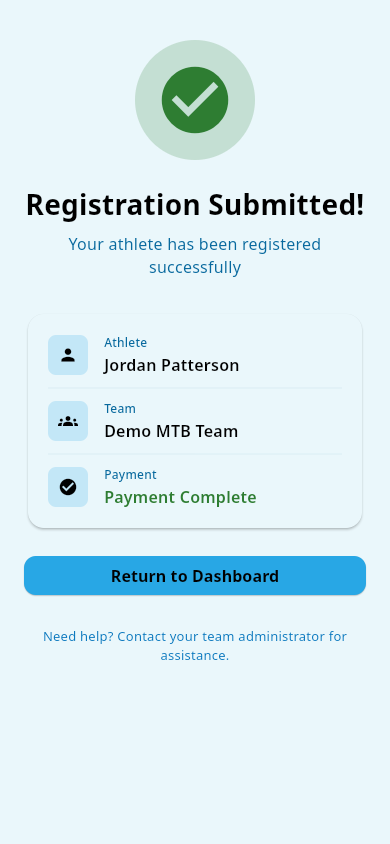 The completion screen confirming the registration and payment status.
- If the team has a fee and the payment hasn't gone through yet, the completion screen shows Payment Pending and a Complete Payment button that reopens the payment page so you can finish paying.
- The athlete appears in the team roster.
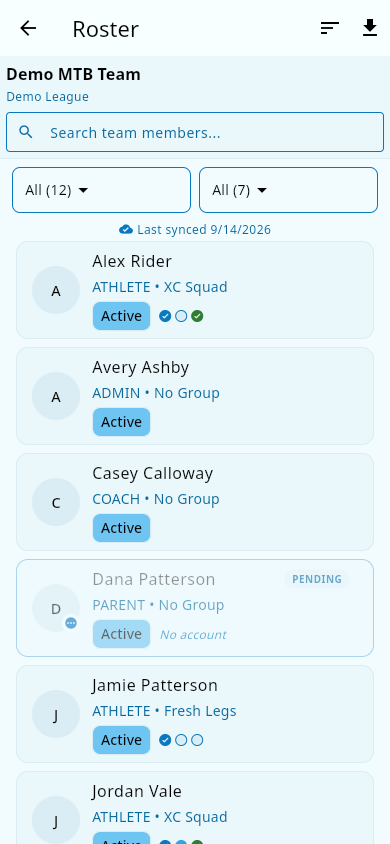 The athlete appears in the team roster with their group and status badges.
- If the athlete will have their own login: an email arrives at the athlete's address with the signup link.
Notes and limits
- Grades are limited by your team's settings — grades the team does not allow cannot be selected.
- Registration window: your team can set a period when registration is open. If it isn't open yet or has already closed, the wizard shows a status card and won't let you continue. If the app can't check the window, it says Unable to verify registration status and lets you try to proceed — if registration then fails, contact your team admin.
- Another parent or guardian can help: from your child's page, tap Invite Co-Parent (or Invite Another Parent if one is already linked) to send an email invitation. See Co-parents and guardians.
- Consent text is written by each team, so review it carefully before agreeing.
- If you are the very first member of a brand-new team, the app sets you up as a team admin automatically.
- Payment is handled by a secure payment provider — the app never asks for card details outside that secure payment sheet or page.
- Re-registering an athlete who already has a record on the team is fine: the app updates the existing record instead of creating a duplicate. If you see a message that the athlete already exists, that's the normal result for a returning athlete (for example, registering for a new season) — continue and check that the details are current.
- Each medical field (allergies, medical conditions, medications) holds up to 1,000 characters. If your text looks cut off, that's the limit — shorten it and save.
- If the athlete has their own login, you can pause it later from the child's page: the Athlete Account Access card lets you Deactivate Account (they can't sign in) and Reactivate Account (they can again). This only blocks sign-in — it doesn't delete their record. See Accounts, deactivation, and deleting your data.
Related pages
- Medical and consents — emergency contacts, medical info, and consent management.
- Co-parents and guardians — inviting another parent or guardian to help manage the athlete.
- Payments — paying the team fee.
- Accounts, deactivation, and deleting your data — pausing an athlete's login or deleting data.
- Invites and registration — problems with signup links.
- Create your account — what the athlete does with their signup link
- Your first look around — where to find the athlete's record afterwards