Activity feed
Who this is for: everyone Applies to: Android · iOS · Web
What this page covers
The activity feed is the "what happened" list on the Home screen: teammates' rides, attendance-streak milestones, personal records and season bests on time-trial segments, and team announcements. This page explains what shows up in the feed, how to switch between viewing your group, your team, or your whole organization, and how to cheer someone on with a high five or another reaction.
Before you start
- Sign in and land on the Home screen — the feed is part of that screen.
- What you see is shaped by what your teammates do: riders need to sync rides (see Strava activities) and check in to practice for those events to appear.
What appears in the feed
Feed cards are written automatically when something happens:
- Rides — a teammate's synced ride appears (with a small route preview map when available).
- Attendance streaks — when an athlete hits a 3, 5, 10, 15, or 20-practice streak, a celebration card appears (see Attendance).
- PRs and season bests — when a rider records a new personal record or season-best time on a timed segment.
- Announcements — team announcements appear as feed cards and stay eligible in the feed until they expire; they rank alongside other cards rather than always sitting at the very top (see Announcements).
- Volunteer requests — calls for helpers at team events (see Volunteering).
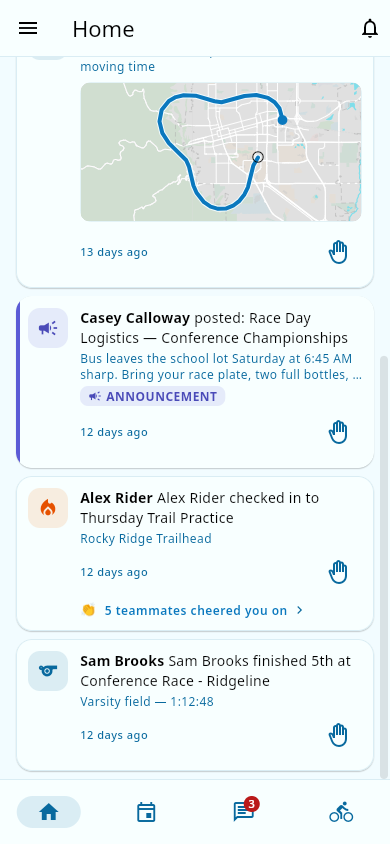 The Home feed: rides, announcements, and streak celebrations together.
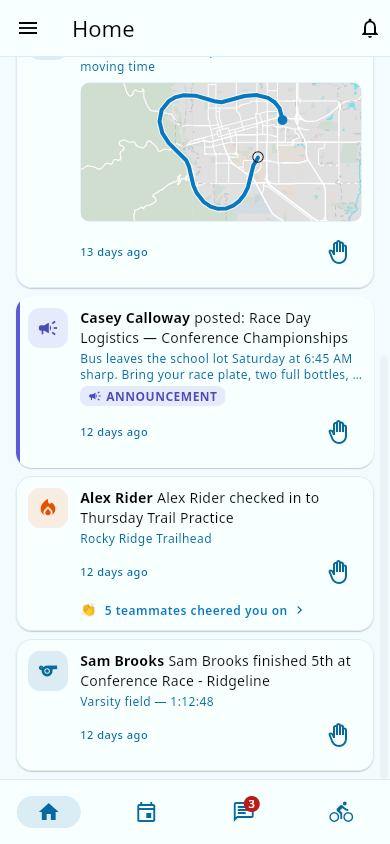 A ride card with its route-map preview.
Choosing what scope to view
The feed has a scope toggle. Use it to widen or narrow who you see:
- Group — only your training group's activity.
- Team — your whole team's activity.
- Organization — activity across every team in your organization (if you're part of an organization with several teams).
What you should see: the feed re-filters to the scope you picked and updates live as new cards arrive.
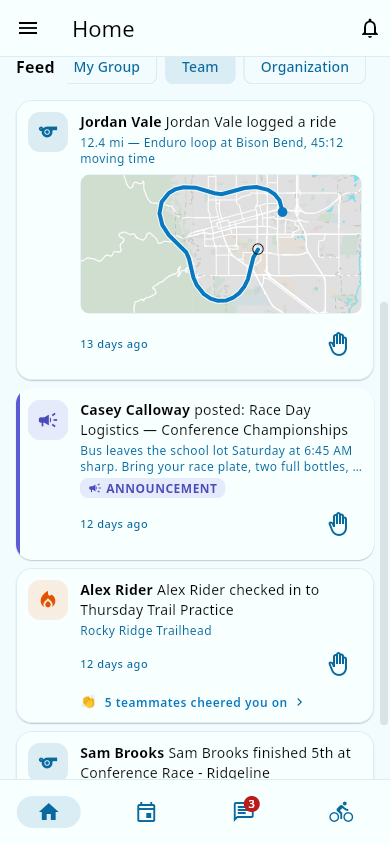 The scope toggle: Group, Team, or Organization.
Reacting with a high five
To cheer on a teammate:
- Find the card you want to react to.
- Tap the high five button on the card — that's the quick, default reaction.
- Your high five is added instantly. Tap it again to take it back.
Using more reactions
The feed's reactions are positive-only — it's a cheering surface, not a comments section.
- Long-press the high five button (on a touch screen) or hover over it (on desktop).
- A picker fans out with more reactions to choose from — for example proud of you, you did it, great job, solid ride, respect, we got you, growing, and a few celebration reactions.
- Pick one. Celebration reactions (like a trophy or "the best") only appear on clearly positive cards such as PRs, season bests, and streaks.
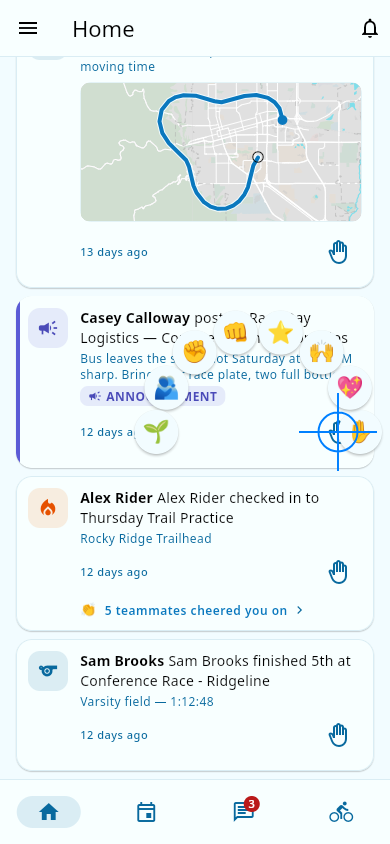 The reaction picker, fanned out from a long-press on the high five.
Reaction counts are private to the author
Groupset deliberately avoids turning the feed into a popularity contest: only the author of a card can see how many reactions it got. As the author, you'll see a quiet footer like "N teammates cheered you on" that opens a list of who reacted. Teammates reacting to your card never see the count.
Notes and limits
- Your own rides and milestones appear in the feed too, just like everyone else's.
- Reaction notifications: when someone genuinely adds a new reaction to your card, you get a notification.
- Whether your activity appears to your group, team, or organization follows the sharing choice on your profile — not something you control per-card.
Related pages
- Attendance — where streak milestones come from.
- Performance analytics — where segment PRs and season bests are measured.
- Announcements — announcement cards in the feed.
- Strava activities — syncing rides so they appear in the feed.
- Volunteering — where volunteer-request cards come from.