Groups
Who this is for: team admins, coaches (athletes and parents can see their group) Applies to: Android · iOS · Web
What this page covers
Training groups are smaller sub-teams inside your team — for example, split by skill level or age — so athletes practice and ride with riders at a similar level. Some groups are organization-wide and can include athletes from more than one team in the same organization. This page explains how groups work, how athletes and coaches are assigned to them, and the two pre-practice flags coaches track before every practice: pit zone and practice-ready.
Before you start
- You must be a signed-in member of the team.
- Creating or editing groups, assigning athletes, and setting the readiness flags are team admin actions. Coaches can view groups and the athletes in them.
How groups work
- A group has a name, a description, and the athletes in it.
- Coaches are assigned to groups — one coach can coach several groups, and a group can have several coaches.
- Athletes belong to at most one group. When an athlete moves groups, the coaches of the old and new group, the athlete's parents, and the athlete (if they have their own login) are notified.
- Organization-wide groups have no single team; they pull athletes from every team in the organization, so, for example, a regional development group can mix riders from several school teams.
Creating a group (team admins)
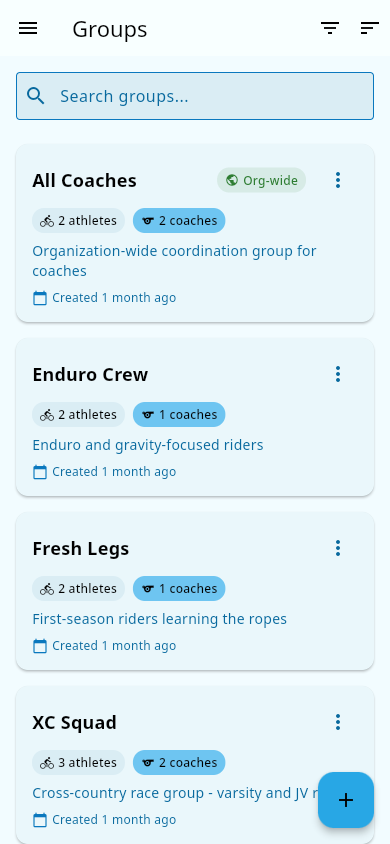 The Groups screen, including an org-wide group ("All Coaches").
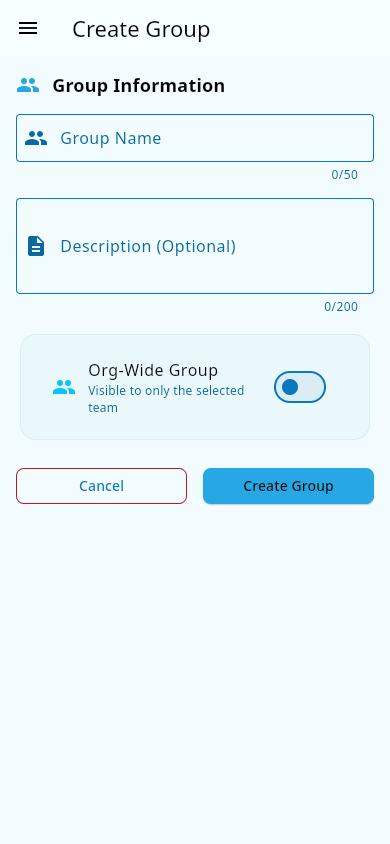 Creating a group: name, description, and the org-wide option.
- Open the Groups screen.
- Choose to create a group.
- Give it a name and description.
- If the group should span teams in your organization, turn on the org-wide option. (Leave it off for a normal team group.)
- Save.
Every group also gets its own coach-reporting scope, and groups can be linked to chat channels: a group channel is created from Team chat, and the members of the groups linked to it are added automatically.
Assigning coaches to a group (team admins)
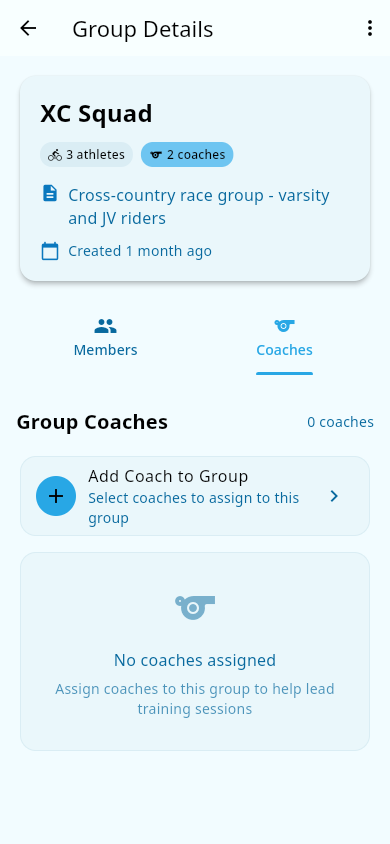 A group's Coaches tab with the add-coach entry point.
- Open the group's page.
- Go to the Coaches tab.
- Add the coaches who run this group (and remove any who shouldn't be there).
- Save.
What you should see: the coaches appear under the group, and those coaches now see the group's athletes in their practice and reporting screens.
Assigning athletes to a group
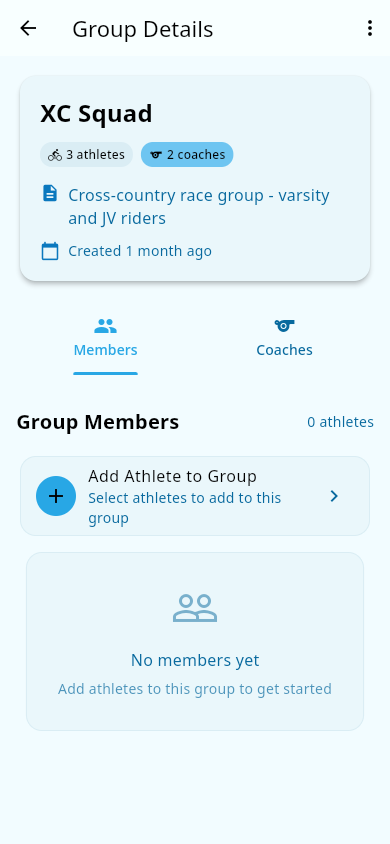 A group's Members tab with the add-athlete entry point.
Athletes get into a group one of two ways:
- A team admin assigns them. Open the group's page, go to the Members tab, and add the athlete(s). You can also assign an athlete to a group from their member record on the Roster. When an athlete moves, everyone involved is notified.
- A coach files a Group Change Request. If a coach thinks an athlete should be in a different group, they submit a request that a team admin reviews. See Check-out reporting: group change requests.
Athletes with their own login are also added to any chat channel linked to their group when they're assigned — and moved out of the old group's channels when they change groups.
The pre-practice flags: pit zone and practice-ready
Before an athlete rides at practice, coaches follow a two-step readiness ladder on the athlete's record:
- Pit-zone invite. The team admin sends the athlete a "pit zone" invite — a signal that they're expected in the staging area at practice. The invite can only be sent once the athlete has paid their team fees. It can be revoked at any time.
- Practice-ready. Once an athlete has a pit-zone invite, the admin can mark them practice-ready, which means they're cleared to ride. Marking practice-ready before the pit-zone invite isn't possible, and unmarking it is always allowed.
These two flags appear on the roster as status badges (see Roster) and are checked at check-in, so athletes can't be marked ready until fees are handled and the invite has been sent.
What you should see: the athlete's roster row and member record update from "Pitzone pending" to "practice ready" as each step is done. If fees are unpaid, the pit-zone invite option isn't available.
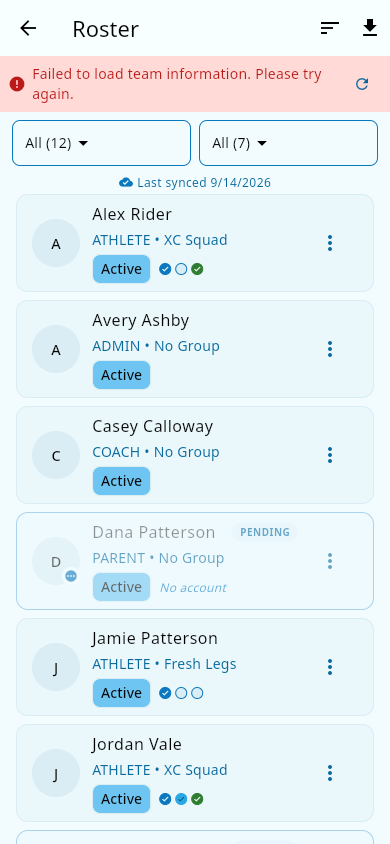 Readiness badges on the roster: "Pitzone pending" and "practice ready" side by side.
Notes and limits
- An athlete who has no fee record at all is treated as paid for the pit-zone step, so brand-new athletes aren't blocked by a missing fee row.
- Group changes requested through the Group Change Request flow and direct admin reassignment notify the same people.
- Coaches and admins can filter dashboards and reports by group; org-wide groups appear alongside team groups where relevant.
Related pages
- Roster — where groups and readiness flags show up as badges and filters.
- Attendance — readiness flags are checked at practice check-in.
- Checkout-reporting-gcr — the coach's way to recommend moving an athlete.
- Chat notification preferences — per-channel chat alerts, including group channels.