Sign in and out
Who this is for: everyone Applies to: all
What this page covers
How to sign in with your email and password, what to do if you forget your password, how the app picks the right team for you (and how to switch teams later), and how to sign out. It also explains what happens when you open the app without a signal.
Before you start
- The email address and password you used to create your account (see Create your account).
Step-by-step
- Open Groupset. On the Welcome screen, tap Sign In.
- On the Welcome Back screen, enter your email address and password, then tap Sign In.
- You land on your last-used team. If you belong to several teams or organizations, the app asks you to pick which one to open.
- To switch teams later: open the navigation menu and choose Switch Team, then pick the team or organization.
- Forgot your password: on the sign-in screen, tap Forgot Password?, enter your email address, and tap Send Reset Link. The app sends you a reset email — open the link in it, or, if the app asks for a code, type the code from the email on the Reset Password screen along with your new password, and submit. You are then returned to the sign-in screen to sign in with the new password.
- Log out: open the navigation menu and choose Logout. You return to the Welcome screen. Logging out also removes this device from the alert list, so you will stop getting push notifications on it until you sign back in.
 The sign-in screen.
 "Forgot Password?" sits under the password field.
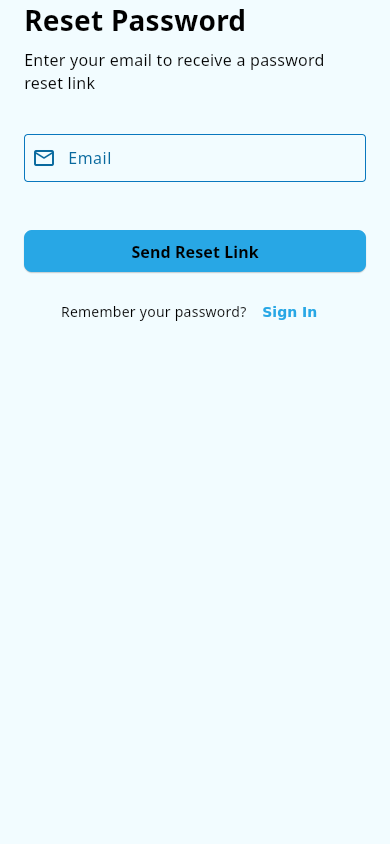 The "Create New Password" form you reach from the reset link.
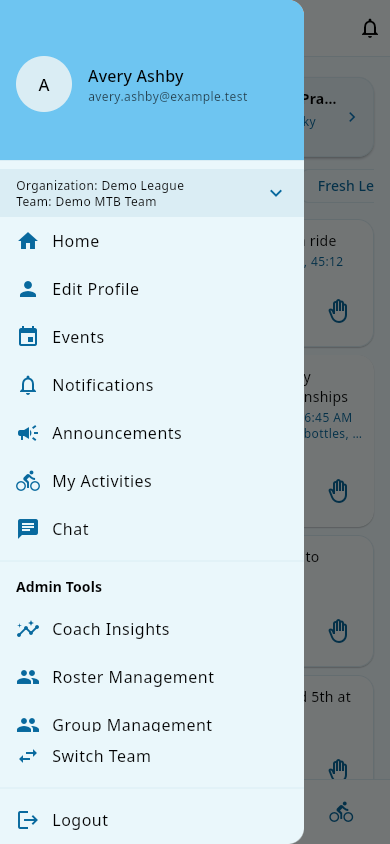 The navigation menu: team info, page links, and Logout at the bottom.
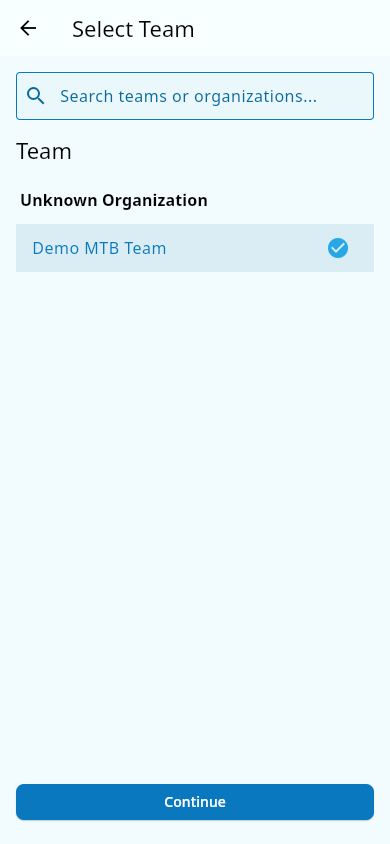 If you belong to more than one organization or team, the app asks which one to open.
What you should see
- After sign-in: your team's Home tab with the dashboard.
- After sign-out: the Welcome screen.
- Forgot your password: a reset email in your inbox; following the link (or entering the emailed code on the Reset Password screen) lets you set a new password, then returns you to sign in.
- Wrong password: if the app can't sign you in, it shows an error banner above the sign-in area — check your email address and password and try again.
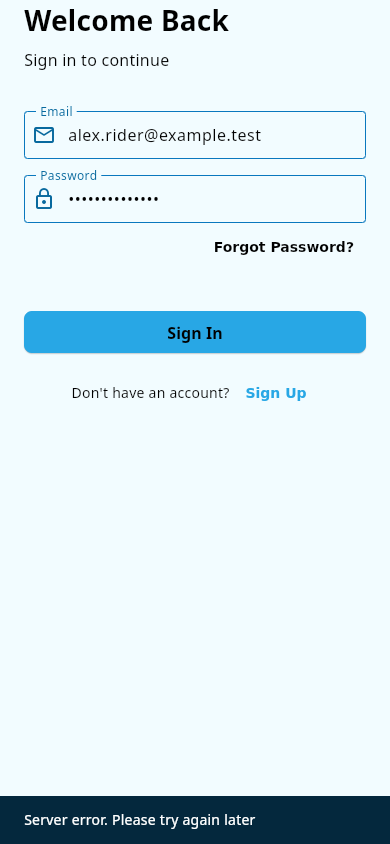 A failed sign-in shows an error banner on the sign-in screen.
- Waiting to verify your email: the app shows a Verify Your Email screen; enter the code from your email, or use the resend option if it never arrived.
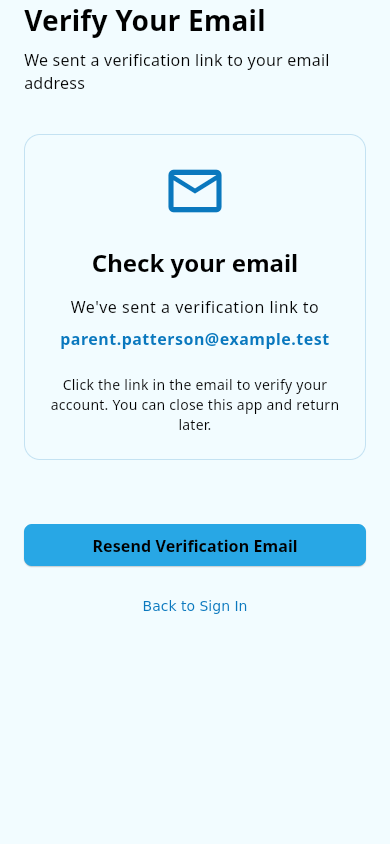 The "Check your email" screen with Resend Verification Email.
Notes and limits
- The app remembers you between launches — once you have signed in, you usually do not need to sign in again. Your sign-in is refreshed automatically in the background; if the app ever can't refresh it (for example, after a long time away), it returns you to the Welcome screen to sign in again.
- No signal: if you have used the app before, your recent team data still loads from a copy saved on your device, even when you are offline. See also: Offline and sync.
- Signing out only ends this device's session — it does not delete your account or any team data.
Related pages
- Create your account — before you can sign in
- Updates, logout, and uninstall — what logging out and uninstalling do
- Your first look around — what you see after signing in
- Teams and organizations — picking and switching teams