Check-out reporting: group change requests
Who this is for: coaches (file and manage requests); team admins (review) Applies to: Android · iOS · Web
What this page covers
A Group Change Request (GCR) is a coach's formal recommendation to move an athlete to a different training group — for example, because the athlete has outgrown their current group or would fit better with a faster or slower set of peers. This page covers filing a request, editing or cancelling it while it's open, and what happens when the team admin decides. (The admin side is on the review queue page.)
Before you start
- You must be a coach who coaches the athlete's current group, or a team admin (admins can file for any athlete on the team).
- The request compares the athlete against their group using recent timed-segment data — see Performance analytics for how those ranks work.
What a GCR contains
A group change request captures:
- The athlete and their current group.
- The target group — the training group you're recommending. It must be a group of the same team, or an organization-wide group of the same organization, and it must be different from the athlete's current group.
- Your rationale — why you think the move helps the athlete.
- A percentile preview — the form shows the athlete's uphill and downhill rank against their peers (100 = fastest in the group), and (once you pick a target group) a projected placement against that group's riders, so the request is backed by numbers, not just opinion.
- Two confirmation checkboxes — the form asks you to confirm that you've considered the downhill side of the move (what the athlete loses by leaving their current group), and an outlier check that the recommendation isn't based on a single standout result.
Filing a request
- Start the Group Change Request form — you'll be prompted at athlete check-out, or you can open it from the athlete's actions/reporting menu.
- Confirm the athlete.
- Choose the target group.
- Review the percentile preview (uphill/downhill rank, and projected placement if you've picked the target group).
- Write your rationale.
- Tick the confirmation checkboxes.
- Submit.
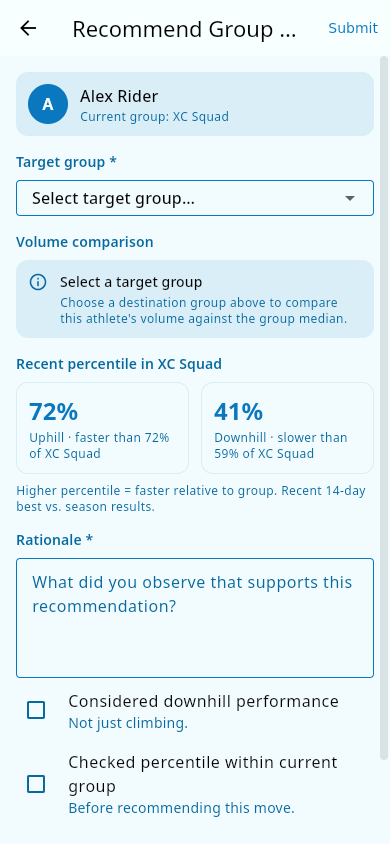 The Group Change Request form: the athlete and their current group at the top, with the target-group picker.
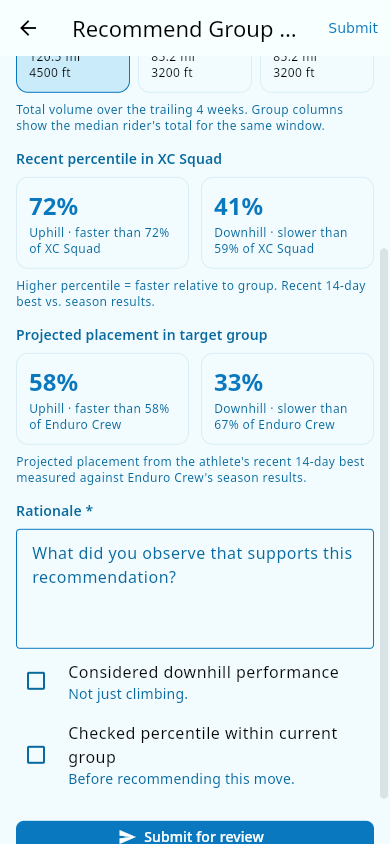 With a target group chosen, the percentile preview shows uphill and downhill rank against the current group, plus the projected placement in the new one.
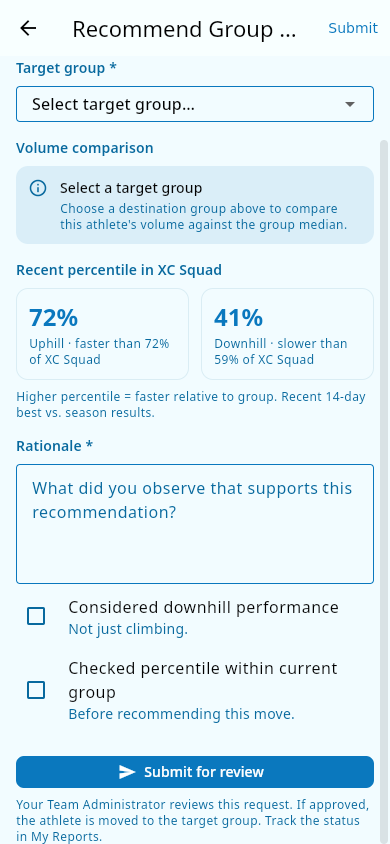 The rationale field — your case for the move.
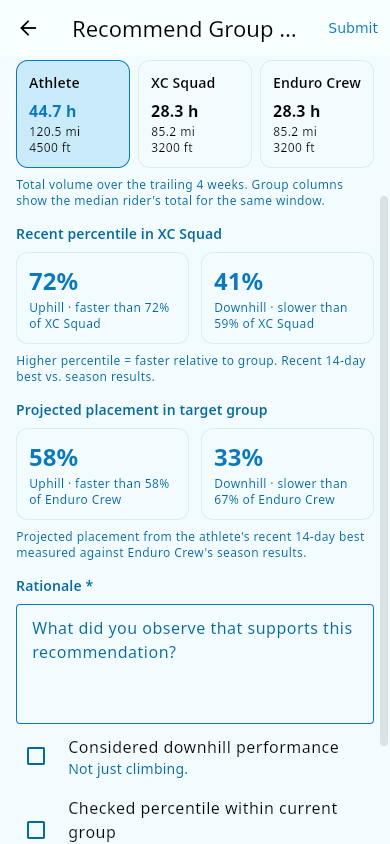 The confirmation checkboxes: downhill performance considered, and the percentile checked against the current group.
What you should see: the request is saved as pending, and the team's admins are notified that a request was filed, naming the rider and the from/to groups. You can find your open request later under My Reports.
Editing or cancelling an open request
While a request is still open (pending review), you can change it — or withdraw it:
- Open the request from My Reports.
- Choose Edit to change the target group, rationale, or acknowledgements, then save.
- Or choose Cancel to withdraw the request entirely.
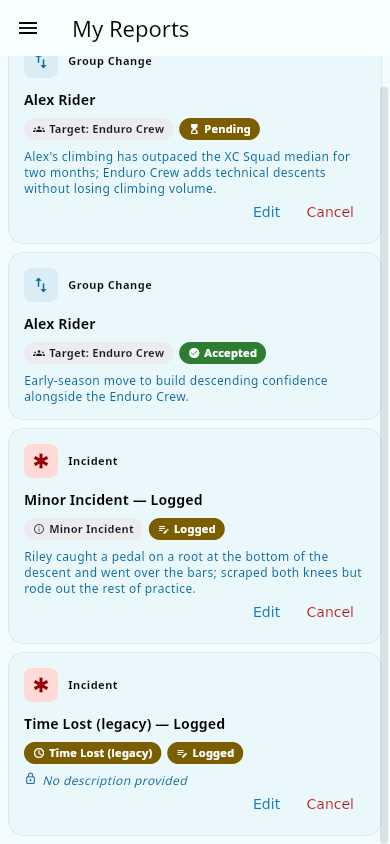 An open request in My Reports: the pending card with its Edit and Cancel actions.
What you should see: edits save without creating a second request, and a cancelled request closes — it no longer waits on the admin's queue. If the admin has already decided, the request can no longer be edited or cancelled.
What happens after the admin decides
Only a team admin can decide a GCR:
- Accepted — the athlete is moved to the target group automatically. The athlete's coaches (old and new group), the athlete's parents, and the athlete (if they have their own login) are notified of the change.
- Denied — the admin records a reason, and only the submitting coach is notified (with the reason).
- Cancelled — by the admin, same as a coach cancelling their own request.
What you should see (as the submitting coach): a notification with the outcome of your request — accepted, denied (with the reason), or cancelled — and the request's status updates in My Reports.
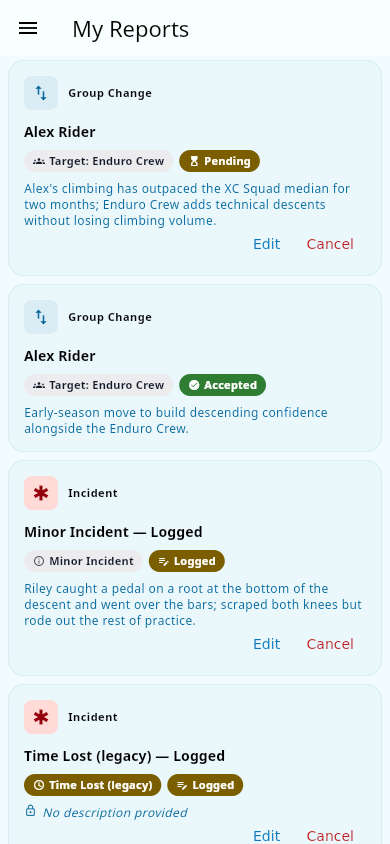 My Reports: a pending request and an accepted one, each with its current status.
Notes and limits
- Moving a group also moves the athlete's chat channel memberships and notifies the same people as a direct admin reassignment — see Groups.
- A coach can file a GCR for an athlete without needing the higher license levels used elsewhere; the percentile preview simply shows "insufficient data" if there isn't enough timed data yet.
- You can't file a request that moves an athlete to the group they're already in.
Related pages
- Check-out reporting (overview) — the suite this fits in.
- Check-out reporting: review queue — how the team admin decides.
- Groups — what happens when an athlete moves.
- Performance analytics — how the percentile preview is computed.