Team chat
Who this is for: everyone — athletes, parents, coaches, and team admins Applies to: all platforms (Android, iOS, web)
What this page covers
Team chat is the in-app messaging space for your team. It is organized into channels — named chat rooms the whole team shares — instead of one long conversation. After reading this page you'll know which channels exist, how to post, react, and attach files, how @-mentions work, and the rules that keep chat safe for younger riders. For notification settings per channel, see Chat notification preferences; for problems, see Chat troubleshooting.
Before you start
- You must be a member of a team (see Joining a team).
- Athletes can read any channel they're in, but can post only in channels that also include an adult member (a coach, team admin, or parent) — an athletes-only channel stays read-only for them. This keeps chat supervised.
Step-by-step
The channels you'll see
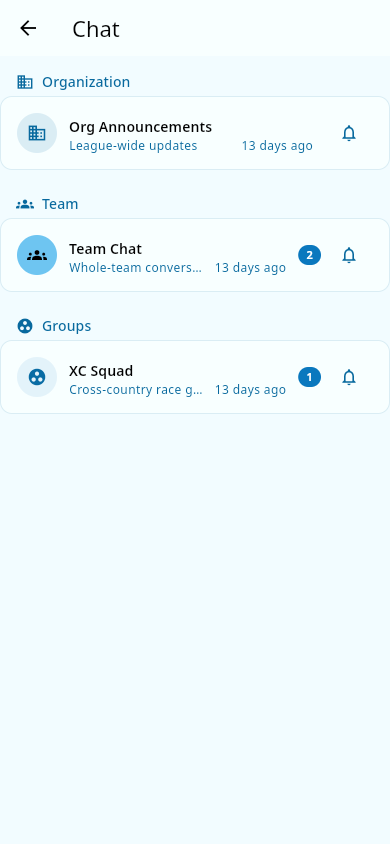 The channel list: grouped by scope, with unread badges, previews, and per-channel bells.
Channels appear automatically — you never have to be "added" to the standard ones:
- General — every team gets one automatically; everyone on the team is in it.
- Training-group channels — a team admin can create a channel linked to one or more training groups. Athletes in those groups, its coaches, team admins, and the athletes' parents are all added automatically. When someone joins or leaves a group, channel membership follows.
- Role channels — for example a coaches-only channel.
- Organization-wide channels — reach every team in your organization, not just one team.
- Conversations — small one-off channels, including one-to-one conversations; they're grouped under a Conversations heading in the channel list. A team admin starts them for a specific topic (for example, a race weekend).
Sending a message
- Open Team chat from the navigation menu and pick a channel from the list. Channels you haven't read show an unread badge.
- Type your message (up to 2,000 characters) and send it. By default you're alerted when someone @-mentions you in a channel; if you'd rather hear about every message in a channel (or none of them), change that channel's setting — see Chat notification preferences. Everyone sees unread badges either way.
- To bring a file along — a photo, a video, a PDF, a Word or Excel document, plain text, or a CSV — tap the attachment icon. Each file can be up to 100 MB.
- To reply to one specific message rather than the whole channel, use its reply action. Replies collect in a thread under the original message, so side conversations don't bury the main one.
- To react to a message, open its menu and pick an emoji. You can remove your own reaction the same way. The author can see who reacted.
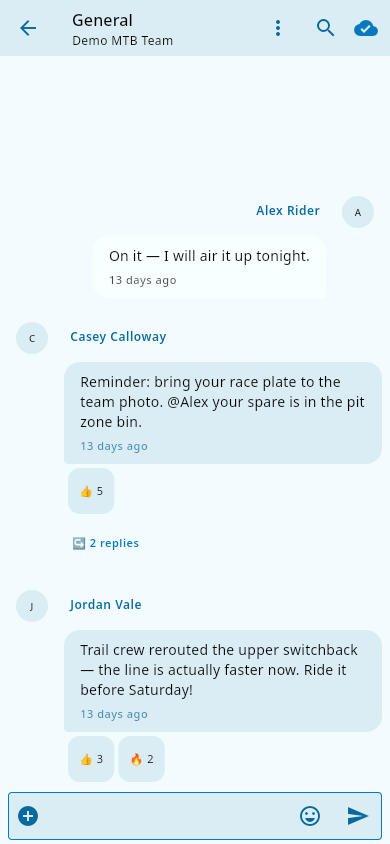 A channel thread: reactions under a message, a reply count, and an @-mention.
6. Sent something you regret? You can delete your own message shortly after sending — see Chat troubleshooting for the exact rules.
7. To get someone's attention, @-mention them (see below).
A channel thread: reactions under a message, a reply count, and an @-mention.
6. Sent something you regret? You can delete your own message shortly after sending — see Chat troubleshooting for the exact rules.
7. To get someone's attention, @-mention them (see below).
Mentions
- @Name notifies that person — as long as they're a member of the channel.
- Group mentions — @Admins, @Coaches, @Athletes, @Parents (or @Everyone for the whole channel) notify everyone holding that role in the channel.
- Who can use group mentions: only team admins and owners; coaches can use them in a training-group channel. If you don't have permission, the group-mention options don't appear and the mention won't send.
- Chat suggests names as you type, so you don't have to spell them exactly.
Managing channels (team admins)
- In the channel list, use the Create channel button to create one. Choose what it's for: a training group, a role, the whole organization, or a one-off topic.
- From a channel's options you can rename it, change its description, add or remove members, or archive it. An archived channel stays readable as history but accepts no new messages; deleting removes it entirely.
- If a member is misbehaving, you can mute them in that channel — choose a preset length (30 minutes, 1 hour, 4 hours, or 24 hours), enter a custom number of minutes, or mute them indefinitely — with an optional reason. A muted member can still read the channel but can't post until the mute expires or you remove it.
Staying safe (everyone)
- Anyone can block another member from a message's menu. After blocking, their messages no longer appear to you and you stop getting alerts about them. Whether a block also hides your messages from them is still under review — for now, expect only your own view to change. Manage your blocked list from the blocked-users screen.
- Blocking is personal; muting is a team-admin tool. Use whichever fits.
What you should see
- Your channel list shows every channel you belong to, with unread badges and a preview of the latest message.
- When others are typing in the channel you have open, a typing indicator appears.
- When you open a channel, its unread badge clears immediately.
Notes and limits
- Athlete safeguard: athletes can only post in a channel when an adult member (coach, team admin, or parent) is in it too. This is by design, not a bug — see Roles and permissions.
- Chat is rate-limited to about 10 messages per minute per person.
- Only images, common video formats, PDF, Word and Excel documents, plain text, and CSV files can be attached, up to 100 MB per file.
- Chat needs a connection — messages send when you have one. See Offline and sync for what works without signal.
- There are no "seen by" read receipts in channels: the app tracks whether you have read a channel (the unread badge), not who has seen each message.
- Announcements (broadcast messages to the whole team) are a separate feature — see Announcements.
Related pages
- Chat notification preferences — choose all / mentions-only / muted, per channel
- Announcements — one-way broadcasts from team admins
- Notifications — where chat alerts land and how to control them
- Chat troubleshooting — sending, attachment, and mute problems
- Roles and permissions — who can do what