Events and practices
Who this is for: everyone (team admins create and edit events and practices; everyone else views and RSVPs) Applies to: Android · iOS · Web
What this page covers
All the riding the team does — practices and races — lives in one place called the Events Hub, so families see the whole schedule in a single list. This page explains how to read that list, how team admins create or edit an event or practice (and what's different about a race), how to attach helpful links to an event, and how to RSVP.
Before you start
- You must be a signed-in member of the team.
- Anyone can view events and RSVP. Creating or editing events and practices is a team admin action. Coaches who need an event or practice added or changed should ask their team admin.
- To add event links like a race flyer or course info, you'll need the web address of the flyer or page handy.
Reading the Events Hub
- Open the Events Hub — your team's combined event list.
- Scroll to page through upcoming events. Each event card shows what it is, when it starts and ends, where it is, and its RSVP count.
- Use the filter bar to switch between event types (practices, races, meetings, social events), by date, or to search.
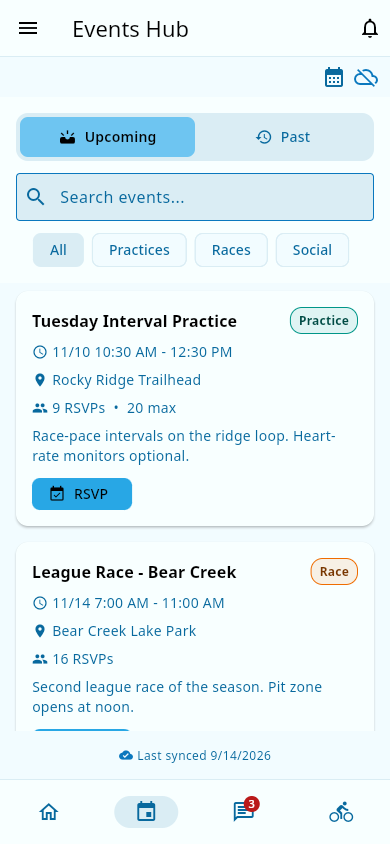 The Events Hub: practice and race cards with type, times, location, and RSVP count.
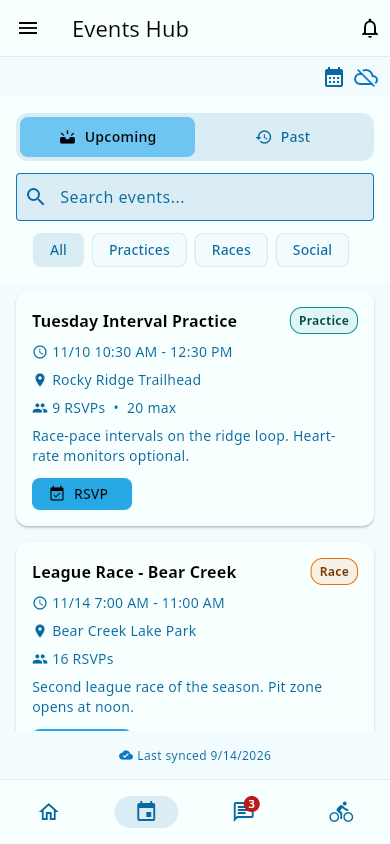 The Hub's filter bar: event types and search.
Events created for the team appear here automatically. Social (non-riding) events also show up in the Hub — see Social events.
Creating or editing an event or practice (team admin)
Coaches: creating or editing events and practices isn't something you can do in the app. To add or change an event or practice, ask your team admin.
- In the Events Hub, choose to create a new event (or open an existing event and choose Edit).
- Pick the event type:
- Practice — a normal team practice.
- Race — a race day. Race events get extra fields and a Results tab on race day (see Race results).
- Give the event a title (for example "Tuesday hill practice" or "League Race 3").
- Set the location and the start and end date/time.
- Save.
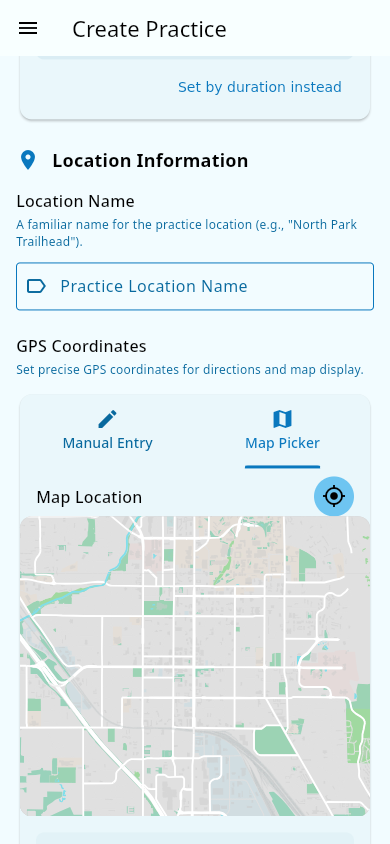 The create form: type, title, location, and start/end.
Race-only extras
When you create a race, you can also fill in course profile fields — lap distance and elevation gain — so the team knows what the course involves.
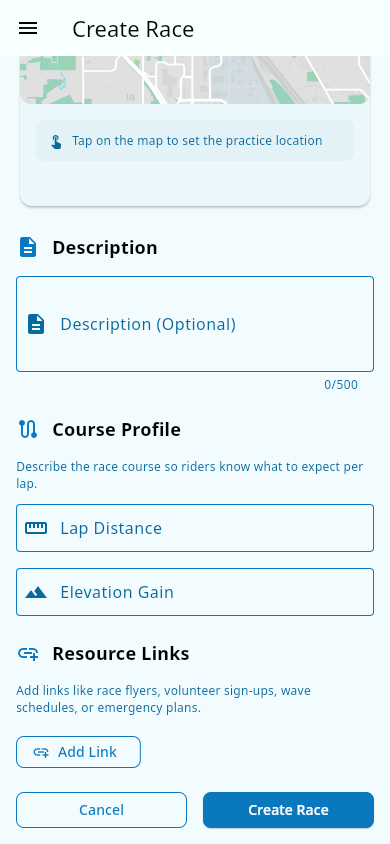 Race extras: lap distance and elevation gain.
Adding links to an event
Events can carry labeled links, so everything families need is one tap away:
- While creating or editing the event, add a link and give it a label — for example Race flyer, Course info, Wave schedule, or Emergency Action Plan.
- Paste in the web address and save.
- Add as many links as the event needs; they appear on the event page in the order you set.
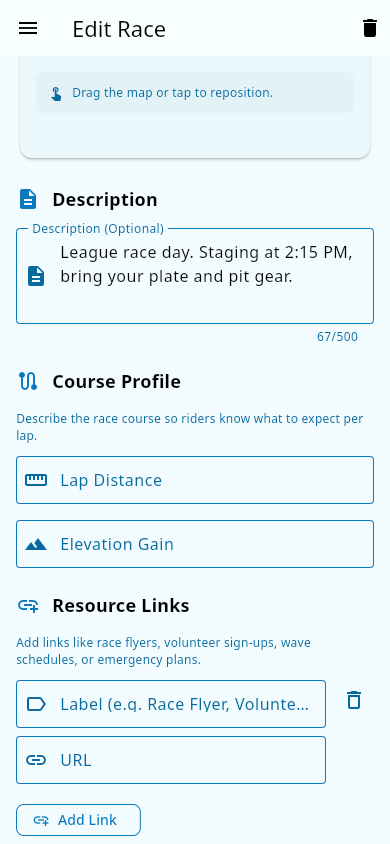 A labeled link added in the form.
RSVP to an event
- Open the event in the Events Hub.
- Find the RSVP control on the event page.
- Choose your response — for example Going, Not going, or Maybe.
- If you're a parent responding for a child, choose which child you're answering for and set their response.
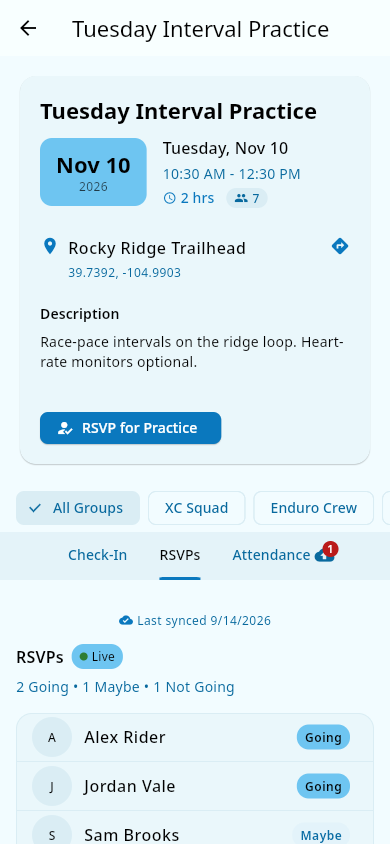 The RSVP control: Going, Not going, or Maybe — with the running count.
What you should see: your response is saved, and the RSVP count on the event card updates. The coach or team admin running the event sees who plans to come.
On event day: volunteer needs and check-in
Event pages also carry the team's volunteer needs for that event (see Volunteering):
- Each shift shows its time slot and how many slots are filled. Item needs are shown as Bring to: followed by the event's name, and when a team admin set a deadline for an item, the needed by time is shown right with it.
- Opening the event from a volunteer card in the activity feed — the usual path on event day — puts those volunteer needs first on the page, ahead of everything else. In that view, Check In/Out appears for team admins and for people signed up for one of that event's shifts.
What you should see: the event's volunteer needs and any item deadlines right on the event page. In the standard event view, check-in controls are always on the page; in the volunteer-first view they appear for team admins and for people signed up for one of the event's shifts.
Notes and limits
- Team admins can start an event from a practice template (a saved practice skeleton) to prefill location, length, and setup.
- Your team may offer a calendar subscription, a private link that puts team events into your Apple or Google calendar automatically.
- Reminders about an hour before each event: the app schedules reminders on your phone for the team's upcoming events, up to two weeks ahead. They're set whenever you open the app, so open it regularly to keep upcoming reminders current. This is phones only — browsers can't schedule device reminders.
- Check-in isn't limited by location — the app records who's present without checking where anyone is standing.
Related pages
- Attendance — check-in/out happens on the event's page.
- Race results — the Results tab that appears on race events.
- Social events — non-riding team gatherings.
- Practice templates — reusable practice setups.
- Calendar subscriptions — put team events in your own calendar.
- Volunteering — the volunteer needs shown on event pages.