Payments
Who this is for: parents pay fees; team admins set fees and view history Applies to: Android · iOS · Web
What this page covers
Every athlete owes a team fee for the season, set by the team admin. This page explains where fees come from, how to pay a pending fee on your phone or on the web, how discount codes (promo codes) work at checkout, what the payment statuses mean, and how to see payment history. The team admin also uses the payment history to follow up with families who haven't paid yet.
Before you start
- You need an account linked to the athlete (a parent) to pay their fee.
- To use a discount code at checkout, have the code ready.
- The team admin must have set a team fee and switched on payments for the team; if you never see a fee, ask your team admin.
Where the fee comes from
The team admin sets the season fee for the team (a flat amount, or an amount based on the athlete's grade). Once set, each athlete gets a fee record with a due date, and it appears in the parent's payment area as a pending payment.
What you're charged
The amount you pay is the athlete's team fee — the flat amount for the team, or the amount for their grade. Promo codes discount this fee at checkout.
Processing and platform fees come out of what the team receives, not added on top of what you pay.
Payments are per athlete — there's no combined "family cart." If you have more than one child, you pay each pending fee separately.
Paying a pending fee
- Open the Pending payments screen (your list of unpaid fees, one per athlete if you have more than one child).
- Find the fee you want to pay. Past-due items are colored to stand out.
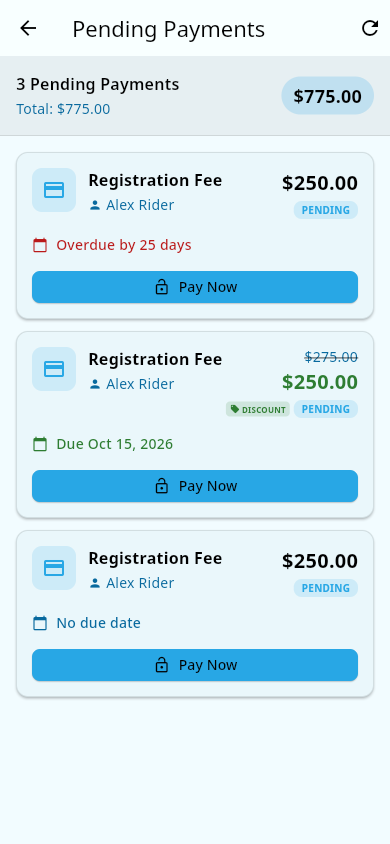 The Pending payments list: past-due fees are flagged, each fee has its own Pay Now.
- If you have a discount code, enter it now (see below) — the amount updates before you pay.
- Tap Pay Now:
- On your phone: a secure in-app payment sheet opens where you confirm your payment method and approve the charge.
- On the web: a secure payment page opens in your browser. After the payment completes you're returned to the app's payment-success screen.
- When it's done, the fee shows as Paid.
What you should see: the payment moves from Pending to Paid in your list, and you can view a receipt for the transaction. If the payment didn't go through, it shows as Failed and you can try again — the app walks you through choosing a payment method and confirming the charge.
Using a promo code at checkout
A promo code is a discount code the team admin creates — either a percentage off or a fixed dollar amount off the fee.
- On the Pending payments screen, open the promo-code option before paying.
- Enter the code (for example a team-given code like
EARLYBIRD) and confirm. - The app validates it and shows the discount applied to the amount.
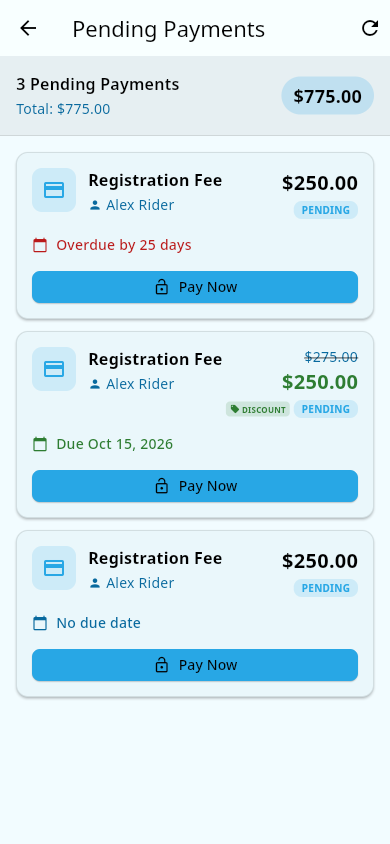 A fee with a promo applied: the original price is struck through and the discounted amount shows.
- Complete the payment as normal — the charge reflects the discounted amount.
What you should see: if the code is valid, the displayed amount drops and the code is attached to that fee. If the code is invalid or expired, the app tells you and leaves the amount unchanged. You can remove a code from a fee that's still pending if you change your mind.
Payment statuses
| Status | What it means |
|---|---|
| Pending | The fee exists but hasn't been paid yet. |
| Paid | The payment succeeded; a receipt is available. |
| Failed | The last payment attempt didn't go through (for example, the card was declined). Try again — you can retry with another payment method. |
| Processing | The payment is being confirmed; it settles to Paid or Failed shortly. |
| Partially paid | Only part of the fee has been covered so far. |
| Refunded / Canceled | The fee was returned or voided. |
Payment history and reminders
Parents
Your payment history (paid and pending items with receipts) is available from the payment area of the app. If the team admin sends you a reminder, you'll get an email with a link straight to the payment.
Team admins
- Open Payment history for the team.
- Filter the list by status, team, or date range.
- Summary cards at the top give you the big picture (for example, how many fees are still pending).
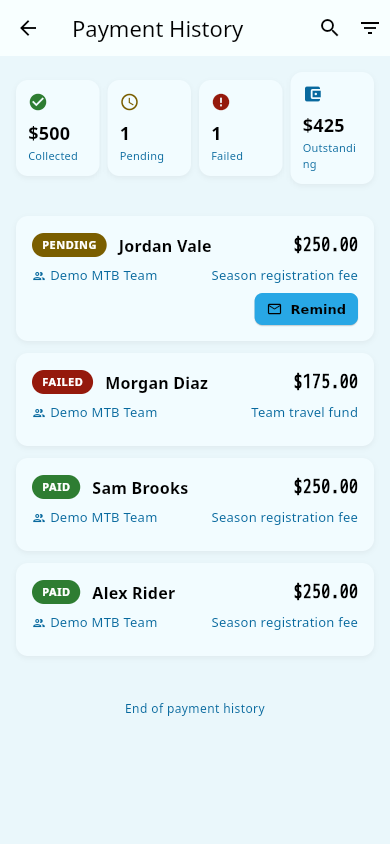 The team's payment history: summary cards at the top and filters for status, team, and date.
- Each row shows failure, retry, and receipt details.
- To chase an unpaid fee, use the send reminder action — the app emails the parent a payment link.
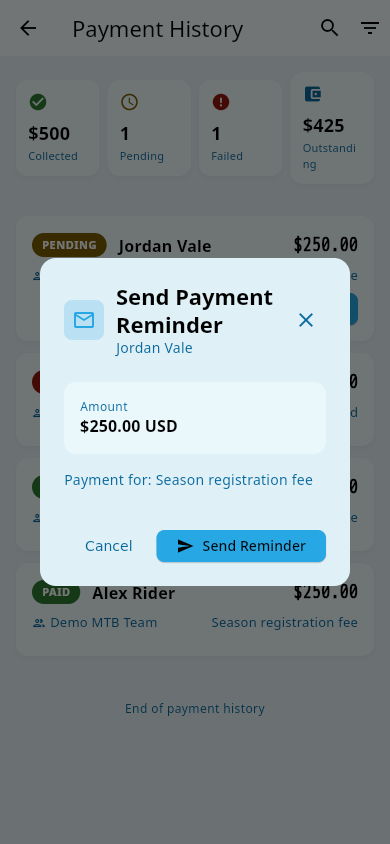 The send reminder action on an unpaid fee.
What you should see: after sending a reminder, the parent receives an email with a link that opens their pending payment. Your payment list also lets you see at a glance which families are outstanding — which pairs with the roster's "fees owed" filter (see Roster).
Refunds
There's no self-serve refund in the app. To request a refund, contact your team admin — the team processes refunds through its payment provider, so the admin arranges the return for you.
Notes and limits
- If a fee record doesn't exist for an athlete, the roster treats them as having no balance for the pit-zone step — see Groups.
- Your team needs a payout account set up with the payment provider before it can collect fees. If you never see a Pay Now option, ask your team admin to check the team's payout setup (see Payment account).
- Paying is handled entirely through Groupset's secure payment flow; you never send money outside the app.
- If a payment sits stuck on Processing, the app automatically alerts the team admins so they can look into it — you don't need to report it yourself.
Related pages
- Roster — the "Fees Owed" filter shows who still owes.
- Groups — athletes must have paid fees to receive a pit-zone invite.
- Troubleshooting: payments — if a payment won't go through.
- Team fees and Promo codes — how admins set amounts and discounts.