Your first look around
Who this is for: everyone Applies to: all
What this page covers
A quick tour of the main screen once you are signed in: the tabs along the bottom (which depend on your role), the navigation menu with more screens, and how the app behaves when you are offline.
Before you start
- You are signed in and part of a team (see Sign in and out). The role you chose when you joined shapes what you see below.
Step-by-step
- Home — your dashboard, and where you land after signing in. The panels shown here depend on your role: recent activity, announcements, your upcoming events, and role-specific actions.
- Events Hub — everything scheduled in one place: practices and races, plus social events. Open an event to see details and reply with your RSVP.
- Chat — team chat. Messages are organized into channels for the whole team (and subgroups, if your team uses them).
- Group (coaches only) — your coaching home base: your next practice with one-tap attendance and directions, your athletes, and — when one is ready — a link to open your Coach Insights report. A dot on the tab means there is something new there.
- Family (parents only) — one card per child with quick access to their page, your household's volunteer hours and upcoming volunteer slots, and each child's coaches.
- Activities (if it is in your tab bar) — athletes get a personal performance view here; everyone else sees their own rides and activities (My Activities). Rides sync in from Strava if you have connected it. If you are a parent and not an athlete, this tab is not shown — open My Activities from the navigation menu instead.
- Open the navigation menu (the menu icon in the top corner) to see more screens — roster, groups, payments, settings, and more. Which screens appear depends on your role.
- Allow notifications if the app asks — that's how announcements, chat mentions, and other alerts reach you when you're not in the app. You can fine-tune what you receive later; see Notifications.
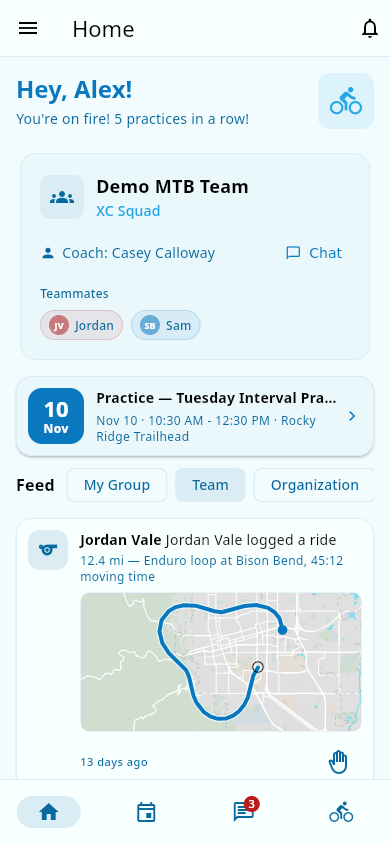 The main screen: Home, Events Hub, and Chat for everyone — plus role tabs like Group, Family, or Activities.
Offline: if you lose your signal, don't worry. Your recent roster and events stay available from a copy saved on your device, so you can keep browsing. A banner may appear showing you are offline, with a Sync Now button to send any saved changes once you are back online.
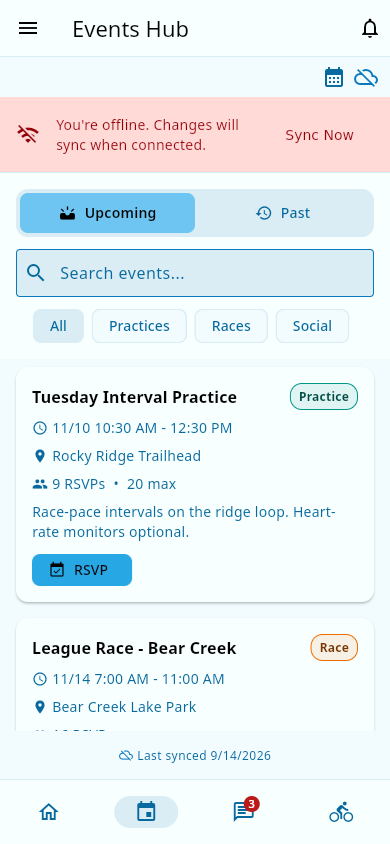 The offline banner with its Sync Now button.
The tabs up close
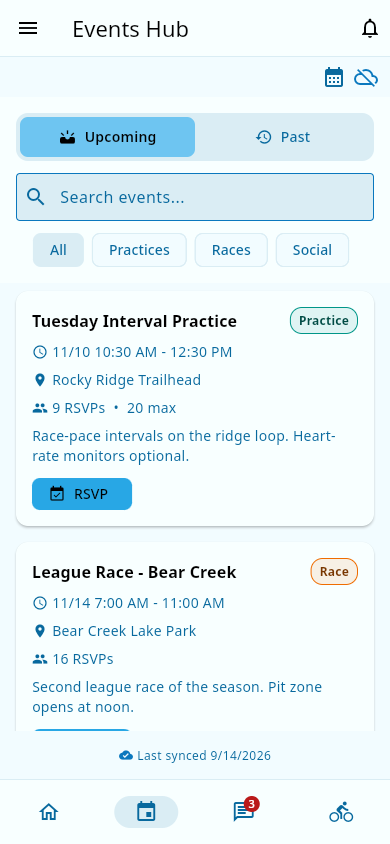 The Events Hub tab: practices, races, and socials in one list.
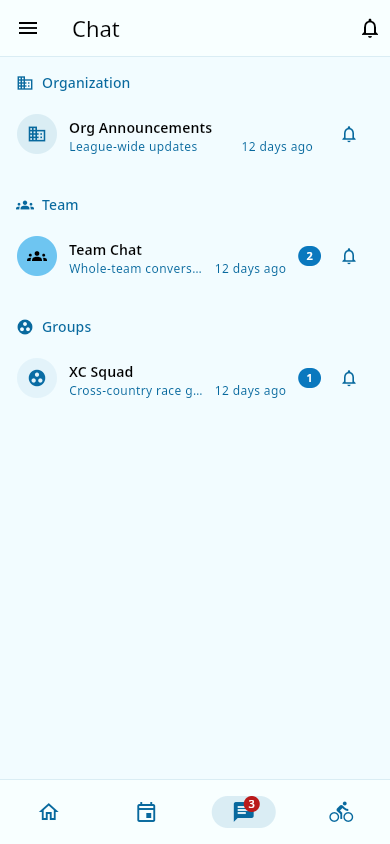 The Chat tab with the team's channels.
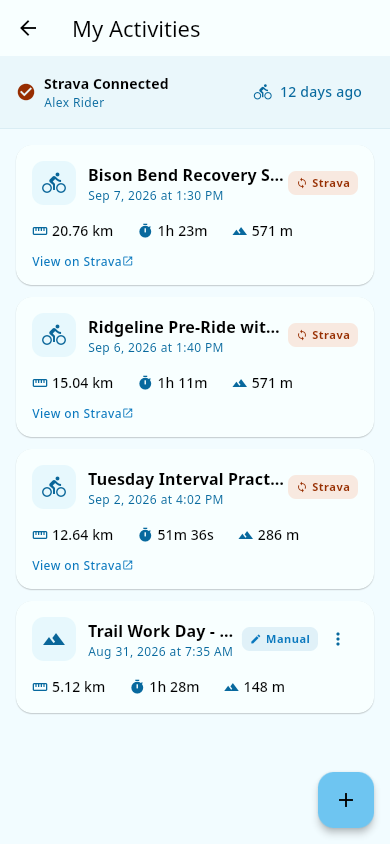 The Activities tab with the athlete's rides.
What you should see
- Tabs along the bottom of the screen that match your role: everyone gets Home, Events Hub, and Chat; coaches also get Group; parents also get Family. Activities appears for athletes, and for people who are not parents (for example, coaches and team admins). If you are a parent and not an athlete, there is no Activities tab — open My Activities from the navigation menu instead.
- The navigation menu lists the screens available to your role.
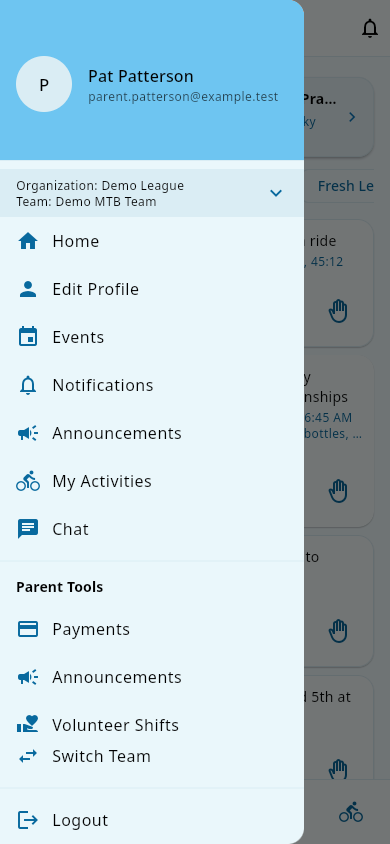 The navigation menu for a parent: pages plus the Parent Tools section.
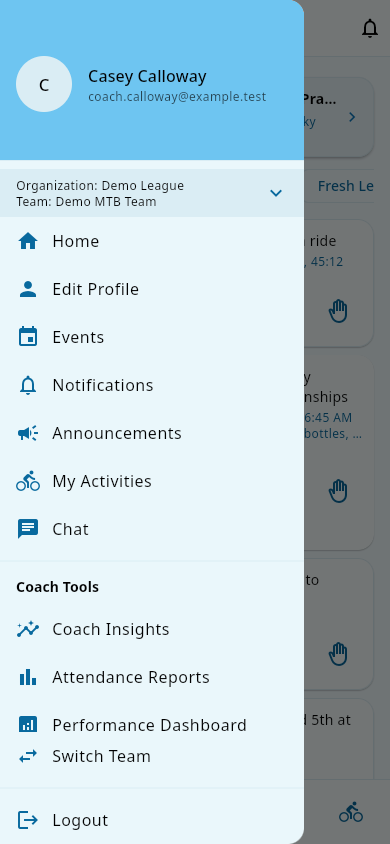 For coaches, a Coach Tools section appears in the menu.
- When there is no signal: an offline banner with a Sync Now button.
For coaches, a Coach Tools section appears in the menu.
- When there is no signal: an offline banner with a Sync Now button.
Notes and limits
- The tab bar changes with your role on the selected team, and the Home panels and navigation menu change with it too. Switching to a team where you hold a different role swaps the tabs to match.
- The bottom bar shows icons only — the title at the top of the screen names the tab you are on.
- Some menu items appear only for certain roles (for example, settings for team admins).
- The navigation menu has a Coach Tools section that appears only when you hold an active coach role on the team (with group assignments). If you were just promoted to coach and don't see Coach Tools, the role change may not have refreshed yet — sign out and sign back in, and it should appear.
- If you were a parent and are now also a coach, the home screen can briefly keep showing the parent view until the role change refreshes. Signing out and back in refreshes it.
- Push notifications reach a device only once you've signed in on it and allowed notifications. See also: Notifications.
- When you are offline, check-ins and other saved changes are sent automatically when you are back online. See also: Offline and sync.
Related pages
- Sign in and out — getting in and picking your team
- Register your athlete (parents) — where an athlete's record appears afterwards
- Notifications — alerts, the notification center, and your preferences
- Install the app — getting Groupset on your device