Direct messages
Who this is for: everyone — athletes, parents, coaches, and team admins Applies to: all platforms (Android, iOS, web)
What this page covers
Direct messages are private one-to-one conversations between team members, separate from the team's channels. This page explains where they live, how to start one, who can read a conversation, how to read and reply, how to report a conversation that feels wrong, and where the guardian Watching view is. The team-wide switches and the per-person settings have their own pages — this page links to them instead of repeating them.
Before you start
- You must be a signed-in member of a team.
- Direct messages are a team feature: a team admin turns them on in Team Settings → Direct messages (see Team direct messages).
- Direct messages are rolling out — if you don't see a Direct messages section in Chat, it may not be available in your build yet.
Where direct messages live
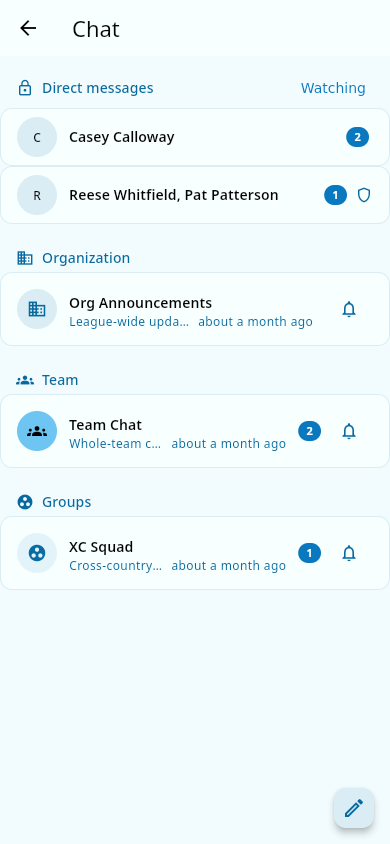
Open Chat — your conversations appear in a Direct messages section at the top of the channel list, above the team's channels. Each row shows the person's name and an unread badge when there's something new, and each conversation appears once in the list. The pencil button in the corner — New direct message — starts a new conversation.
Starting a conversation
- In Chat, tap New direct message.
- Pick one person from the list — use Search team members to narrow it. Direct messages are always one-to-one, so you choose exactly one person. Each person appears once even if they hold more than one team role, shown with their strongest role.
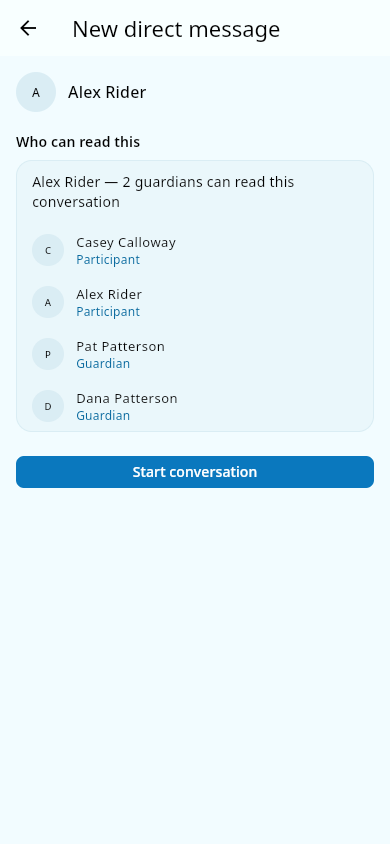
- The next screen shows Who can read this before anything is sent: the conversation's summary line, then each person who will be able to read it, labelled Participant or Guardian. If the conversation can't be started, the app explains why and the Start conversation button stays inactive.
- Tap Start conversation.
If you're a minor, this screen also shows a Before you start card explaining that direct messages are supervised: guardians of the riders in a conversation can read it, and a team admin can review a conversation once it's been reported.
What you should see: the conversation opens as a chat thread, and it now appears under Direct messages in your chat list.
Who can read a conversation
Conversations that include an athlete are supervised: a guardian — or, when no guardian is available, another adult on the team — is brought in to supervise, and guardians can read the conversations their athlete is in. Before you start, the audience preview tells you exactly who can read: for example "2 guardians can read this conversation", or that a guardian or second adult will supervise this conversation. In practice you'll see one of these:
- Between adult team members — just the two of you; the conversation carries no special label.
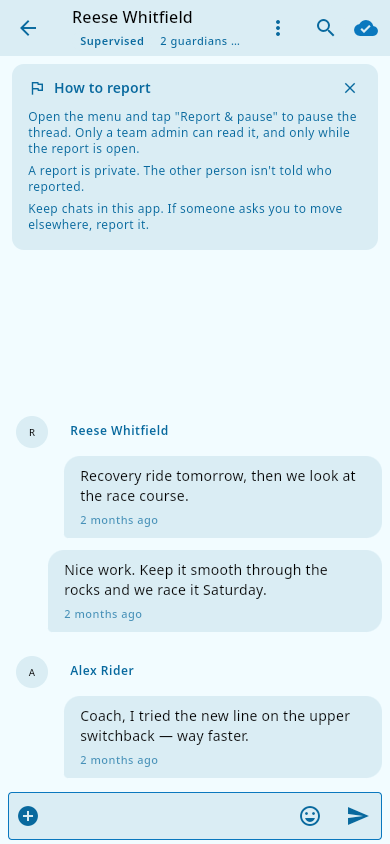
- Supervised — when a minor is in the conversation, the thread carries a Supervised chip and a line like "2 guardians can read". The minor's guardians can read the conversation.
- Peer — conversations between minors, with one guardian reading along. This kind isn't available yet: the team's Peer lane switch ships off (see Team direct messages).
Reading and replying
- Tap a conversation in the Direct messages section to open it.
- Read the messages and type your reply in the message box at the bottom — it's the same message box as chat, with the same formatting row, attachments, and reactions (see Team chat).
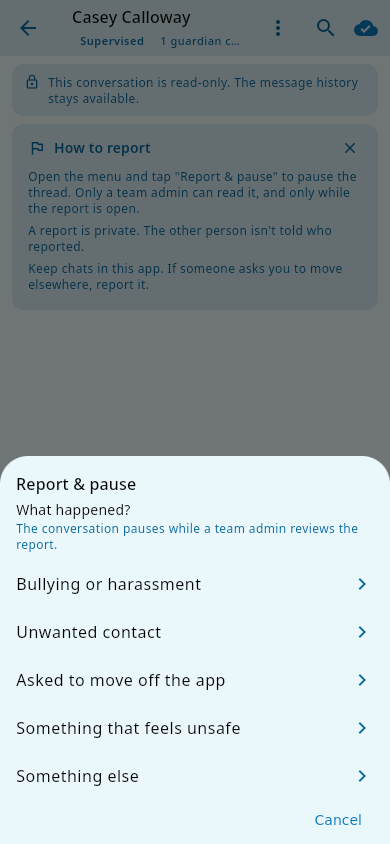
- If a conversation is paused (see below), it is read-only for everyone: a banner says "This conversation is read-only. The message history stays available." and the message box is replaced by "You can't send messages while this conversation is read-only."
Held messages. A message from an adult who is not a guardian of every minor in the conversation, sent between 8 PM and 8 AM, is held until 8:00 AM. Minor senders are not held. Your own copy of the message shows a small delivers at 8:00 AM label (in your local time format) until it goes out; the other person doesn't see it before then.
What you should see: the unread badge on the conversation clears when you open it, and new messages appear while you're on the screen.
Watching a conversation (guardians)
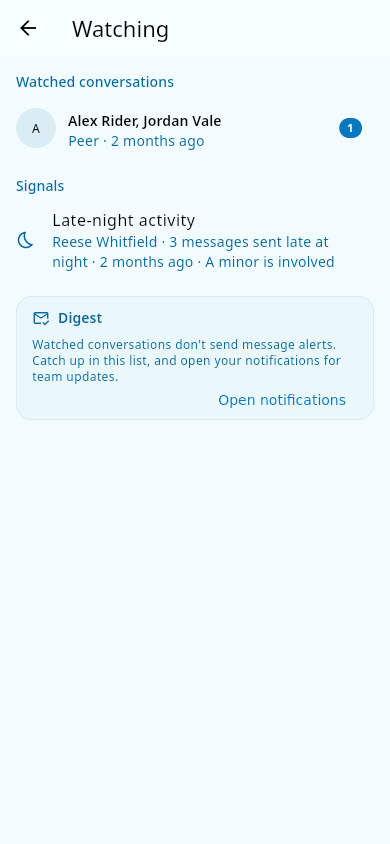
A guardian of a rider in a conversation can read along without being a sender. The Watching button next to the Direct messages heading opens the Watching screen. The button appears for any member who can see a Direct messages section; if you are not a guardian, the list is empty.
- Watched conversations lists the conversations you can read — each with its kind and how long ago it last had activity — and an unread badge when there's something new.
- Signals shows activity patterns rather than message content — for example Late-night activity, Unusual message volume, or A new conversation — and notes when A minor is involved.
- The Digest card explains that watched conversations don't send message alerts; Open notifications takes you to your notification list.
Open a watched conversation to read it — the message box is replaced by "You're watching this conversation. Only its members can reply."
Reporting a conversation and pausing it
If something in a conversation feels wrong — including someone asking you to move the chat somewhere else — you can report it:
- Open the conversation and open its menu in the top corner.
- Choose Report & pause.
- Pick what happened: Bullying or harassment, Unwanted contact, Asked to move off the app, Something that feels unsafe, or Something else.
- On the Pause this conversation? screen, confirm with Report & pause.
What you should see: the confirmation "Report sent. The conversation is paused while it is reviewed." The conversation becomes read-only for everyone while a team admin reviews your report. The other person isn't told who reported. The app does not yet have an in-app control for a team admin to reopen it — contact support if a paused conversation needs to be restored.
In supervised and peer conversations, a pinned How to report card at the top of the thread restates the rules in three lines: "Open the menu and tap "Report & pause" to pause the thread. Only a team admin can read it, and only while the report is open.", "A report is private. The other person isn't told who reported." and "Keep chats in this app. If someone asks you to move elsewhere, report it." The card's Dismiss button hides it for your account; after that, the conversation's menu carries Show how to report, which brings the card back.
Your own direct-message settings
An athlete can turn their own direct messages on or off, and a guardian has controls over their athlete's conversations, including a switch that stops coaches, admins, and owners from starting conversations with the athlete. Find these under Edit profile → Direct message settings; what each control does is explained on Chat notification preferences.
Blocking and muting
- You can block another member from a message's menu; after that, their messages no longer appear to you and you stop getting alerts about them. Manage your blocked list from the blocked-users screen.
- For what blocking does and doesn't do, and how team-admin mutes work in channels, see Chat troubleshooting.
Notes and limits
- Direct messages are one-to-one: you choose exactly one person when you start a conversation.
- A conversation is private to its members and readers — the two participants, the supervising guardian or adult on a supervised conversation, guardians reading along, and a team admin only while a reported conversation is paused for review.
- A conversation that's paused for a report stays read-only until it is reopened. The app has no in-app reopen control yet, so contact support. Reports are private: the other person isn't told who reported.
- If a send is refused, the app only says Failed to send message. The likely causes are listed in Chat troubleshooting.
- Watched conversations don't send message alerts — catch up on them in the Watching list.
- Whether the feature is on for your team is a team-level setting: Team Settings → Direct messages — see Team direct messages.
Related pages
- Team chat — channels, mentions, and the chat list these conversations live in.
- Team direct messages — the team switches a team admin controls.
- Chat notification preferences — your per-person and per-channel alert settings.
- Chat troubleshooting — if a message won't send or someone seems to have blocked you.
- Notifications — where team updates land.