Log a group ride
Who this is for: coaches and team staff (a team admin or owner can replace a ride only if they also coach that group, are checked in, and have their own matching ride) Applies to: Android · iOS · Web
What this page covers
How a coach turns one of their own synced rides into the practice group's group ride, so every athlete who checked in and rode in that group gets a coach-logged ride entry. There are two ways in — the event page's Group ride card and the Home Rides to log card — and both take only a few taps. This page also covers undoing a ride, replacing one, and the reminder.
Before you start
- You must be checked in to the practice. If you aren't, the event page's Group ride card offers a Check in button, and you can also check yourself in from the event's check-in list (see Attendance).
- You need your own ride that has synced to Groupset and matches the practice — one that started from 30 minutes before the practice began until the practice ended. Rides from Strava sync automatically; see Strava activities.
- You can log a ride for a group you coach. If you coach more than one group, you'll choose which group rode.
Step-by-step
From the event page
- Open the practice from the Events Hub.
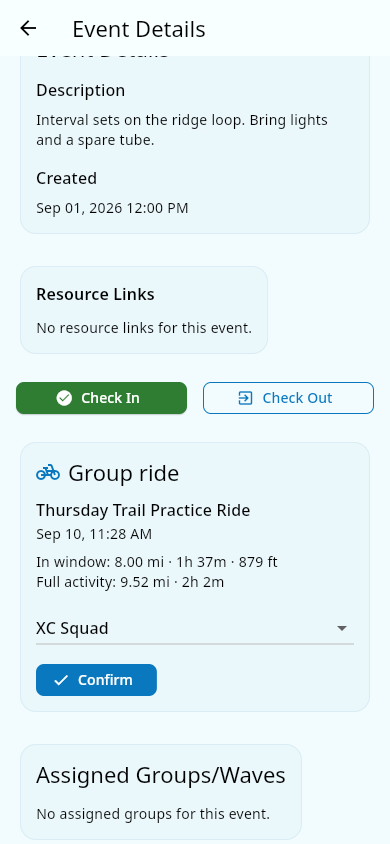
- Find the Group ride card below the check-in controls. It's on the practice page for coaches; logging needs you to be checked in.
- If the card says "Check in to this practice to log the ride", tap Check in. The card refreshes with your matching ride.
- Check the suggested ride: its name and start time, the totals for the practice window (In window:), and your ride's full totals (Full activity:).
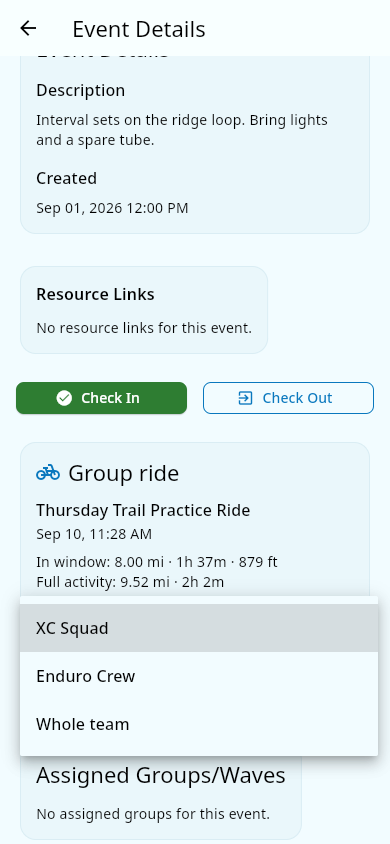
- Choose the group:
- If you coach one group, the card shows Group: ⟨group name⟩.
- If you coach more than one, use the group list and pick the group — or Whole team if the whole team rode together.
- Tap Confirm.
- The message "Group ride logged" confirms it. The card now says the group already has a ride and names who recorded it.
If nothing matches, the card reads "No matching ride found" with a Refresh button. That usually means your ride hasn't synced yet — wait for it to arrive, then tap Refresh.
From Home
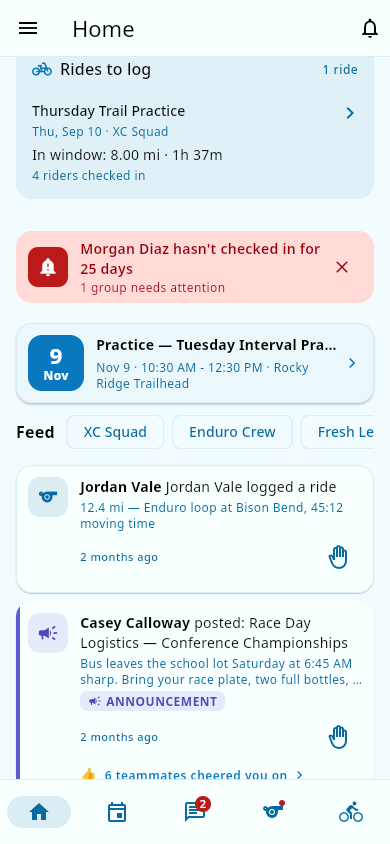
- Open Home. The Rides to log card lists practices you checked in to that still have no group ride and that have one of your own rides matching them — from the last two weeks, newest first. The card is hidden when there's nothing to log.
- Tap the practice you want to log. Each entry shows the practice, its date and group, the practice-window totals, and how many riders checked in.
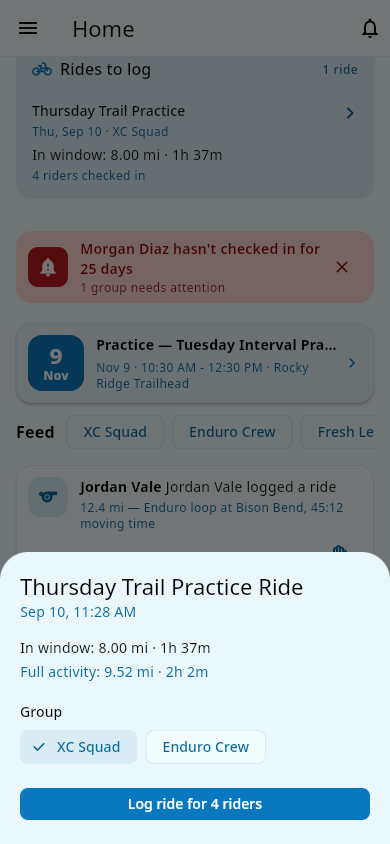
- In the confirm sheet, check the matched ride and its In window: and Full activity: totals.
- If you coach more than one group and the group isn't already chosen, tap the right group. There is no Whole team choice here — use the event page for that.
- Tap Log ride for ⟨N⟩ riders.
- The message "Logged. ⟨N⟩ riders have this ride on their log." confirms it.
Undo a ride you just logged
When you log from the Home Rides to log card, you have 60 seconds to change your mind: the confirmation message offers Undo. Tap it to remove the ride and the entries it just created; you'll see "Undone. Nothing was added to your riders' logs."
The event page's confirmation ("Group ride logged") has no Undo button. If you confirmed the wrong ride there — or the 60 seconds have passed — ask a team admin or owner who also coaches that group and is checked in to replace it with one of their own matching rides. They open the practice, find the Group ride card, and tap Replace ride. Replacing swaps in a different ride for that group.
What you should see
- The Group ride card on the event page says the group already has a ride and names the coach who recorded it.
- Once the Home screen refreshes, the practice is no longer listed under Rides to log.
- Every athlete who checked in and rode in that group gets a coach-logged ride in their own activities automatically — you don't add anything to their records yourself.
Notes and limits
- One ride per practice and group. The first confirmation wins; only a team admin or owner who also coaches that group and is checked in can replace it with one of their own matching rides.
- Your own ride only. You can't confirm someone else's ride.
- No route or map on coach screens. The card shows totals only; the short route preview appears only in the athlete and parent views.
- Whole team is only on the event page. The Home confirm sheet always logs a specific group.
- The ride has to match the practice. Groupset only offers your rides that started from 30 minutes before the practice began until it ended.
- Already logged? If another coach got there first, the message reads "A ride is already logged for this group." Ask a team admin or owner who also coaches that group and is checked in to replace it with one of their own matching rides.
- The reminder: if a practice you checked in to still has no group ride, a ride reminder arrives a few hours after the practice ends — not immediately. It opens Home, and it isn't sent again for the same practice. If the practice ended more than about 18 hours ago, no reminder is sent; check the Rides to log card instead, which stays available for two weeks.
- If you don't see a Group ride card or a Rides to log card, this may not be available for your team yet.
Related pages
- Ride log: coach-logged group rides — why the ride log exists and who sees what.
- See and remove a coach-logged ride — what athletes and parents see after you log.
- Attendance — checking in, including coaches checking themselves in.
- Events and practices — finding the practice and its event page.
- Strava activities — making sure your own rides sync.
- Troubleshooting: Ride log — when the card or ride doesn't appear.