Support assistant
Who this is for: everyone — parents, athletes, coaches, team admins, and owners Applies to: Android · iOS · Web
What this page covers
Groupset has a support assistant built into the app. It answers questions about using Groupset from this user guide, shows you the pages it used, and hands you to the support team when you need a person. This page explains where to find the conversation, how to ask a question, what the links in an answer mean, when and how to Talk to a human, what a ticket number looks like, and how the separate Delete My Data request works.
Before you start
- Sign in to Groupset. The conversation belongs to your account, so it is the same one wherever you open it and it stays there when you come back.
- The assistant answers from this user guide only. It can't see your team's roster, attendance, payments, or anyone else's account, so some questions end with "ask your team admin."
- If you think you'll need a person, have the team name and what you tapped ready — it makes the ticket more useful.
Step-by-step
Open the conversation
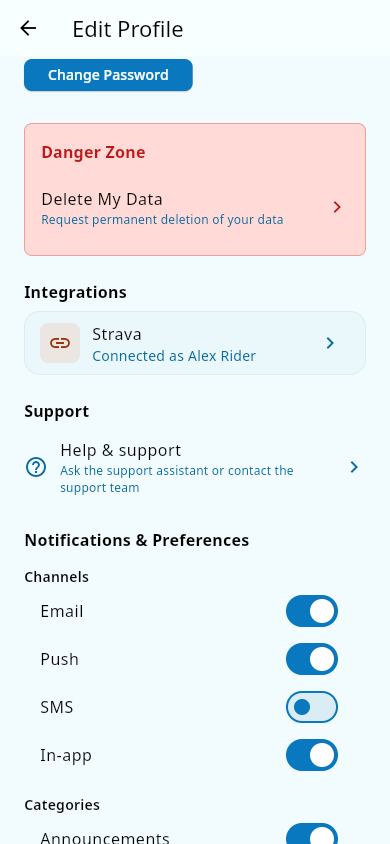
- Open your profile (your avatar or your name in the app).
- Scroll to the Support section and tap Help & support — the row reads Ask the support assistant or contact the support team.
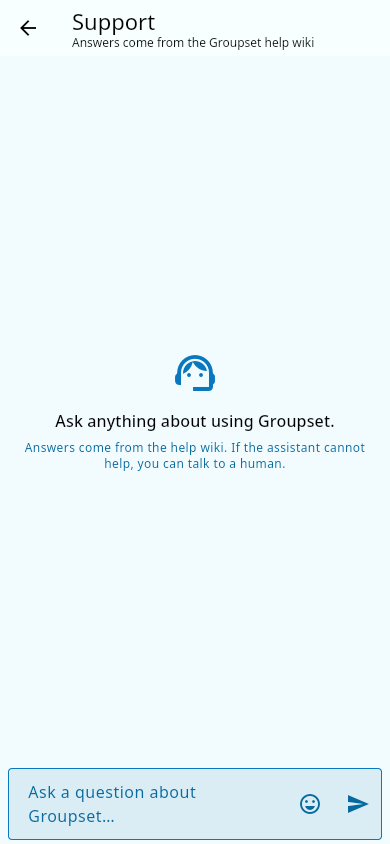
The same conversation also opens from Contact Support on an error screen and from the help link on an athlete's login settings. The screen is headed Support, with the note Answers come from the Groupset help wiki underneath.
Ask a question
- Type your question into the message box at the bottom, which is labelled Ask a question about Groupset….
- Send it. The assistant's reply appears in the conversation within a few moments.
A new conversation starts with Ask anything about using Groupset. and the note that answers come from the help wiki and that you can talk to a human if the assistant can't help. Keep asking in the same conversation — it remembers what you have already asked, and you don't need to start over each time.
Read the answer and its sources
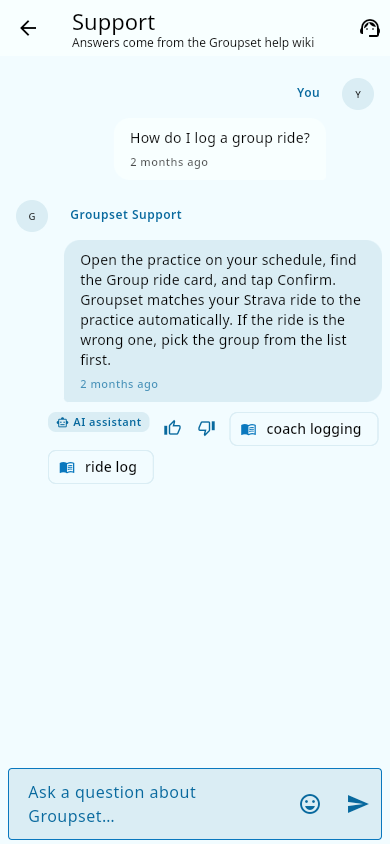
Answers appear as chat turns in the same conversation:
- The assistant's turn is labelled AI assistant.
- Below the answer, small buttons name the help pages it used — for example ride log or payments. Tap one to open that page.
- The short answer is often enough; open the page when you want the full walkthrough or the exact buttons to tap.
If an answer doesn't arrive
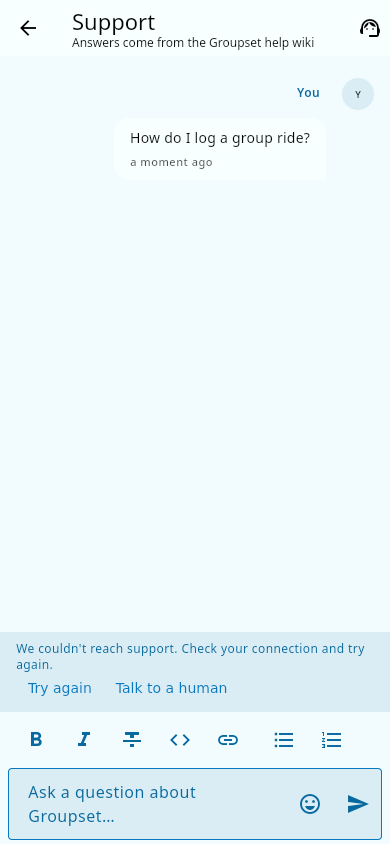
If the reply doesn't arrive, a banner appears above the message box with two choices: Try again and Talk to a human. Your question stays in the conversation, so trying again doesn't lose it. If the answer still doesn't come, use Talk to a human.
Talk to a person
- Tap the person icon at the top of the conversation (its tooltip is Talk to a human), or tap Talk to a human in the retry banner.
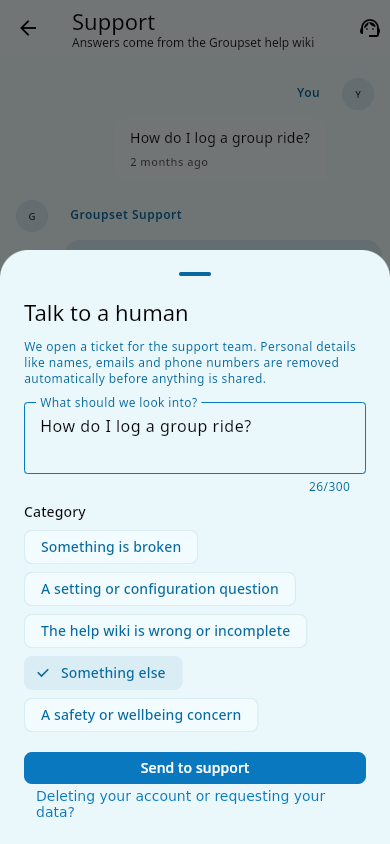
- The Talk to a human form opens. The summary is filled in from your last question — edit it, or write a short description of what you need.
- Choose a category:
- Something is broken
- A setting or configuration question
- The help wiki is wrong or incomplete
- Something else
- A safety or wellbeing concern
- Tap Send to support. Personal details like names, emails, and phone numbers are removed automatically before anything is shared with the support team.
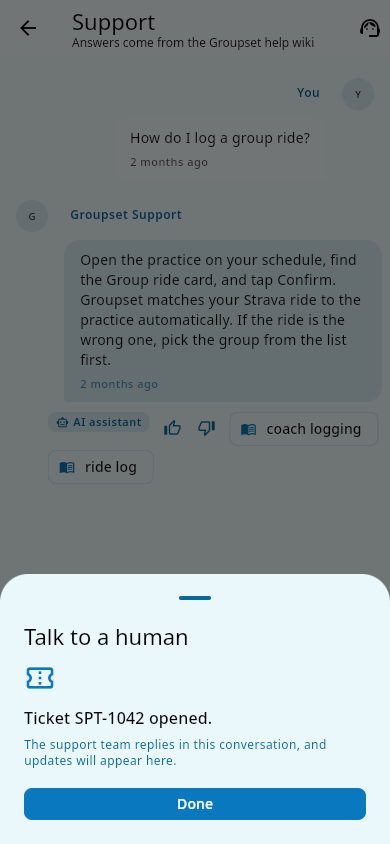
- A ticket number appears in the conversation — Ticket SPT-1042 opened, for example. The support team replies in this same conversation, and updates appear there. You can close the screen and come back later.
If you were actually looking for account deletion or a copy of your data, use the Deleting your account or requesting your data? link on the form instead — that's a self-serve request, not a ticket.
If a ticket can't be opened
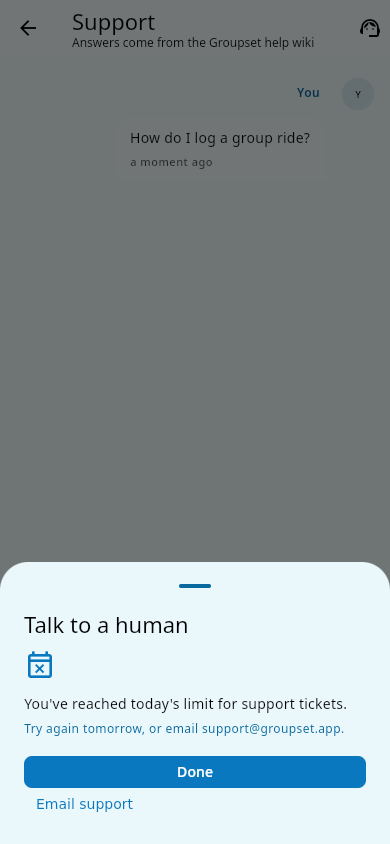
Sometimes the support team can't take a new ticket right away. The form tells you which case you're in and keeps the email fallback visible:
- Today's limit reached — You've reached today's limit for support tickets. Try again tomorrow, or email support@groupset.app.
- Support unavailable — Support is temporarily unavailable. Try again in a few minutes, or email support@groupset.app.
Either way, the conversation is saved, and emailing support@groupset.app reaches the same team.
Delete your data or request a copy
Deleting your data is separate from the support conversation and doesn't need a ticket. Groupset has a Delete My Data flow that works whether or not you're signed in.
- Open the Delete My Data screen. When you're signed in, it's under Danger Zone on your account screen. You can also open it and enter the account's email yourself without signing in.
- Read the warning: the action is permanent and can't be undone.
- Signed in: your email is filled in for you and the request is verified immediately. Signed out: enter the Email Address, add a Reason (Optional) if you want, and tick the box confirming you understand the action is permanent.
- Tap Submit Deletion Request.
- Signed out only: check that inbox for a verification code, tap I already have a verification code, and enter it. The code expires 24 hours after the request — if it has expired, start a new request for a fresh code.
- The screen shows Request Verified and confirms the request is queued for processing. Groupset processes deletion requests within 30 days.
For the full picture, including what deletion does and doesn't cover, see Accounts, deactivation, and deleting your data.
What you should see
- An answer with sources — the assistant replies in the conversation and lists the help pages it used underneath.
- A ticket number — after Send to support, the conversation shows a
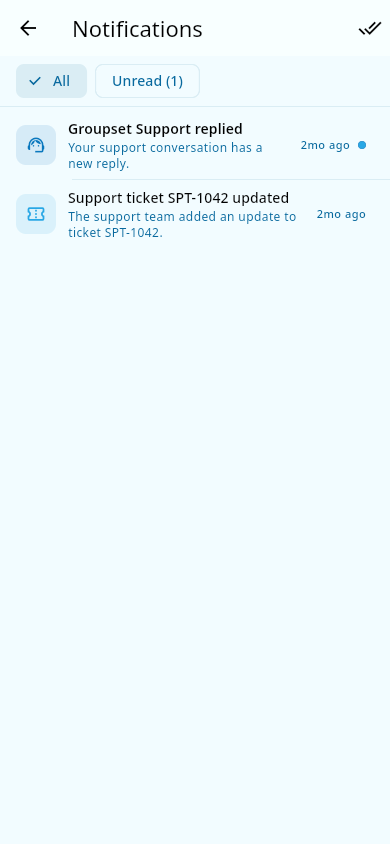
SPT-number and a banner saying the ticket is open. The banner changes as the ticket moves along. - A notification when support replies — the reply appears in the conversation, and the notification center shows a support row that opens it. See Notifications.
- A deletion confirmation — Request Verified with the queued message, and no verification code left on screen.
Notes and limits
- The assistant answers from this user guide only. It can't change team records — payments, the roster, and refunds belong to your team admin.
- A summary sent to the support team is capped at 300 characters; keep it short and specific.
- Don't type passwords, full card numbers, or other people's personal details into the conversation, even though names, emails, and phone numbers are removed before a ticket is shared.
- Support replies can take a day or two. The assistant can keep helping in the same conversation while you wait.
- A safety or wellbeing concern is a category in the Talk to a human form. Use it when someone's safety is involved, not for a routine app question.
- If a page in this guide is wrong or out of date, say which page you were reading and what looked wrong — The help wiki is wrong or incomplete is the category for exactly that.
- Account deletion and account-data requests never become tickets. Use the Delete My Data flow above.
- Email support@groupset.app remains available if the in-app conversation or a ticket can't be used.
Related pages
- Getting help — the troubleshooting version: what to try before you ask.
- Accounts, deactivation, and deleting your data — the full deletion and data-request picture.
- Notifications — the in-app notification center and support replies.
- FAQ — quick answers to common questions.