Following races and riders
Who this is for: a follower with a Follow account Applies to: Android · iOS · Web
What this page covers
How to find a race to follow, follow and stop following it, pin the riders you care about, read their published wave and start times, and mute updates when you want quiet. A follow subscribes you to a race; a pin is the rider whose start, lap, and finish updates you get.
Before you start
- You need a Follow account — see Follow accounts.
- You can browse the Races list to find published races, or open an invitation link to follow one directly.
Finding a race to follow
- Open the Races tab (its subtitle reads "Browse races to follow").
- The list shows the races you can follow, each with the race name and date.
- Races you already follow show a Following tick on the row — a race you have muted still shows Following, because muting only pauses its alerts.
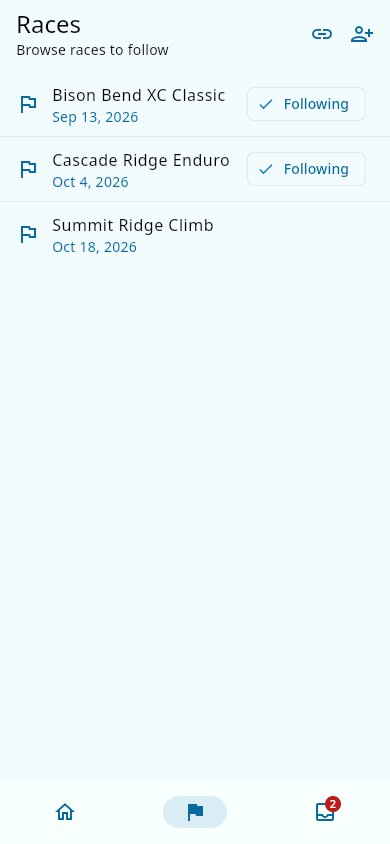
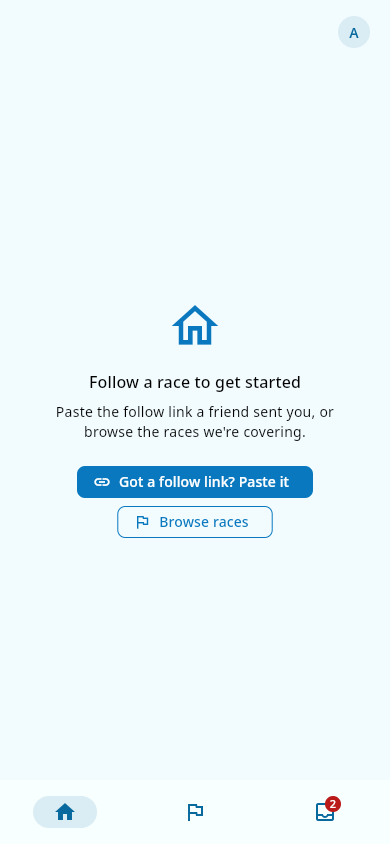
What you should see: if there's nothing to follow yet, the tab shows "No races to follow yet" with the note "Races you can follow will appear here. Got a link? Paste it to follow a specific race right away." and two buttons, Got a follow link? Paste it and Browse races. The Home tab shows "Follow a race to get started" until you follow your first race.
If a friend sent you a link, tap the link icon at the top of the Races tab — or, before you follow anything, Got a follow link? Paste it on Home — to open Paste a follow link. Paste the whole message and tap Open link: the app picks the invitation out of the text and takes you to that race. Nothing is read from your clipboard on its own; you paste it.
Following and stopping a race
- Open the race from the Races list.
- Tap Follow this race.
- To stop later, open the race and tap Unfollow.
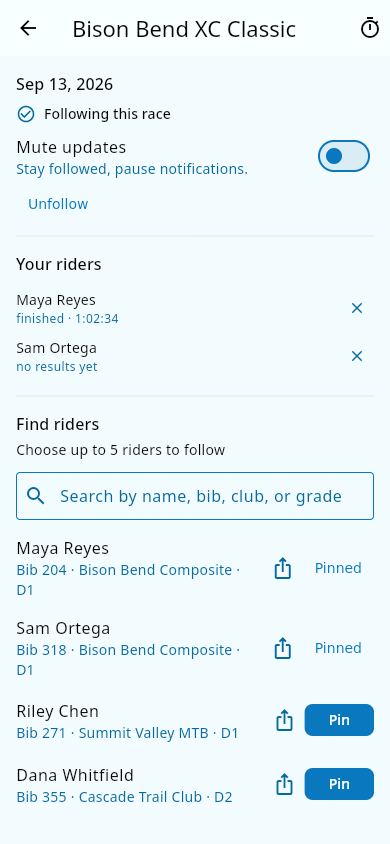
What you should see: once you follow, the button is replaced by "Following this race" and the race appears in your Home tab.
Pinning riders
Pins are the riders you get lap and finish updates about.
- On the race screen, scroll to Find riders and use the search box — it searches "Search by name, bib, club, or grade".
- Tap Pin on a rider's row to pin them; tap Pinned to unpin.
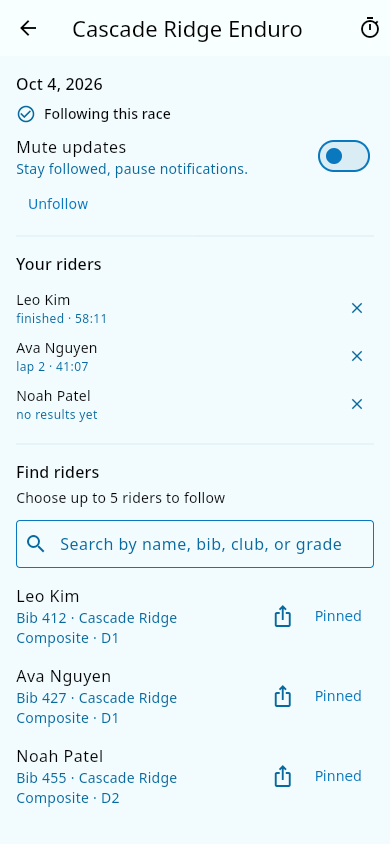
- Pinned riders appear under Your riders at the top of the race screen, each showing their latest race state — a lap or finish time once the timing system reports one, and "no results yet" before that.
What you should see: Your riders lists your pinned riders' names and each line carries a small ✕ that unpins that rider. Before you pin anyone the strip reads "No riders pinned yet." and, under the Find riders heading, the line reads "Choose up to 5 riders to follow".
A championship field runs to hundreds of riders, so the list under Find riders shows at most the first 25 matches, in name order. That is deliberate — it keeps the screen quick on race morning. Type two or three letters of a name, a bib number, or a club in the search box and your rider comes up; a search that finds nothing says "No riders match your search."
The 5-rider limit
You can pin up to 5 riders per race. When you reach the limit the message changes to "You've pinned 5 riders. Unpin one to add another." and further Pin buttons are disabled until you unpin someone.
The wave and start time on your rider's card
Once a rider is pinned, their card on the Home tab carries the start schedule the organizer published for that rider's wave:
- the organizer's own wave name — the app shows the name the organizer uses (for example JV B Boys) and never makes up a "Wave 1"-style number;
- the wave's published start time, shown in the race's time zone with your own local time beside it — for example 8:00 AM MDT (7:00 AM your time);
- a countdown to that start while it's less than a day away — for example "JV B Boys · 8:00 AM MDT (7:00 AM your time) · starts in 12m".
At a two-day championship one followed race covers both days: the schedule includes both days' waves, and a wave name can carry the organizer's own split wording (for example JV B Boys Split 1).
If the organizer hasn't published the start yet, the card says "Staging list not posted yet" (with the wave's name in front when the organizer has published one) instead of showing a guessed time. Once the start passes, the card switches to the race-day wording — a place and time, laps on course, or a status.
The card keeps the schedule up to date on its own, so a start time the organizer moves shows up within a couple of minutes without you doing anything. Pinned riders also appear in the Your riders strip on the results screen with the same schedule and countdown. See Race day and results.
Each rider card is one tap to one destination, chosen by the card's own state: once the race has any results (or its results are final) the card opens that rider's result on the results board; before then it opens the race screen, where the unpin control lives. Once the rider has a finish time the card also carries a share icon that exports their result as an image — see Race day and results.
Muting a race
If you want to stay followed but stop the alerts for a while:
- Open the race you follow.
- Turn on Mute updates (subtitle: "Stay followed, pause notifications.").
- Turn it off again to resume.
What you should see: the race stays on your list and in Your riders, but no new follow alerts arrive for it while muted.
Notes and limits
- You can follow several races at once; each race has its own Your riders list and its own Mute updates switch.
- Lap updates are on by default for every rider you pin. There isn't a separate per-rider switch in the app — to pause a rider's updates, either unpin that rider or Mute updates for the whole race.
- Follow covers only the races the organizer has published in the app, not every race weekend.
Related pages
- Follow accounts — creating your account.
- Race day and results — what you see while the race runs.
- Follow notifications — what triggers an alert.
- Follow alert settings — switch individual Follow alerts on or off.
- Sharing and invitations — inviting others to the same race.
- Core concepts — follow versus pin, and the organizer's wave wording.