Race day and results
Who this is for: a follower watching a race you follow Applies to: Android · iOS · Web
What this page covers
What you see on a race day as a follower: the wave and start time published for each rider you pinned, how the app tells you a race is running, how to open the results and find a rider in a long field, how to share a rider's result as an image, and what appears before, during, and after results arrive. The follower view is deliberately simple — rider names, wave names and start times, laps, and status, without team-only features.
Before you start
- Follow the race first — see Following races and riders.
- Turn on notifications if you want alerts without watching the screen — see Follow notifications.
On race day
- Open the Home tab.
- Your next race appears as a card. On the race day itself the card reads "Racing today".
- Once the organizer posts final results the card reads "Final results posted" with a View results action.
- Below the race card, Your riders lists each pinned rider as a card grouped under their race, showing the rider's place, time, and status — for example "2nd · 1:02:34", "On course · lap 2 · 41:07", or "Did not finish".
- Each rider card is one tap to one destination, chosen by the card's own state: once the race has any results (or its results are final) the card opens the results at that rider; before then it opens the race screen, where the unpin control lives. The card also carries a share icon once the rider has a finish time — see Sharing a rider's result image below.
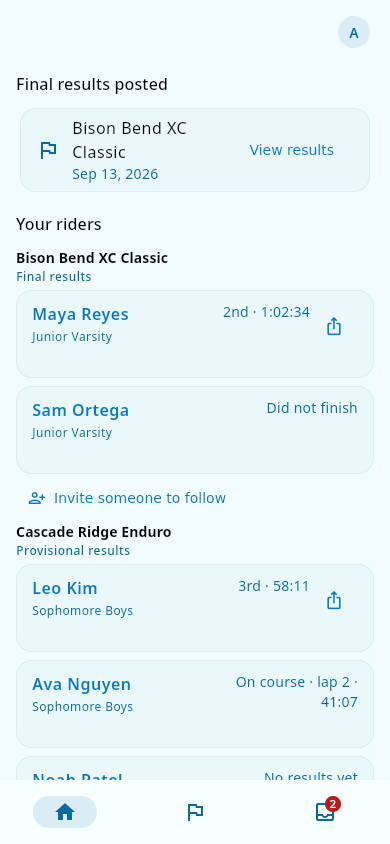
What you should see: before the race, the card reads "Your next race" (or "A race you can follow" if you haven't followed it yet) so you can spot it in advance.
Your rider's wave and start time
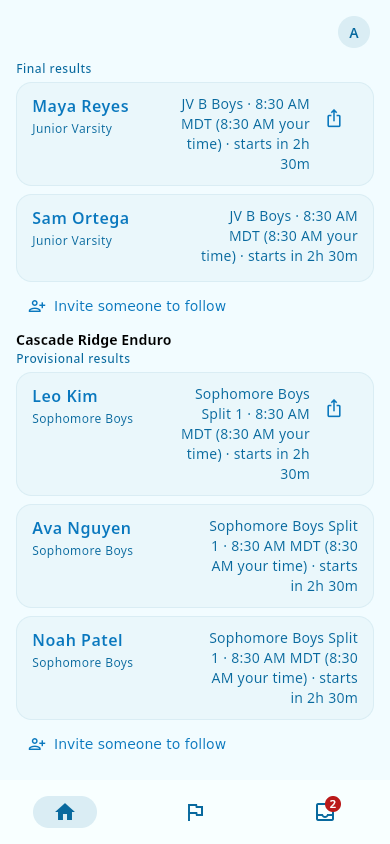
Each pinned rider's card on Home — and the Your riders strip on the results screen — carries the start schedule the organizer published for that rider's wave. It shows three honest states, and it never shows a time the organizer hasn't published:
| Card state | What the card says |
|---|---|
| Start published, still ahead | The organizer's wave name, the start time, and a countdown — e.g. "JV B Boys · 8:00 AM MDT (7:00 AM your time) · starts in 12m". Times are shown in the race's time zone with your own local time in brackets. The countdown counts down to the start; when the start is more than a day away it's replaced by the date. |
| Start not published yet | "Staging list not posted yet" — with the wave's name in front when the organizer has published one, e.g. "JV B Boys · staging list not posted yet". No time is guessed. |
| Started (racing) | The race-day wording instead of a schedule — for example "On course · lap 2 · 47:13", "2nd · 1:02:34", "Did not finish", or "Racing |
Three things are worth knowing:
- The app shows the organizer's own wave name — never a "Wave 1"-style number derived from the schedule's internal order, because the block name is what the organizer uses on race day.
- At a two-day championship one followed race covers both days: the schedule includes both days' waves, and a wave name can carry the organizer's own split wording (for example JV B Boys Split 1).
- The card keeps the schedule fresh on its own — the published times are re-read every couple of minutes, so if the organizer moves a start it appears without you doing anything. You can still pull results yourself with Refresh results on the results screen.
Opening the results
- From Your riders, tap a rider's card once that race has results — or tap View results on the race card, or open the race and tap View results.
- The Results screen lists riders grouped by category.
- Tap a category header to collapse or expand it.
- Tap a rider's row to expand their laps — each lap with its time, its position at that lap, and the split versus their previous lap.
- On a long field, use the search field at the top — "Search by name, bib, or category" (it also matches a rider's club and division). While you search, collapsed categories open so a match can't hide, and your Your riders strip stays where it is.
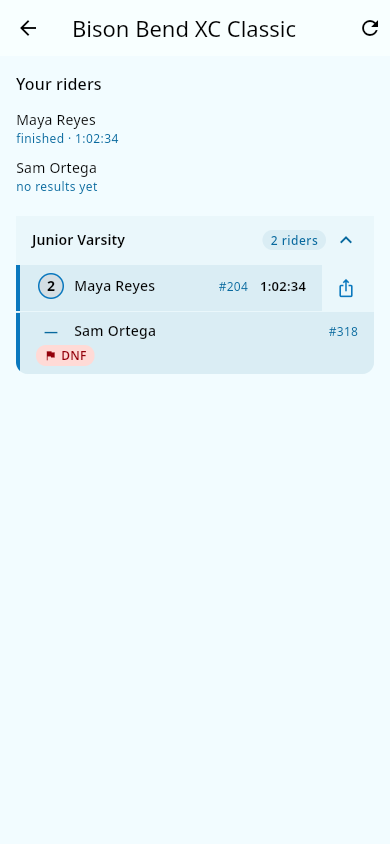
What you should see:
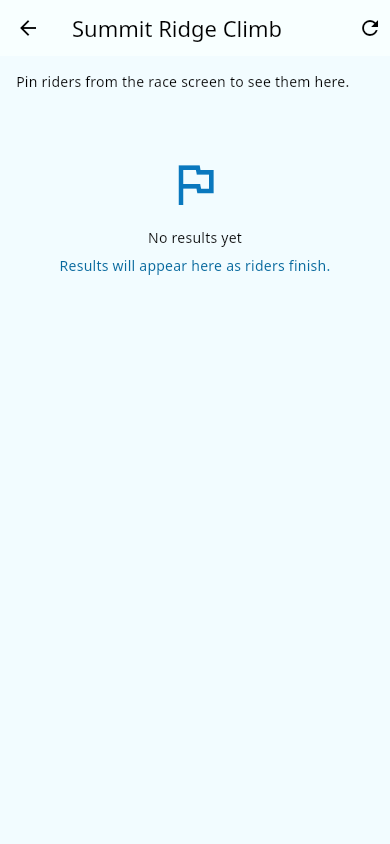
- Your pinned riders appear at the top under "Your riders" and are highlighted in the list. Before you pin anyone the strip reads "Pin riders from the race screen to see them here."
- Each row shows the rider's place, name, bib, category, and finish time, with a status marker: a check mark for a finished rider, and a labelled chip for anything else — DNF (did not finish), DNS (did not start), DSQ (disqualified), Provisional, or Active for a rider the timing system reports as still on course. Once results are in, the place is the rider's final placing; the top five places carry a filled badge, gold, silver, and bronze for the top three.
- A rider who is still out on course shows their current position from the latest timing update instead of a final place — not a dash.
- If nothing matches your search, the board says "No riders match your search." Clear the field to bring the full list back.
- Tap Refresh results (the refresh icon) to pull the latest data yourself.
Before results exist
Until riders start finishing, the Results screen shows an empty state: "No results yet" with the note "Results will appear here as riders finish." This is normal early on race morning — results fill in as the timing system reports them.
Provisional and corrected results
- While a race is still running, results carry a "Provisional results — they may change as more riders finish." notice. Provisional data can still change.
- If the organizer updates results after they were finalized, the screen shows "Results were updated after they were finalized." so you know to look again.
- The same wording appears on Home: each race's rider group is labelled "Provisional results", "Final results", or "Racing today", and after a correction it adds "Results were updated".
Sharing a rider's result image
Once a rider you pinned has a published finish time you can export their result as an image and send it wherever you like — to family, to the team chat, or anywhere else you share photos. It is the same card a team member exports from their own Results tab for their own rider: one design, one set of rules, not a Follow-only extra.
- Find the share icon — it sits on the pinned rider's card on Home and on that same rider's row on the Results screen. It appears only once a finish time is published, because there is nothing honest to put on a card before that.
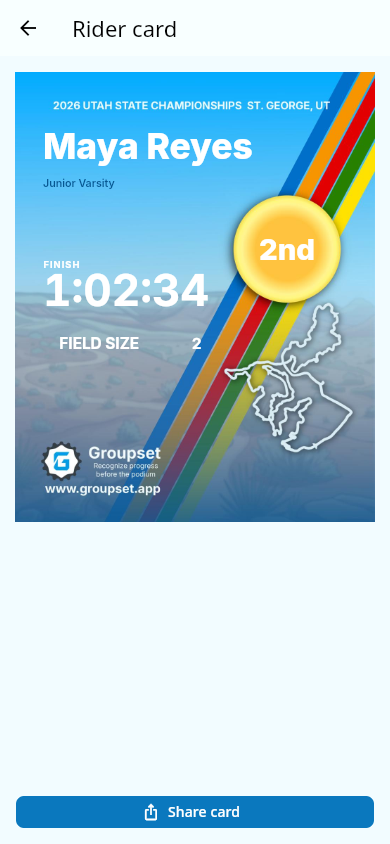
- Tap the share icon. The Rider card screen opens showing the exact image you are about to export.
- Tap Share card. Your phone's share sheet opens with the image and a short message — for example "Sam Ortega finished at Herriman XC Classic (Sep 27) — 1:02:34." The race name and date travel in that message; the image itself carries the rider's own facts and the card's artwork.
What the image carries
- The card's artwork, the rider's name, and the line under it with their category and lap count — for example Junior Varsity · 2 laps. The artwork is the 2026 Western Regionals design, which includes the course map in the frame. The rider's team is named in front of the category when the results publish a team for them; with no team published the line simply starts at the category.
- The rider's finish time, their lap list, and — each one only when it has a value — FIELD SIZE (how many riders were in their category), CALL-UP POS., PLACE, and PLACES GAINED. A row with no value is left out rather than filled with a dash. CALL-UP POS. is also left off when the rider finished more than 10 places behind their call-up; a big gain is still shown.
- The rider's place is their final placing once results are in. While they are still on course it is their current position from the latest timing update — the same number their row on the board shows — so the card never disagrees with the board it was shared from.
- The race's distance and climb, printed under the map as MILES and ELEVATION — the course the rider actually rode: the race's own lap distance and climb (the values entered on the race in the app) multiplied by the rider's lap count. Both lines stay off the card when the race has no lap count published or the race has no course entered, so the card never claims a distance the rider may not have ridden.
- Nothing about any other rider — no other name, time, place, or club appears on the card.
- A top-ten place in the rider's category is celebrated on the card — the place sits on a gold medallion. A place of 11th or worse uses the plain design instead and shows the place in a PLACE row.
- Lap bars that compare the laps. Each bar is that lap's share of the rider's slowest lap: the slowest lap runs the full width of the track and the faster laps stop short of it, so one card shows at a glance which lap was the quickest. Laps come one-to-one from the published per-lap times — LAP 1, LAP 2, and so on — and the app never adds a lap the timing system didn't publish.
- No "unofficial" marking. While a race is running its results are provisional, and the results board says so; the shared image is deliberately left unmarked so you can post a result as it happens. If the result changes later, the updated result is what the app shows next time.
Two things to know
- If the rider's laps are listed, the app asks you to confirm before generating the card: "Every lap complete?" — "The card lists every lap and its time. Please confirm every lap is complete before generating." Choose Cancel or Generate card. Cancelling generates nothing.
- If your phone or browser has no share sheet, the image is saved for you instead (on the web it downloads as a file) and the app's own sheet opens with Email, Text Message, and Copy message, so you can still send the result.
When the venue's signal is weak
A race venue often has a weak signal. Results reads are made to survive that: a request is retried a few times within a short budget rather than failing on the first dropped packet, and each screen keeps to one request at a time, so a bad connection is never overloaded with repeats. Expect the board to take a moment to fill in — that is the app working, not a fault.
Two extra conveniences for weak-signal venues are built but not switched on in the published app yet — a Groupset-wide switch, not a setting you can change: a results board you have already opened painting from a copy saved on your phone while it refreshes, labelled Updated 3:42 PM with the time the copy was saved, and a refresh that brings back only the categories the timing system changed instead of the whole field. Until they are switched on, the board loads the whole field fresh each time.
The large-race case is already handled without those switches: a long field, a long lap list, and a long call-up list all load in full, and the results board is built to keep going when the venue's signal drops.
Notes and limits
- The follower view shows the same results your team members see — places, the top-five badges, times, laps, and status — and while a race runs the places are provisional. A team member reads the same board on their Results tab and can export the same result image from their own rider's row.
- Follow covers only the races the organizer has published in the app, not every race weekend, and race timings can be provisional.
- Results are read-only — no one edits them in the app.
- A shared result image is a snapshot: it keeps the values it was exported with, even if the organizer corrects the result afterwards.
Related pages
- Following races and riders — follow a race and pin riders.
- Follow notifications — lap and finish alerts on race day.
- Sharing and invitations — invite someone to follow the same race.
- Race results — how results work for team members, including the same result image on the team side.
- Core concepts — how following, the Home rider card, and the share card fit together.