See and remove a coach-logged ride
Who this is for: athletes and parents Applies to: Android · iOS · Web
What this page covers
When a coach logs a group ride at a practice, every athlete who checked in and rode in that group gets a read-only coach-logged ride — a record of the distance and time for that practice. This page shows athletes where to find those rides, and shows parents how to view their child's rides and remove one that's wrong.
Before you start
- You need to be signed in: the athlete with their own login, or a parent linked to the athlete.
- A ride appears only if the athlete checked in to the practice and rode in the group the coach logged. If they already have their own measured activity covering the same practice, they're skipped.
Step-by-step
Athletes: view your coach-logged rides
- Open My Activities from the navigation menu.
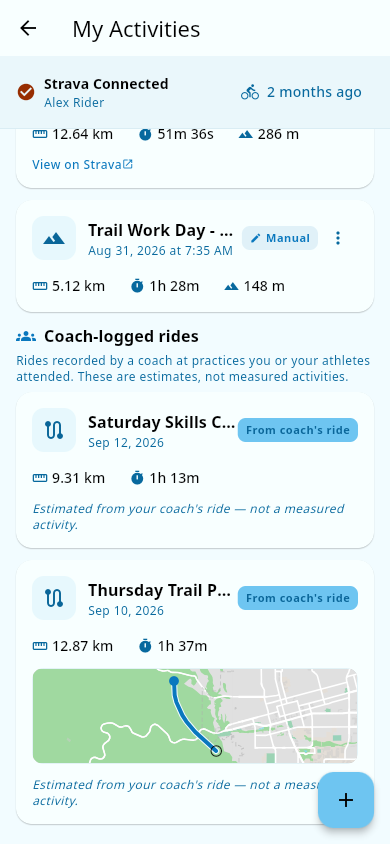
- Scroll below your measured activities to the Coach-logged rides section. Each card shows the practice name (or Coach-logged ride), the date, a From coach's ride badge, the distance and duration, a short route preview when there is one, and the note "Estimated from your coach's ride — not a measured activity."
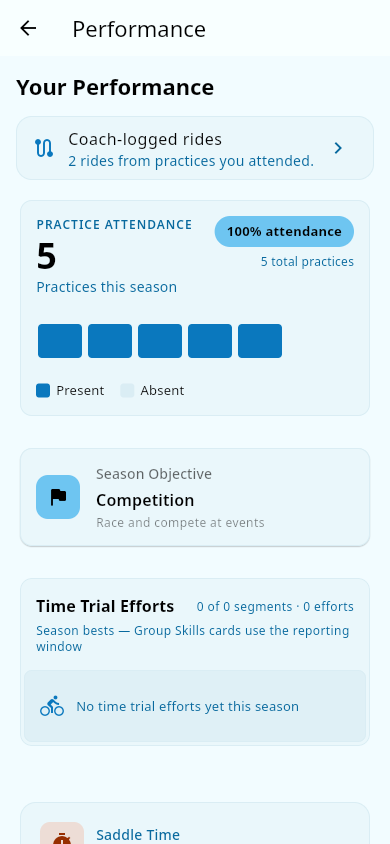
- You can also reach the same list from your Activities tab (the screen headed Your Performance): the Coach-logged rides entry shows how many you have — for example, "3 rides from practices you attended." Tap it to open My Activities.
If you have no measured activities yet, My Activities shows "No measured activities yet." above the coach-logged section instead of the usual empty screen.
Parents: view and remove a ride
- Open your child's page and go to their Activities tab.
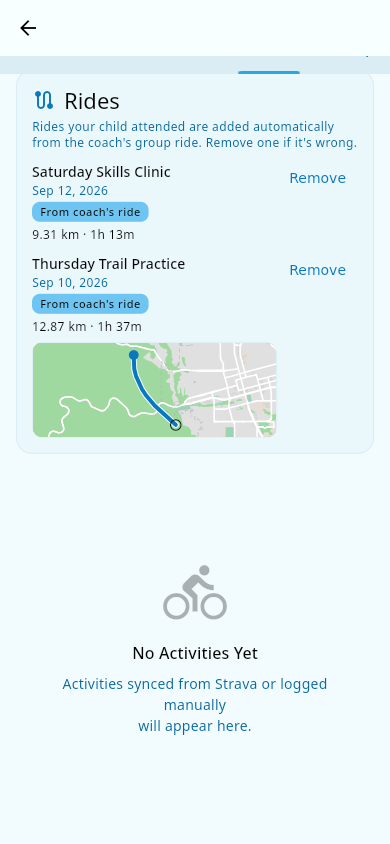
- The Rides section sits above their measured activities. It explains that rides your child attended are added automatically from the coach's group ride, and that you can remove one if it's wrong.
- Each ride shows the practice name (or Team ride), the date, a From coach's ride badge, the distance and duration, and a short route preview when there is one.
- To remove a ride you believe is wrong, tap Remove beside it. While it's being removed, a small progress indicator replaces the button.
- You'll see "Ride removed from the ride log" and the ride disappears.
Removing is permanent for that ride. It stays removed even if the coach later updates their ride or the athlete is checked in late. It removes only that one entry from your child's record — not the coach's group ride, and not anyone else's entry.
What you should see
- Athlete: a Coach-logged rides section below your measured activities, with one card per practice. The Coach-logged rides entry on that screen appears only when you have at least one.
- Parent: a Rides section on your child's Activities tab. If nothing has been logged, it reads "No coach rides logged yet." If it can't load, it reads "Couldn't load coach rides." with a Refresh button.
Notes and limits
- Estimates, not measurements. Distance and time come from the coach's ride for that practice window. Groupset labels these rides as estimates.
- They count toward team volume. Coach-logged rides are included in the team's ride numbers on the performance dashboard and in weekly totals, alongside measured rides.
- They never replace a measured activity. If the athlete already has their own measured activity covering the practice, they're skipped and no coach-logged entry is added. If they add one later, the coach-logged entry is removed, so the same riding isn't counted twice.
- Only checked-in athletes in that group. A Whole team group ride covers every checked-in athlete; a group ride covers only the athletes who checked in with that group.
- A late check-in can still add a ride. If an athlete is checked in after the practice, their coach-logged entry can appear afterward. A ride a parent has already removed stays removed.
- The route preview is short. It's a trimmed preview of the practice portion, not the coach's full track — enough to see the shape of the ride, not a full map.
- Read-only for athletes. Athletes can't edit a coach-logged ride, and it never appears as one of their Strava activities. A parent linked to the athlete has the single Remove action.
- If you don't see a Coach-logged rides section or a Rides section, this may not be available for your team yet.
Related pages
- Ride log: coach-logged group rides — why the ride log exists and who sees what.
- Log a group ride — how a coach records the group ride.
- Attendance — check-in is what makes an athlete eligible.
- Performance analytics — how these rides count in the team's numbers.
- Strava activities — an athlete's own measured rides.
- Troubleshooting: Ride log — when a ride doesn't appear or won't remove.