Team direct messages
Who this is for: team admin Applies to: all
What this page covers
The team's direct-message lanes: the three switches in Team Settings that decide which kinds of one-to-one conversation are allowed on your team — Adult lane, Supervised lane, and Peer lane. After reading you'll be able to turn each lane on or off and know what each one means for your members.
Before you start
- You must be a team admin on the team (an owner has exactly the same powers). This section appears for team admins and owners only.
- Open Team Settings and find the Direct messages row at the bottom of the Communication group.
- It helps to know what direct messages are before you switch a lane on — see Direct messages.
Step-by-step
- Open Team Settings and tap Direct messages.
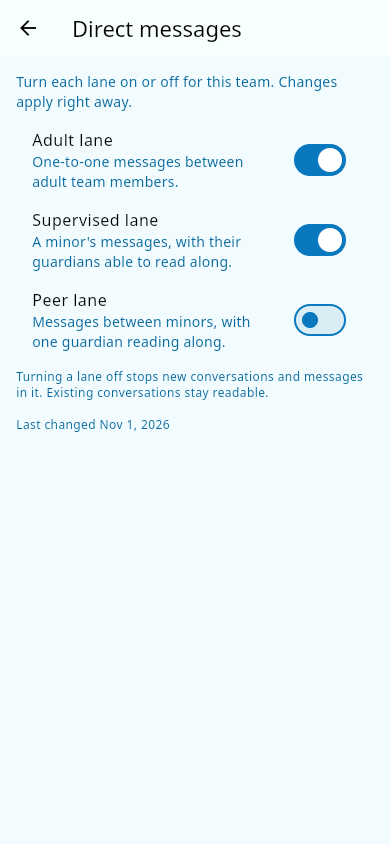
- The screen says: "Turn each lane on or off for this team. Changes apply right away." Below it are three switches:
- Adult lane — "One-to-one messages between adult team members."
- Supervised lane — "A minor's messages, with their guardians able to read along."
- Peer lane — "Messages between minors, with one guardian reading along."
- Tap a switch to turn its lane on or off. There is no Save button: the change saves the moment you tap, and the switches are briefly unresponsive while it saves.
- If the app refuses the change, the switch returns to the position it was in and a message explains why — for example Direct messages were not changed. Read the message; it names the reason.
- Leave the screen and come back — or check the Direct messages row on the Team Settings hub — to see the saved state.
What you should see
- Each switch shows the team's saved state.
- The Direct messages row on the Team Settings hub summarizes the lanes: All lanes off, All lanes on, or a phrase naming the lanes that are on, such as Adult and Supervised on.
- Once the settings have been changed at least once, the screen shows the date of the last change under the switches, such as Last changed Oct 24, 2026.
- Under the switches the screen explains what turning a lane off does: "Turning a lane off stops new conversations and messages in it. Existing conversations stay readable."
Notes and limits
- Each lane is independent. Turning one lane on or off does not change the other two.
- What each lane means for members:
- Adult lane — one-to-one messages between adult team members, readable by the two participants.
- Supervised lane — a minor's messages, with the minor's guardians able to read along.
- Peer lane — messages between minors, with one guardian reading along. This kind of conversation isn't available in the app yet.
- A team that has never changed these switches has every lane off. Nothing of that kind is allowed until a team admin turns the lane on here.
- Direct messages are being rolled out. Turning a lane on saves the team's choice, but the member-facing Direct messages surfaces in Chat appear only in builds where direct messages have been switched on for your app. If members say they can't see them, that is why.
- The switches always show the team's saved state. If the screen can't load it, it shows Couldn't load the direct message settings. with a Retry button.
- The personal side of direct messages — an athlete turning their own messages off, a guardian's choice over their athlete's messages, and a guardian's block on coach contact — lives on each person's profile. See Chat notification preferences.
Related pages
- Direct messages — what the lanes look like in Chat, who can read a conversation, and the guardian Watching view.
- Team settings — the hub this section lives in, with every other section.
- Chat notification preferences — the per-channel bells and the personal direct-message controls.