Following a race and invitation links
Who this is for: people who follow a race (Followers), and anyone who sent or received a follow invitation Applies to: all platforms (Android, iOS, web), with a short note about the invitation web page
What this page covers
What to do when you can't find the way to start following a race, when a follow invitation link doesn't work, when you followed a race or pinned a rider but aren't getting updates, and when results don't appear for a race you follow. It also covers problems with the rider result card you can share as an image, searching a race's board, the wave name on a rider's card, and where a rider's card on Home takes you.
Before you start
Following a race doesn't need a team or a password — you sign up with your email address and a one-time code. The how-to steps live in the guides under Following races and pinning riders.
Common problems
I don't see "Follow a race" anywhere
Symptom: You heard you can follow a race, but you can't find where to start.
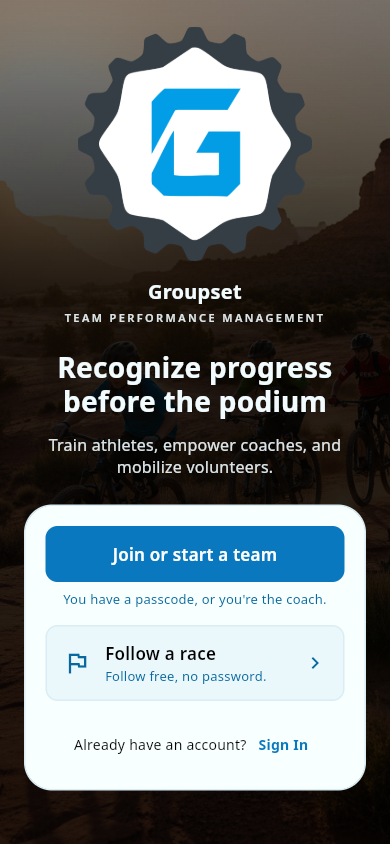
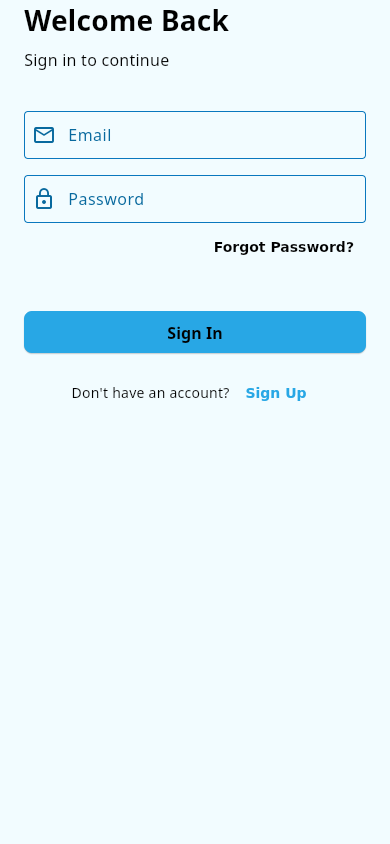
Likely cause: Following a race is available to everyone — there is no waiting list. The two ways in are the Follow a race row on the Welcome screen and the Following a race? Follow a rider — free, no password. link on the sign-in screen, so they're only in front of you while you're signed out. If you're already signed in with a team account, you won't see them — one email address can't be both a team account and a Follow account.
What to do:
- Sign out, then use the Follow a race row on the Welcome screen, or the follow link on the sign-in screen. A Follow account is just an email address and a one-time code — no team and no password.
- Or open an invitation link someone sent you (they can send one from the race — see Sharing and invitations).
- If you're signed in with a team account and want to follow a race as well, use a different email address for the Follow account.
The invitation link says it isn't valid
Symptom: You open a follow link and see a message like This follow link isn't valid — "The link may have expired or already been used."
Likely cause: Each follow invitation link expires and works only once. A link that has already been accepted, or that is older than 72 hours (three days), no longer works. An expired or used link gives the same message, so you can't tell which it was.
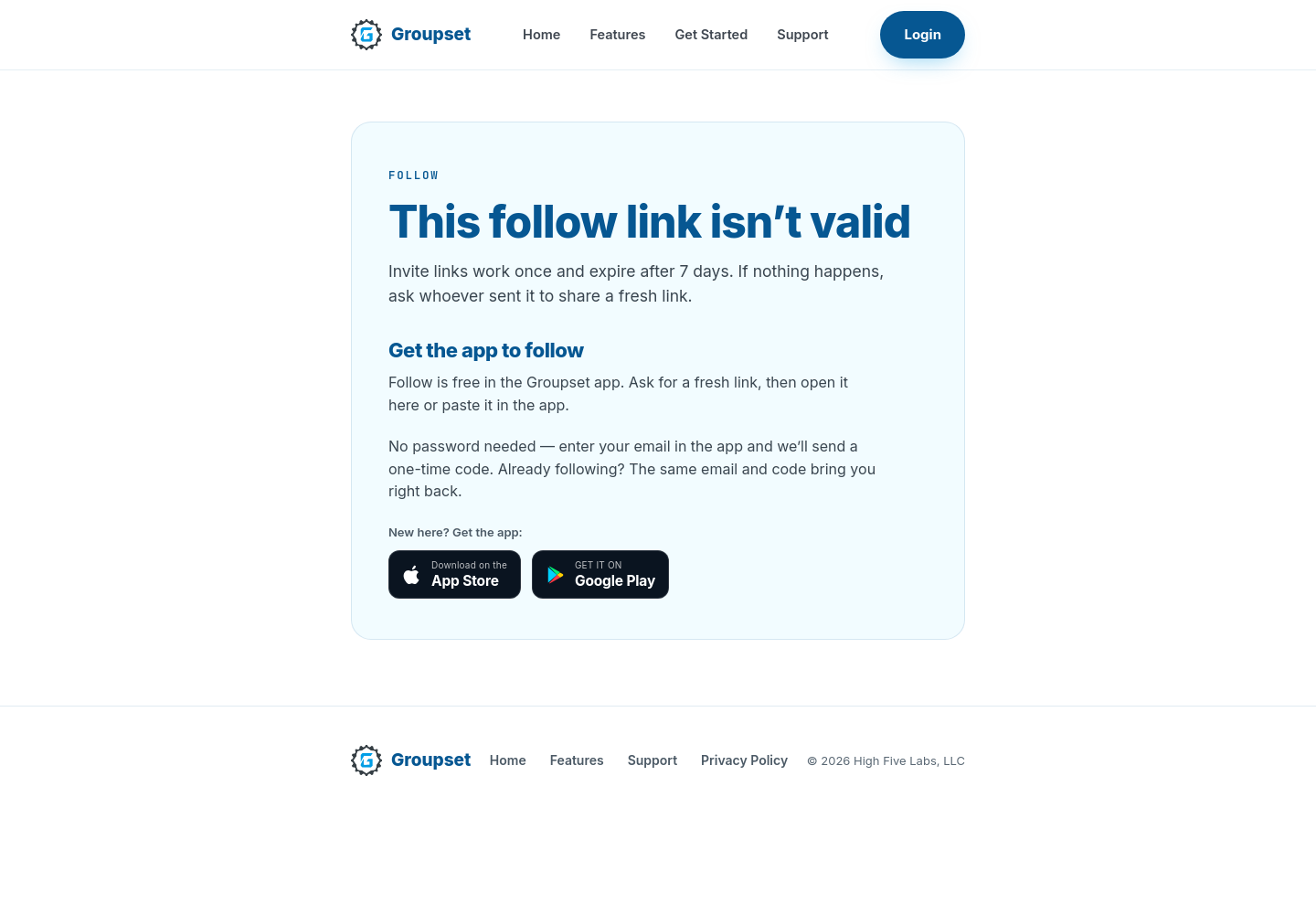
What to do: Ask the person who sent it to share a fresh link. Only they can create a new one.
Ignore any wording on the web page that says a follow link lasts seven days — a link lasts 72 hours (three days) and works once.
The invitation link opens a page, but the person can't accept
Symptom: The link opens, you can see the race, but you can't get any further.
Likely cause: Two common reasons:
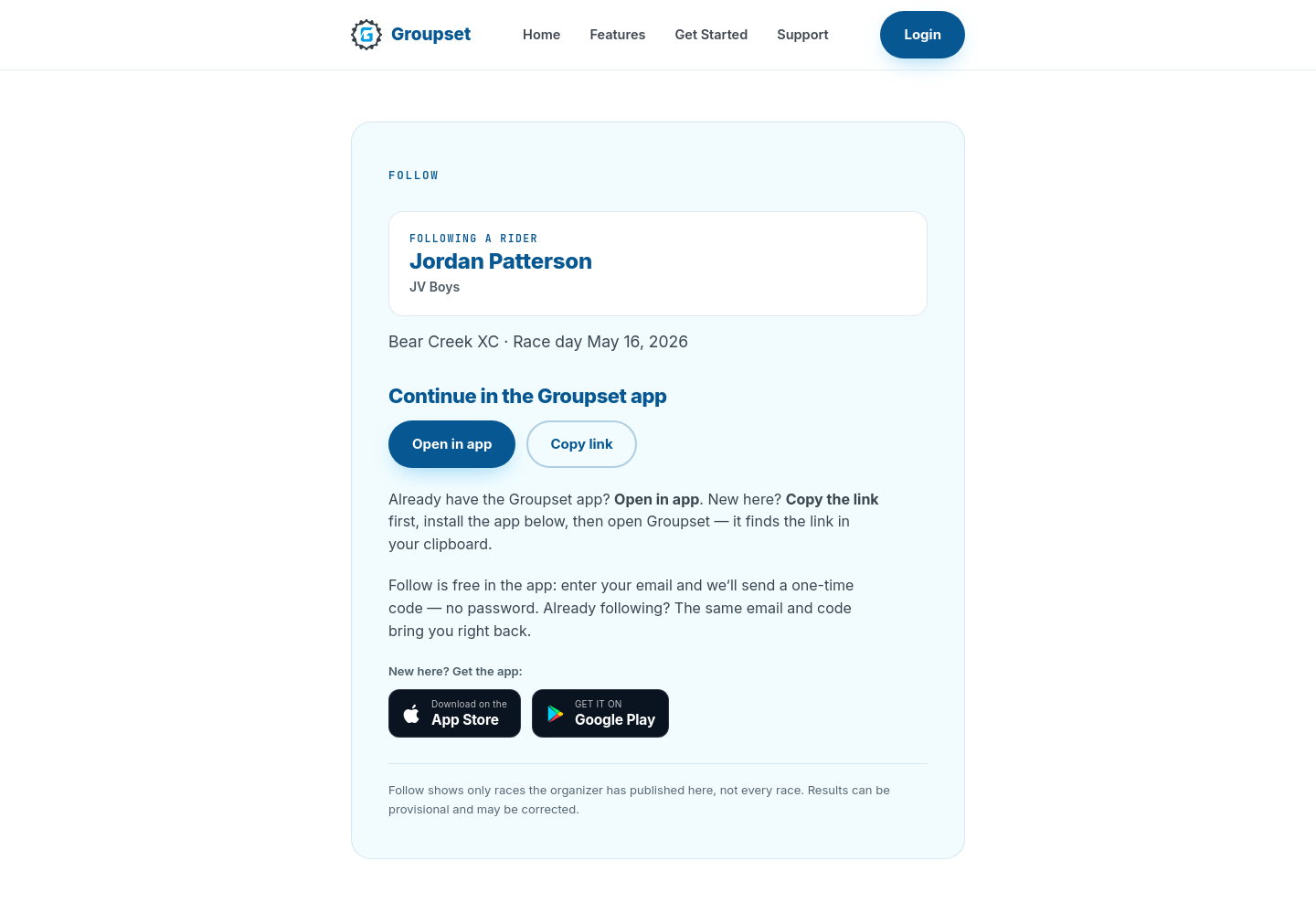
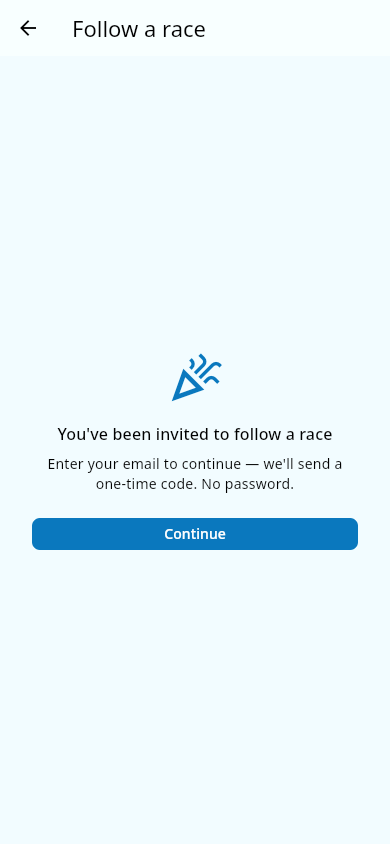
- You need to sign in. Accepting a follow invitation needs a Follow account (an email address and a one-time code) — or signing back in if you already have one. A signed-out visitor sees "You've been invited to follow a race" with a Continue button, which opens the one Follow sign-in door (email, then a one-time code). A brand-new follower then completes a short finish step (first and last name, a "13 or older" confirmation, and an optional recap-email tick) before the invitation is applied.
- The race isn't open for following right now. You may see "This race isn't available right now" — "The race is not open for following at the moment. Try again later or ask the person who sent the link." The link isn't used up when this happens, so it still works once the race opens again.
What to do:
- Tap Continue, enter your email, and enter the one-time code from your inbox — or finish the short details step if you're new. Then accept the invitation.
- If you see "This race isn't available right now," try again a little later — the link stays valid. Ask the person who sent it if it still doesn't work.
Setting up the account is covered in Setting up a Follow account.
The link opens the website instead of the app
Symptom: Tapping a follow link opens a web page rather than the app.
Likely cause: Follow links are designed to open in a browser first; that page then offers to hand off to the app. On a phone with the app installed, that hand-off opens the app. On a computer (or a phone without the app), the page shows an Open in app button and links to the app stores instead.
What to do:
- If you have the app, open it and use it to accept the invitation.
- Already have the app but the link didn't open in it? Open the app's Home, tap Got a follow link? Paste it, and paste the message you were sent — the app picks the link out of the text you paste.
- The web page may say the app will find the link in your clipboard. It can't — the app never reads your clipboard, so paste the link in yourself as in step 2.
I followed a race or pinned a rider, but I get no updates
Symptom: You followed a race (and pinned your riders), but no push notifications arrive.
Likely cause: One of these:
- Notifications for the app are off in your phone's settings.
- On the web, the browser hasn't been given permission yet.
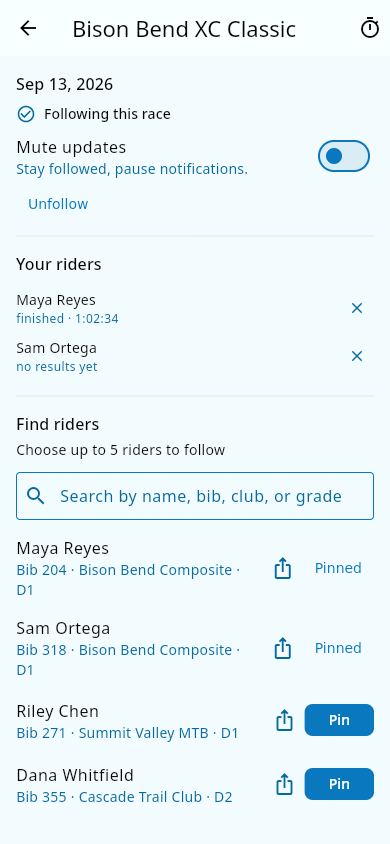
- You turned on Mute updates for that race (it stays followed but pauses notifications).
- The race isn't running yet — race-day updates only start when the race is under way and as the official timing service publishes new information. Call-up reminders and wave-start alerts also need a published start for that rider's wave; if the organizer hasn't posted the start yet, no call-up or start alert is sent.
- You switched that alert type off on the Notifications screen (reached from the account sheet on Home).
- You signed out on this device — signing out stops push on that device until you sign back in.
What to do:
- On your phone, open Settings → Notifications → the app name and make sure notifications are on.
- In the app, open the race and make sure Mute updates is off (the switch is under Following this race).
- On the web, tap the Enable notifications banner and choose Allow, then reload if you'd previously blocked it.
- Open the account sheet on Home → Notifications and check the alert types you expect are switched on.
- If you recently signed out, sign back in to connect this device for push again.
Two more things worth knowing:
- The app asks you for notification permission when you first follow a race or pin a rider, not at sign-up — a quick way to fix permission is to open the race and follow or pin once.
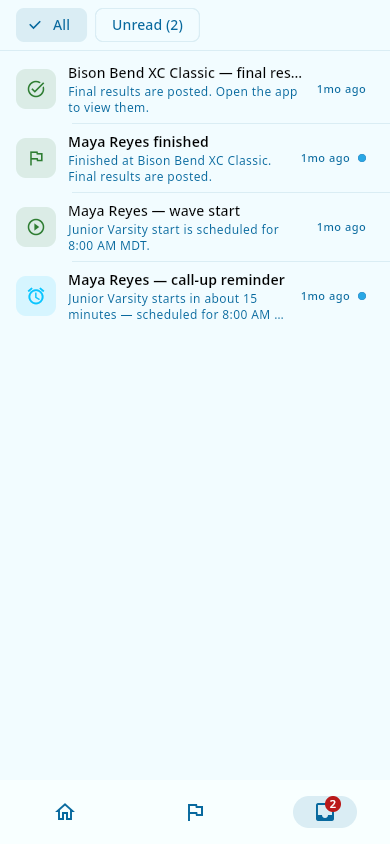
- Every update also lands in the Inbox tab inside the app, even if the push doesn't arrive. If push is the problem, the Inbox still shows what happened.
More on notification settings is in Follow updates, Follow alert settings, and Notifications and push.
I didn't get a call-up reminder or a wave-start alert
Symptom: Your rider started their wave, but no heads-up or start alert arrived.
Likely cause: One of these:
- You didn't pin that rider. Call-up and start alerts are per pinned rider — a race follow alone won't send them.
- The start wasn't published yet. These alerts only fire once the organizer has posted a start time for that rider's wave. If the start arrives very late, the window can pass before it's published — the app never sends a start alert late once the window has gone.
- You hit the daily limit. Call-up and wave-start alerts are capped per race per day (10), so five pinned riders on one race can reach the cap. A start-time change notice is not counted against that limit and still arrives.
- The race or rider is muted, the alert type is off, or notifications are blocked — see the entry above.
What to do:
- Open the race and check the rider shows Pinned (not Pin).
- Open the account sheet on Home → Notifications and make sure Call-up reminder and Wave start are switched on.
- Check the same update in your Inbox — every alert also lands there, even if the push doesn't.
The alert timing is covered in Follow notifications.
Results aren't showing for a race I follow
Symptom: You followed a race, but the results list is empty or shows an old "synced" time.
Likely cause: Results come from the official timing service the race uses. They reach the app only as they're imported from that service — the app can't pull them from the timing service on its own. While a race is running, results refresh automatically; after it ends, late corrections and the final results can still arrive.
What to do:
- On the race, tap the results action (the timer icon) and use its refresh button.
- While results are still coming in, a Provisional results banner explains they may change as more riders finish — that's expected, not an error.
- If nothing appears for a long time, tell the team running the race; results only reach the app when they're imported.
The race-day flow is covered in Race day and results. For a team's own race event, see Race results.
There's no Share option for a rider's result card
Symptom: On the results board, or on a rider's card on Home, you can't find the control to export the result as an image — or you reach the export and it says This rider has no finish time yet, so there is no card to share.
Likely cause: The share control appears only once the rider has a published finish time. Until then there's nothing to put in the card's finish line, so the app withholds the share rather than offer a blank one.
What to do: Refresh the board and wait until the rider's finish is posted (their row shows a finish time), then the share control appears. The card carries only that rider's own published facts — their finish, laps, place, call-up position, and places gained.
Sharing a rider's card asks me to confirm the laps
Symptom: You tap share on a card that lists the rider's laps and a dialog titled Every lap complete? appears before the image is made.
Likely cause: A card that lists every lap states those laps and their times as final, and nothing checks them for you — so the app asks you to confirm, once, that every lap is complete. Choosing Cancel generates nothing.
What to do: If the laps are complete, tap Generate card to make the image; if you're not sure, tap Cancel and share later.
Sharing a rider's card saves the image instead of opening a share menu
Symptom: You tap share and, instead of your phone's share menu, the image is saved (a file or download) and a menu with Email, Text Message, and Copy opens.
Likely cause: That's what happens where the device has no share menu — a desktop browser, for example. The app saves the image first so you still end up with it, then opens the in-app menu.
What to do: Use the saved image (it goes to your downloads or a temporary folder) and attach it to whatever you're sending, or choose Email, Text Message, or Copy from the menu. On a phone, the normal share menu appears instead.
Searching a race's board finds no rider
Symptom: You type a name on a race's results board and see No riders match your search.
Likely cause: The board's search looks at the riders whose results have been published so far, matching on name, bib, or category. A rider whose result hasn't landed yet isn't on the board to be found. (The race screen's Find riders picker, used to pin riders before a race, matches name, bib, club, or grade instead.)
What to do: Check the spelling, try a bib number or a category instead of a name, and refresh to pull newer results. To pin a rider before results exist, use the race screen's Find riders picker.
The wave name on my rider's card isn't a wave number
Symptom: Your pinned rider's card shows a starting-block name like JV B Boys Split 1 rather than a "Wave 3"-style number — and for a two-day championship, a day-2 rider's start only appears once that day's list is out.
Likely cause: The name shown is the organizer's own published name for that rider's starting block. Groupset prints it exactly as the organizer published it rather than inventing a wave number, because a championship can publish many blocks that don't line up one-to-one with the league's wave numbers. A two-day championship publishes its schedule day by day, so a day-2 rider's start appears once that day's call-up list is posted.
What to do: Nothing — the block name and its time are the organizer's own. If a rider's card still says the staging list isn't posted yet, check back once that day's list is published.
A rider's card on Home opens a screen I didn't expect
Symptom: On Home, tapping a rider's card sometimes opens the results and sometimes opens the race screen.
Likely cause: Each card is one tap to one destination, chosen by the card's own state. Once that race has any results published, the card opens the results focused on that rider; before any results exist, it opens the race screen (the schedule, and the controls to pin or unpin). The card's share control is separate and exports the card itself.
What to do: Nothing — the destination follows whether the rider has a result yet. If the results can't be loaded, the card shows an inline retry instead of navigating.
I can't sign out of my Follow account
Symptom: You want to stop follow updates on a device but can't find a sign-out.
Likely cause: A Follow-only account has no navigation menu like a team member's, so the account control lives at the top of the Home tab instead.
What to do:
- Open the Home tab and tap the account avatar at the top right.
- Tap Sign out, then confirm. You'll stop getting race alerts on this device — your follows are saved, and you can sign back in anytime with your email.
Notes and limits
- Only races that have been opened for following appear in the Races list. A race that isn't listed can still be followed through an invitation link.
- You can pin up to five riders per race.
- Invitation links expire after 72 hours (three days) and work only once.
- Call-up and wave-start alerts fire only once the organizer has published a start time for that rider's wave, and they share a daily cap of 10 per race per day. A start-time change notice isn't counted against that cap.
- A Follow account is separate from a team membership: it can't see teams, rosters, or family details — only the race information the timing service publishes. One email address can't be both a team account and a Follow account.
- Followers see the same results team members see, including places and medal accents; while a race runs those places are provisional and updates are about wave starts, laps, finishes, and final results.
- A rider's result card can be shared only once that rider has a published finish time. The image carries only that rider's own published facts — never another rider's name or team.
- The card is a social image: a provisional (not-yet-final) result can be shared with no "unofficial" marking on it, so check a result's finality before treating the image as the last word.
- For a two-day championship, the schedule is published day by day; a rider's wave name and start appear once that day's call-up list is posted.
Related pages
- Setting up a Follow account — signing in and finishing the account
- Following races and pinning riders — following, pinning, and the wave/start time on a rider's card
- Race day and results — what happens during and after a race
- Follow updates — the alerts a follower gets and how to reduce them
- Follow alert settings — switching individual Follow alerts on or off
- Sharing and invitations — sending an invitation link
- Race results — when a race's results look out of date, load slowly, or show only part of the field
- Notifications and push — push notifications in general
- Invites and registration — team invitations (these are separate from follow invitations)