Team communication preferences
Who this is for: team admin Applies to: all
What this page covers
How your team's announcements are set up by default: the channels they use, which channels are reserved for emergencies, who receives them, and when quiet hours run. After reading you'll know what each setting changes today — and what it only records for later.
Before you start
- You must be a team admin on the team. An owner has exactly the same powers.
- These settings belong to one team, so make sure you are looking at the team you want to configure.
- Open the team's Team Settings screen — the gear icon next to the team name on the roster, or Team Settings in the navigation menu — and tap Communication preferences.
Step-by-step
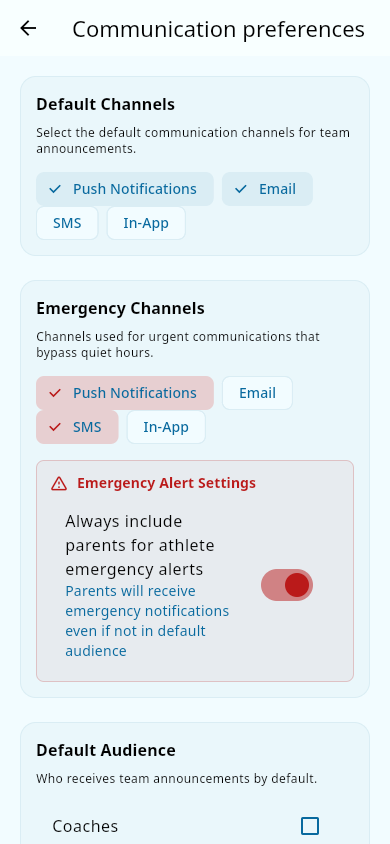
- Default Channels — tap the chips to set how a normal announcement reaches people by default: Push Notifications, Email, SMS, and In-App.
- Emergency Channels — choose the channels used for urgent communications that bypass quiet hours.
- Emergency Alert Settings — turn on Always include parents for athlete emergency alerts.
- Default Audience — tick who receives team announcements by default: Coaches, Athletes, Parents, Emergency Contacts.
- Override Behavior — Allow channel override lets senders customize the channels when they compose an announcement.
- Quiet Hours — set Start Time (HH:mm) and End Time (HH:mm), pick the Timezone these hours use, and choose whether to Allow emergencies during quiet hours.
- Tap Save Changes; you can also tap Send Test Message to record a test message under these settings — it's a check of the settings, not a preview of an announcement.
The Settings Preview card shows how your choices will appear to different user types.
What you should see
- Saving reports Settings saved successfully, and a test send reports Test announcement sent.
- An announcement sent now reaches every active member in the app and as a push notification, except the person who sent it — see Notes and limits for which of these settings change that today.
- The Settings Preview card lists each user type with the channels it receives, and No notifications where a user type gets nothing.
- This screen is for team admins and owners only; coaches and other members can't open it.
- A team that has never saved these settings sees Couldn't load your saved settings. with Retry instead of the form; the same message appears whenever the settings cannot be loaded.
Notes and limits
- Which of these settings change delivery today. An announcement is written into every active member's in-app notifications and sent as a push, except for the sender. Email and SMS are saved but not sent yet, and Default Audience, Emergency Channels, Allow channel override, and Quiet Hours are saved and shown back on this screen but are not consulted when an announcement goes out. Treat them as your team's intent until the app starts using them.
- Quiet hours do not currently hold anything back. A notification sent inside the window goes out immediately, exactly like one sent outside it.
- Settings are stored per team, not per account or organization. Every saved change is recorded — who made it and when — so the team keeps a history of changes to its communication settings.
- Quiet hours use the time zone you pick here. The picker offers Eastern Time (ET), Central Time (CT), Mountain Time (MT), Arizona (no DST), Pacific Time (PT), Alaska Time (AKT), and Hawaii Time (HT), and starts as Mountain Time (MT). A team outside Mountain Time should set its own zone, or the quiet-hours window will open and close an hour or more off for those families.
Related pages
- Team settings — the hub this section lives in, with every other section linked.
- Announcements — how announcements are composed and sent to the team.
- Notification preferences — what each member can tune for themselves.
- Team info — the team's name, season, and status.